Expense Reports - How to Approve/Reject and Create Disbursement
Dec 10, 2025●
1
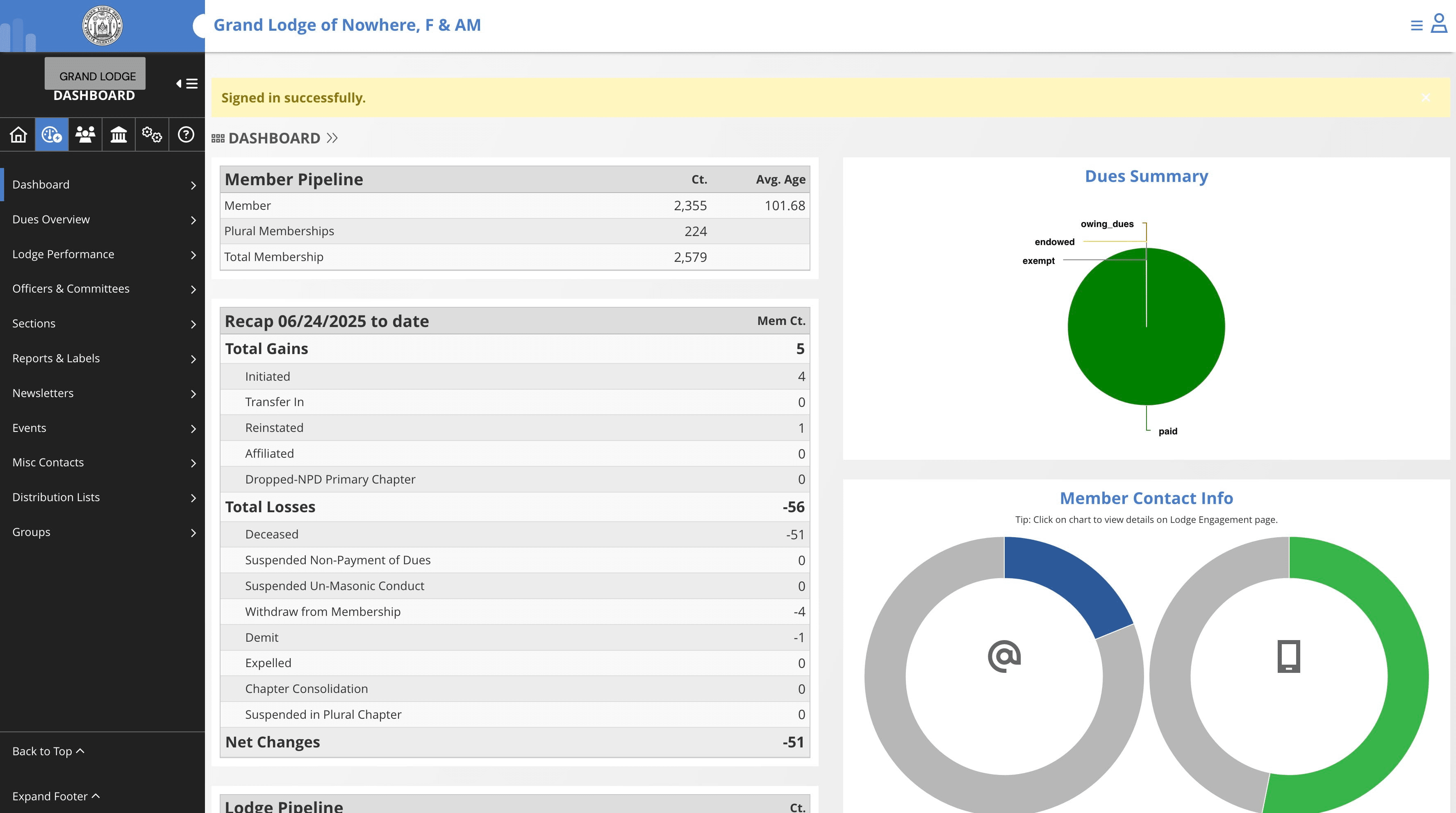
Navigate to Operations dashboard

2
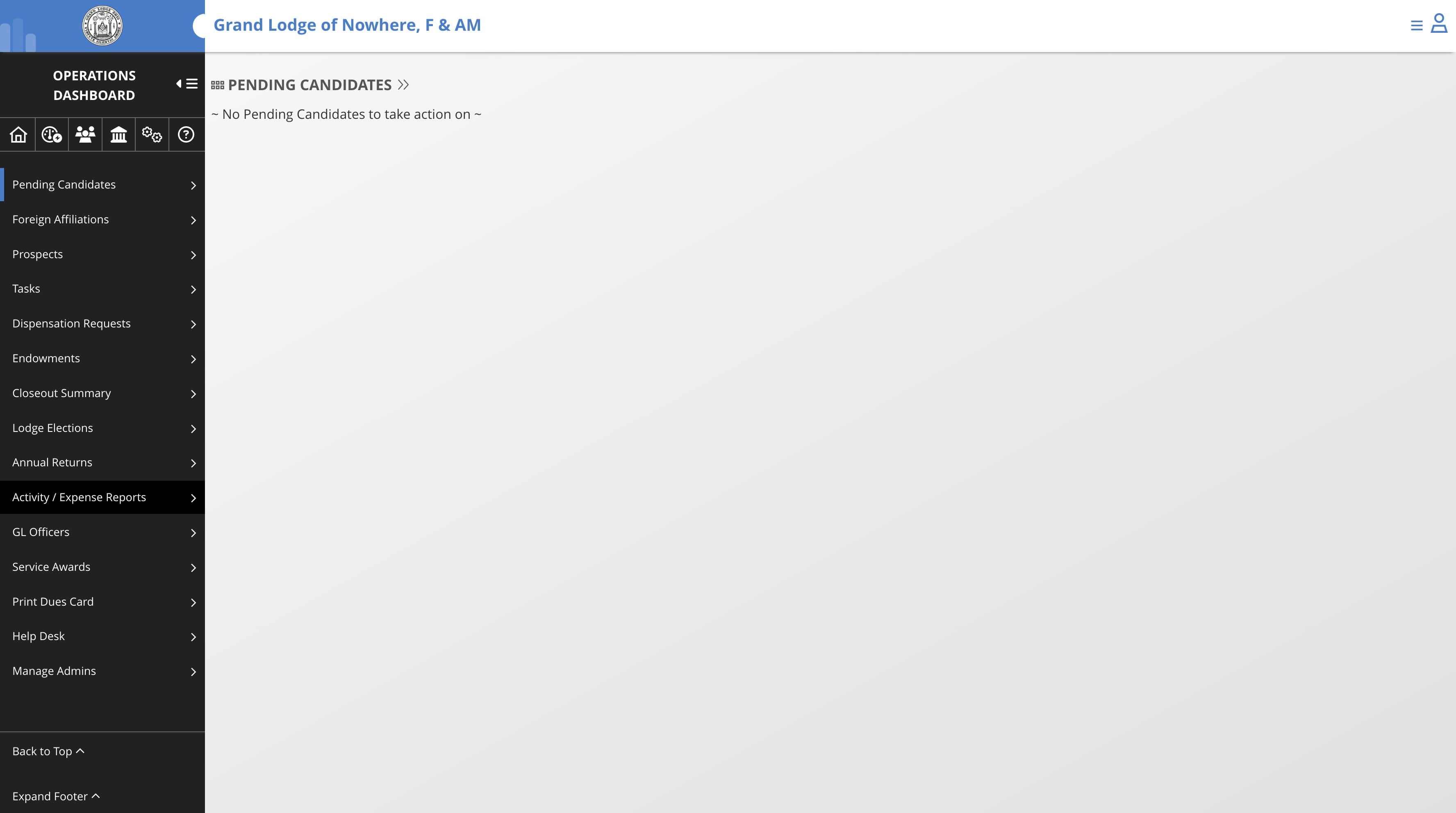
Click on "Activity / Expense Reports"
3
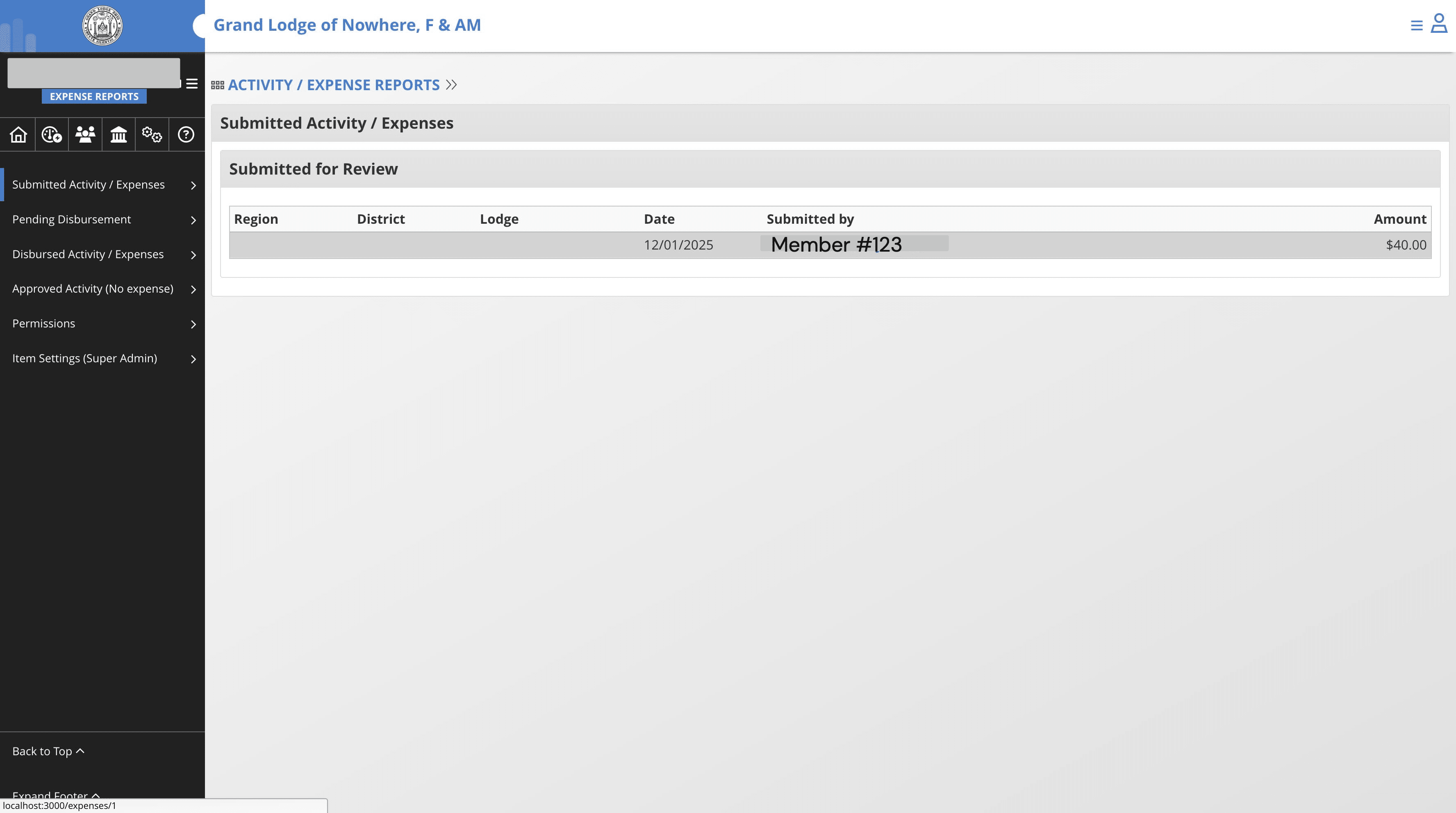
Click on the report to review
4
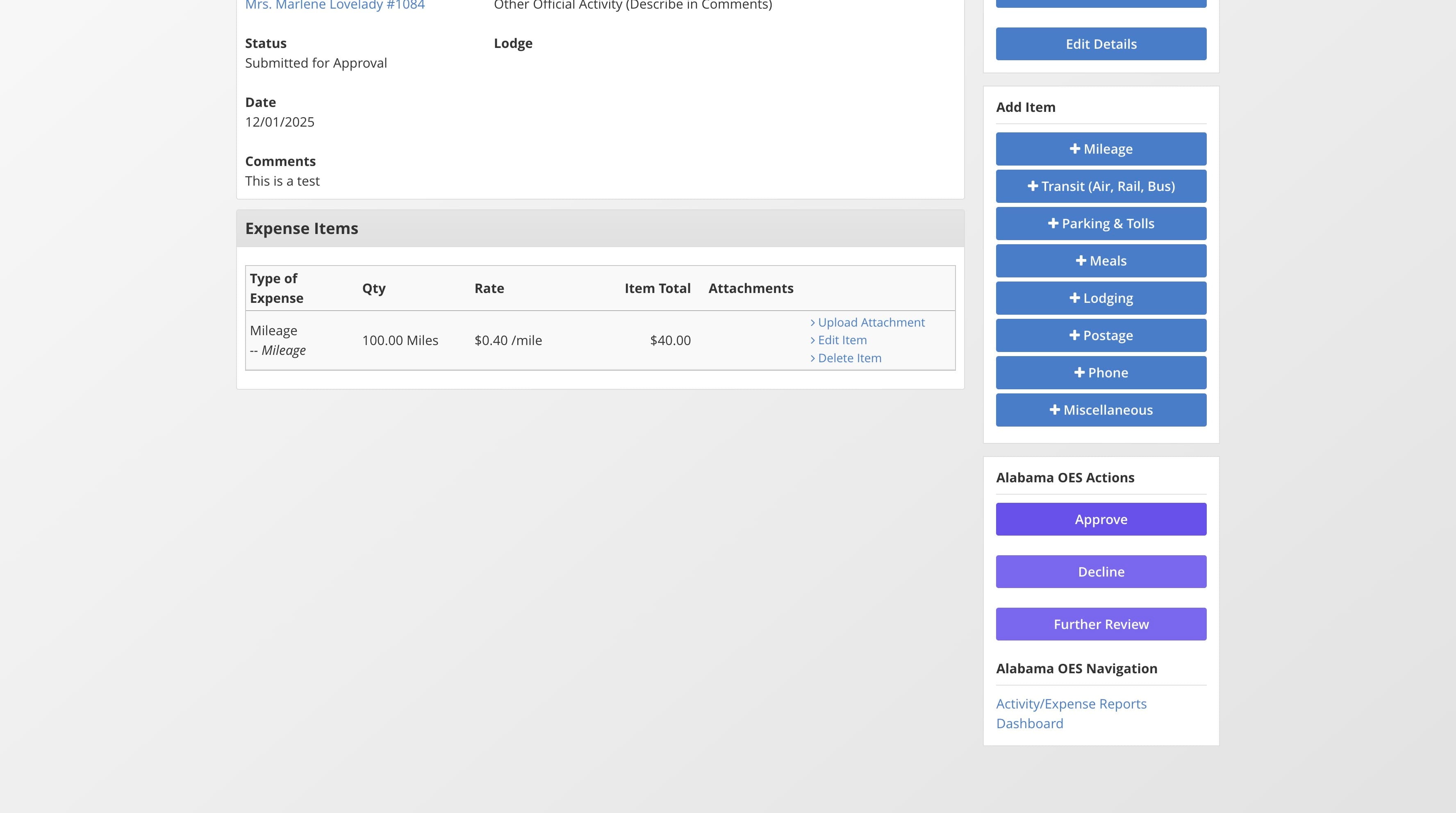
Click on "Approve" to approve,"Decline" to reject, or "Futher Review" if you need to request more information. An email will sent out to the user notifying them of the action taken.
5
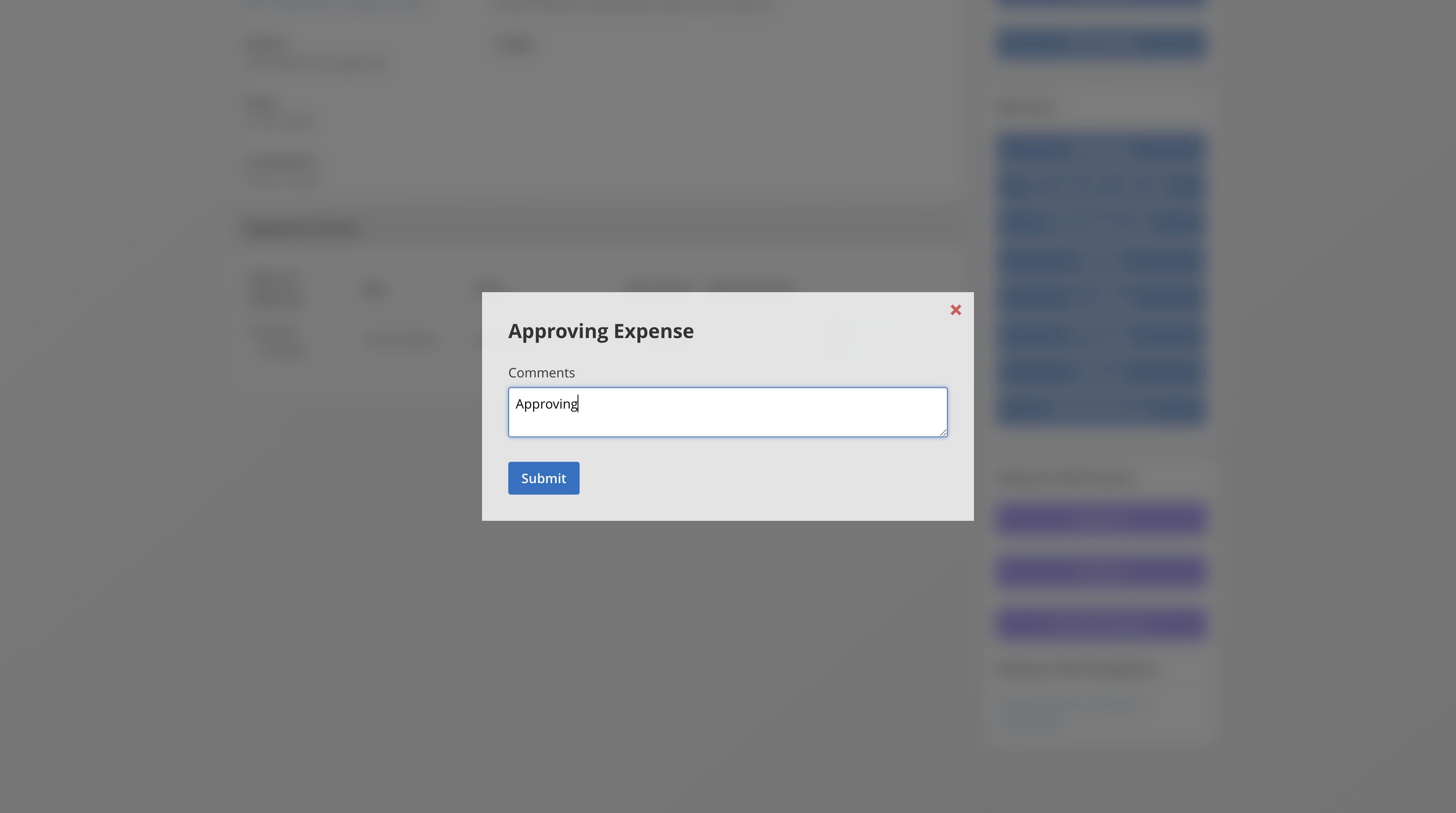
Approve the Report
6
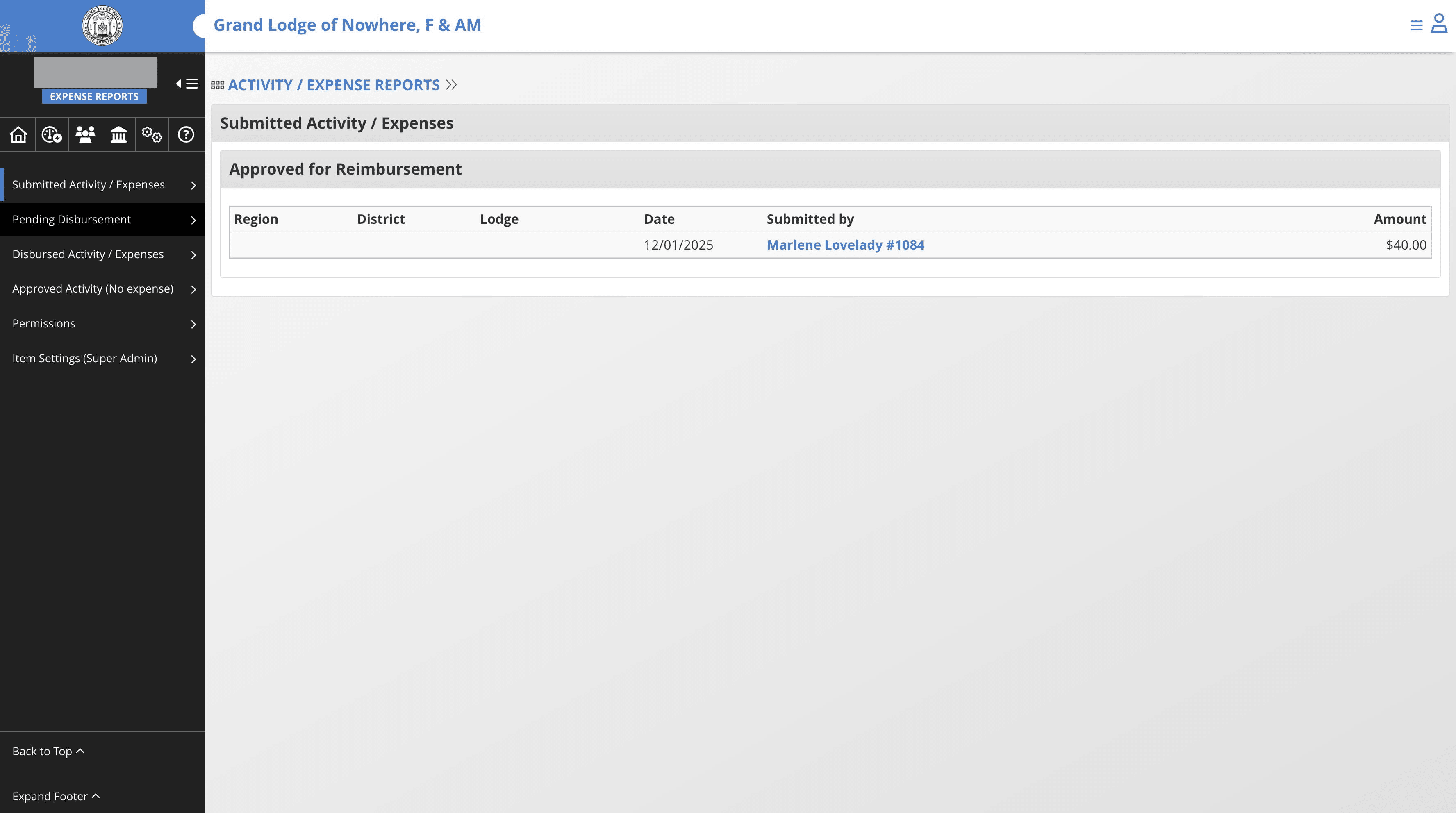
Click on "Pending Disbursement" to go to the disbursement queue
7
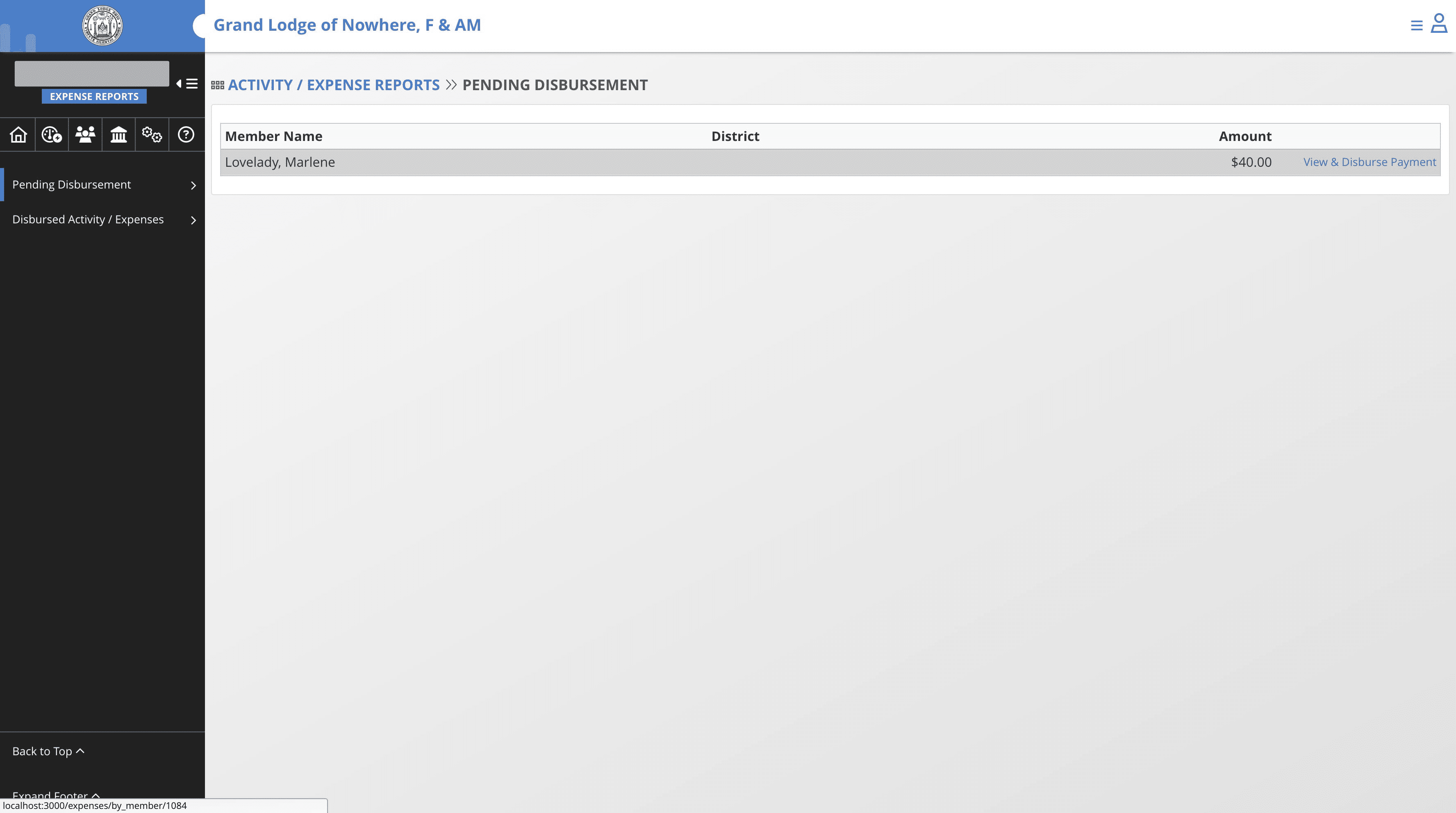
Click on "View & Disburse Payment"
8
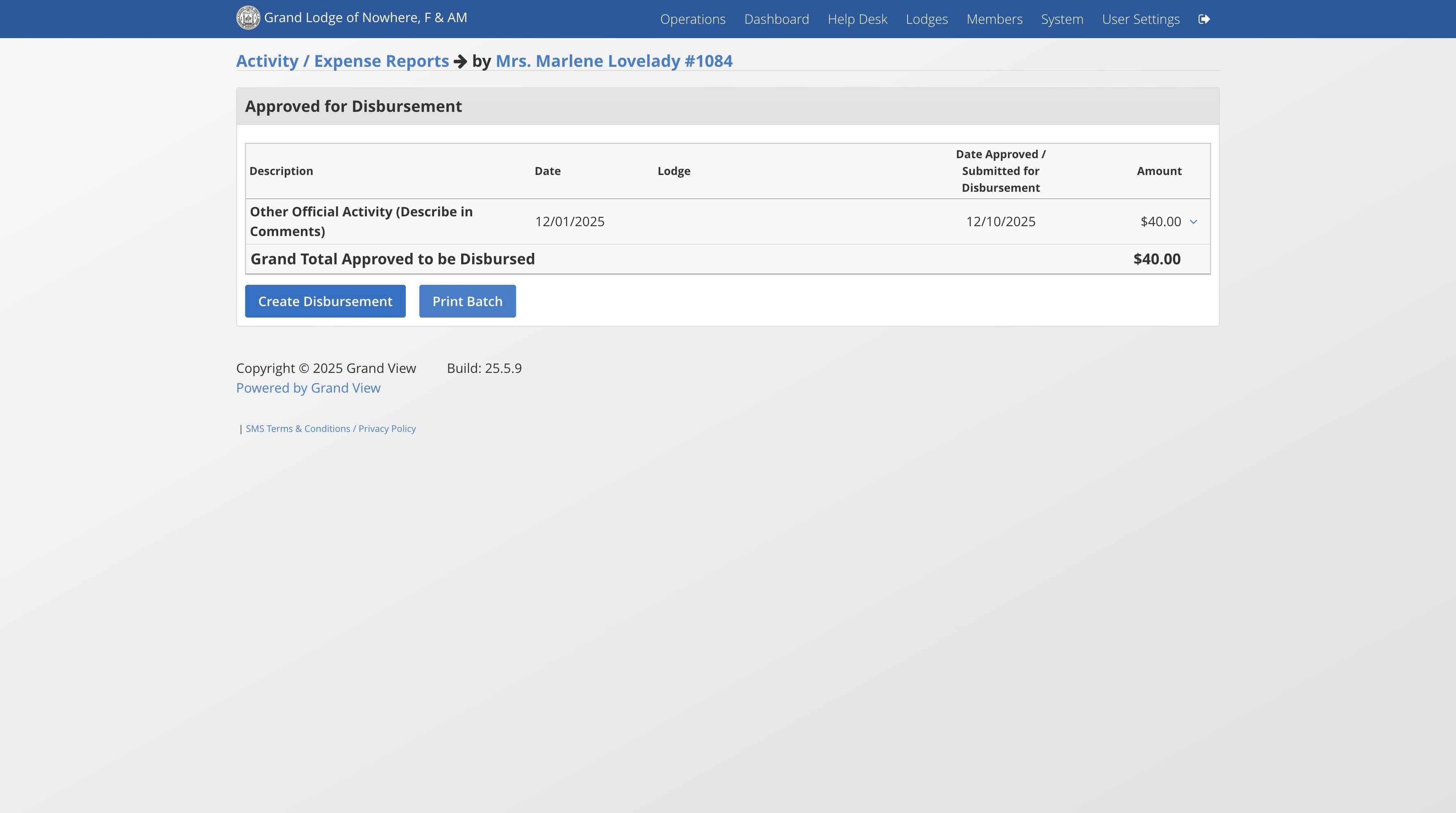
Click on "Create Disbursement"
9
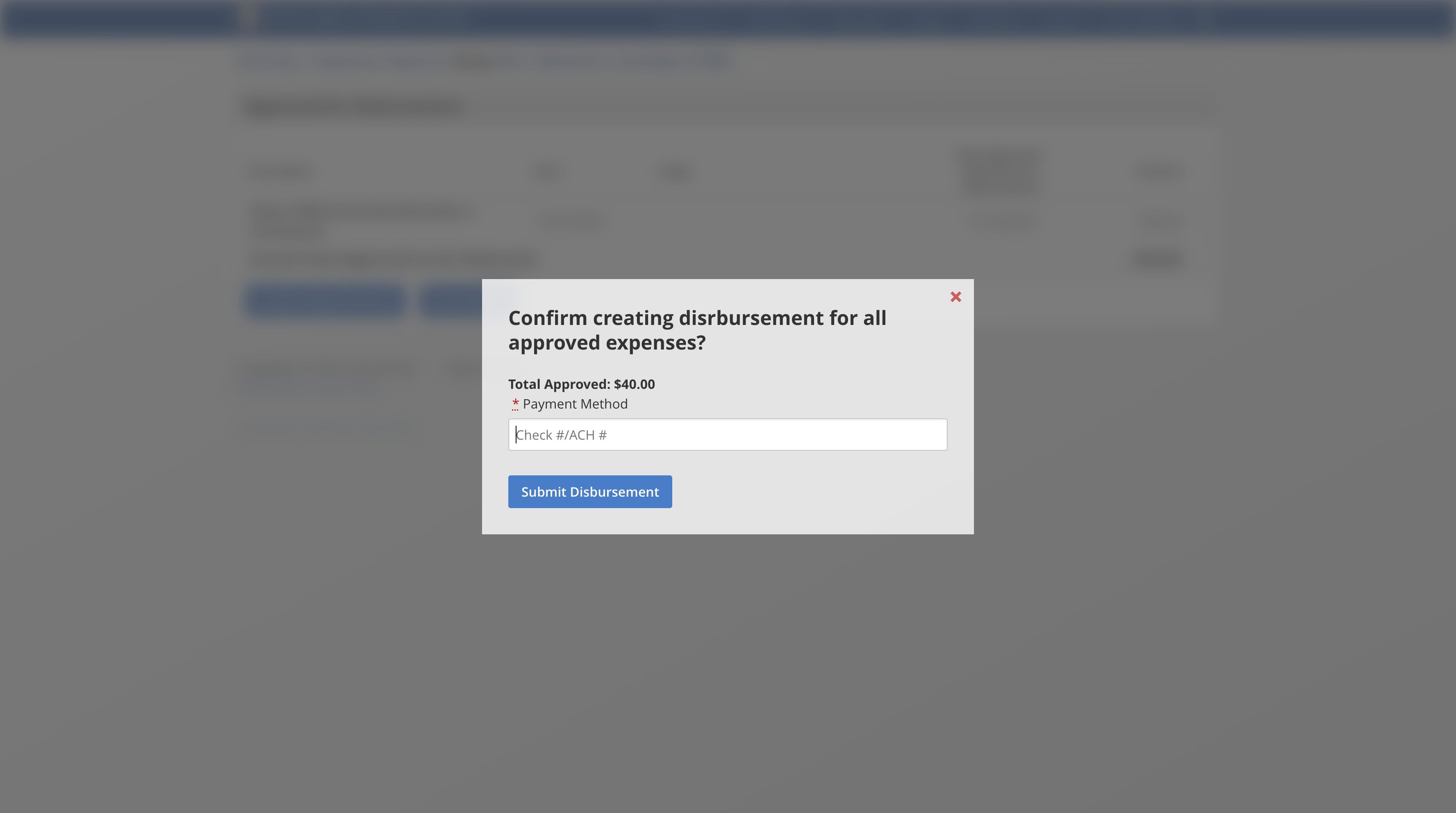
Enter the method of disbursement, then click "Submit"
10
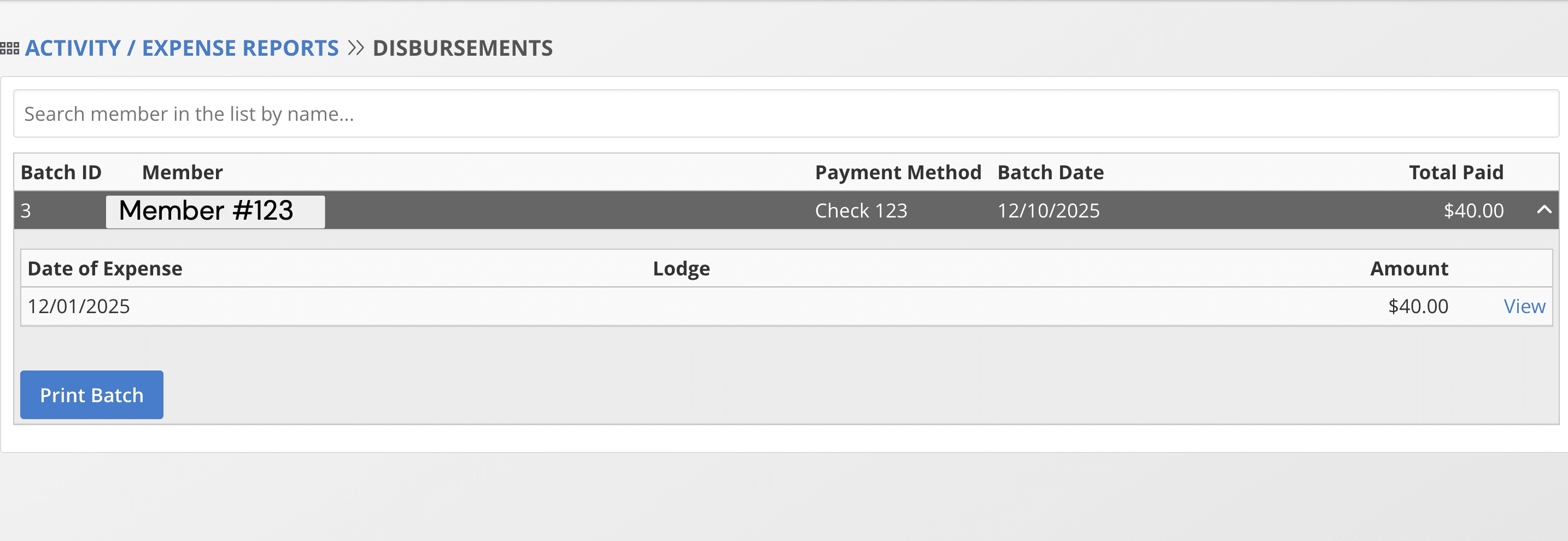
Navigate to Disbursed Activity/Expenses, click on the disbursement batch and click Print Batch to print a summary statement (PDF) of the expenses included in this batch.