

COGS - Receiving and processing a Certificate of Good Standing request
This document will guide you through the steps for receiving and processing certificate of good standing request that your jurisdiction has received.
Overview
When your jurisdiction receives a COGS request
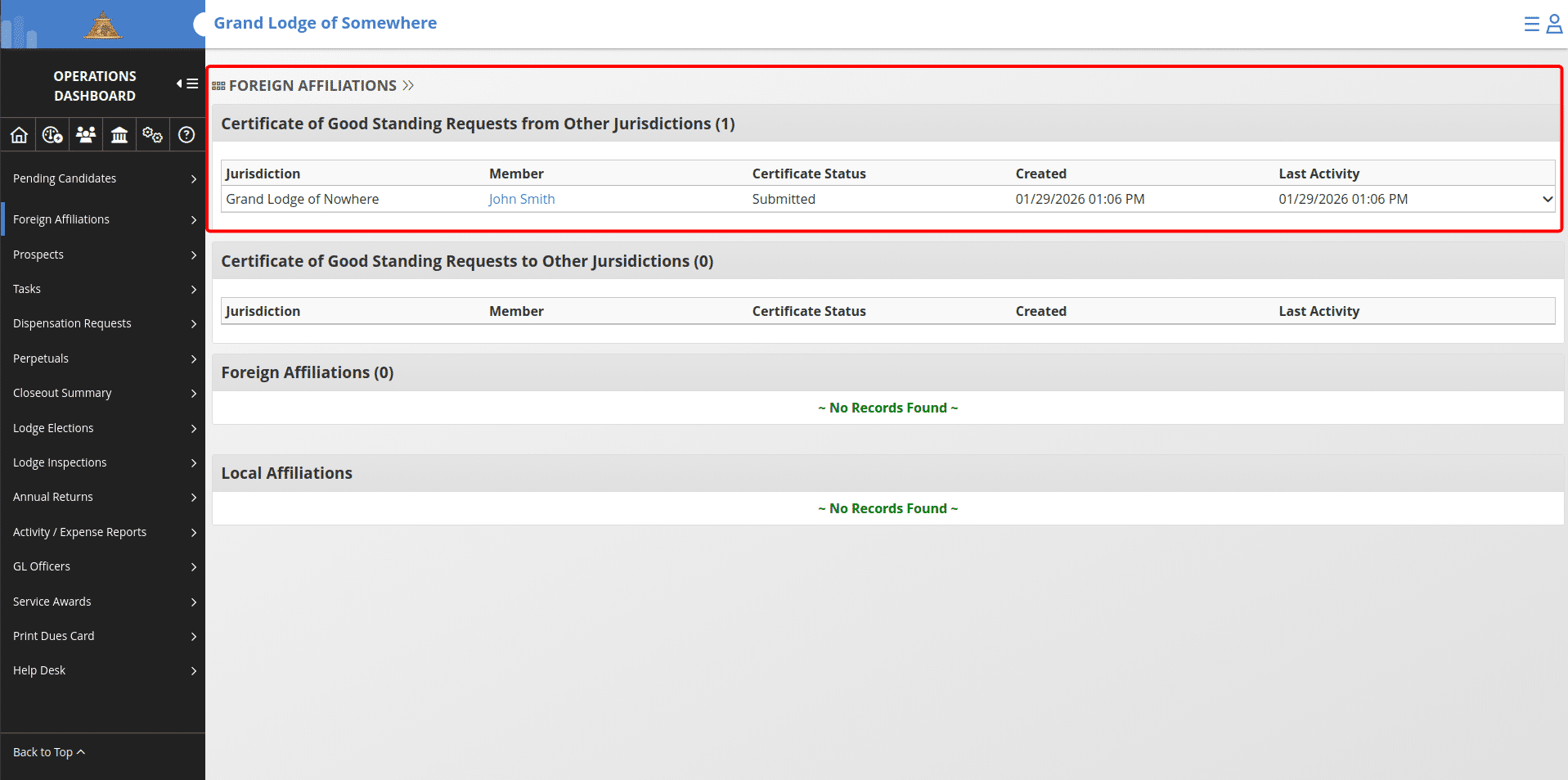
The request will display under the Foreign Affiliations section of the Operations Dashboard under the Certificate of Good Standing Requests from Other Jurisdictions list.
Acknowledge the Request
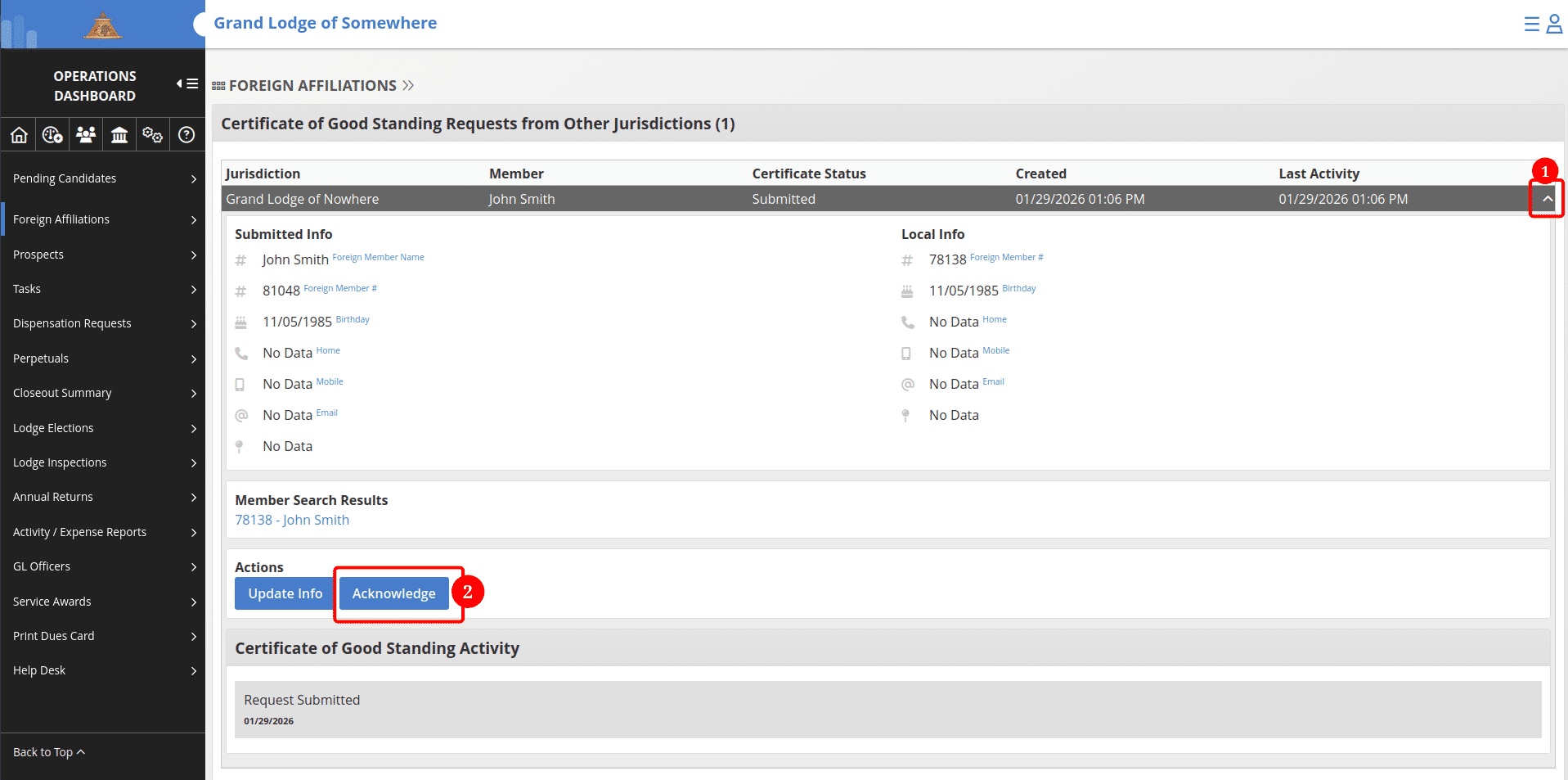
1. Click the down arrow on the request from the Operations Dashboard to expand the request record. 2. Click Acknowledge and confirm the pop-up by clicking the "Submit" button to indicate the request is being reviewed.
After the request has been acknowledged
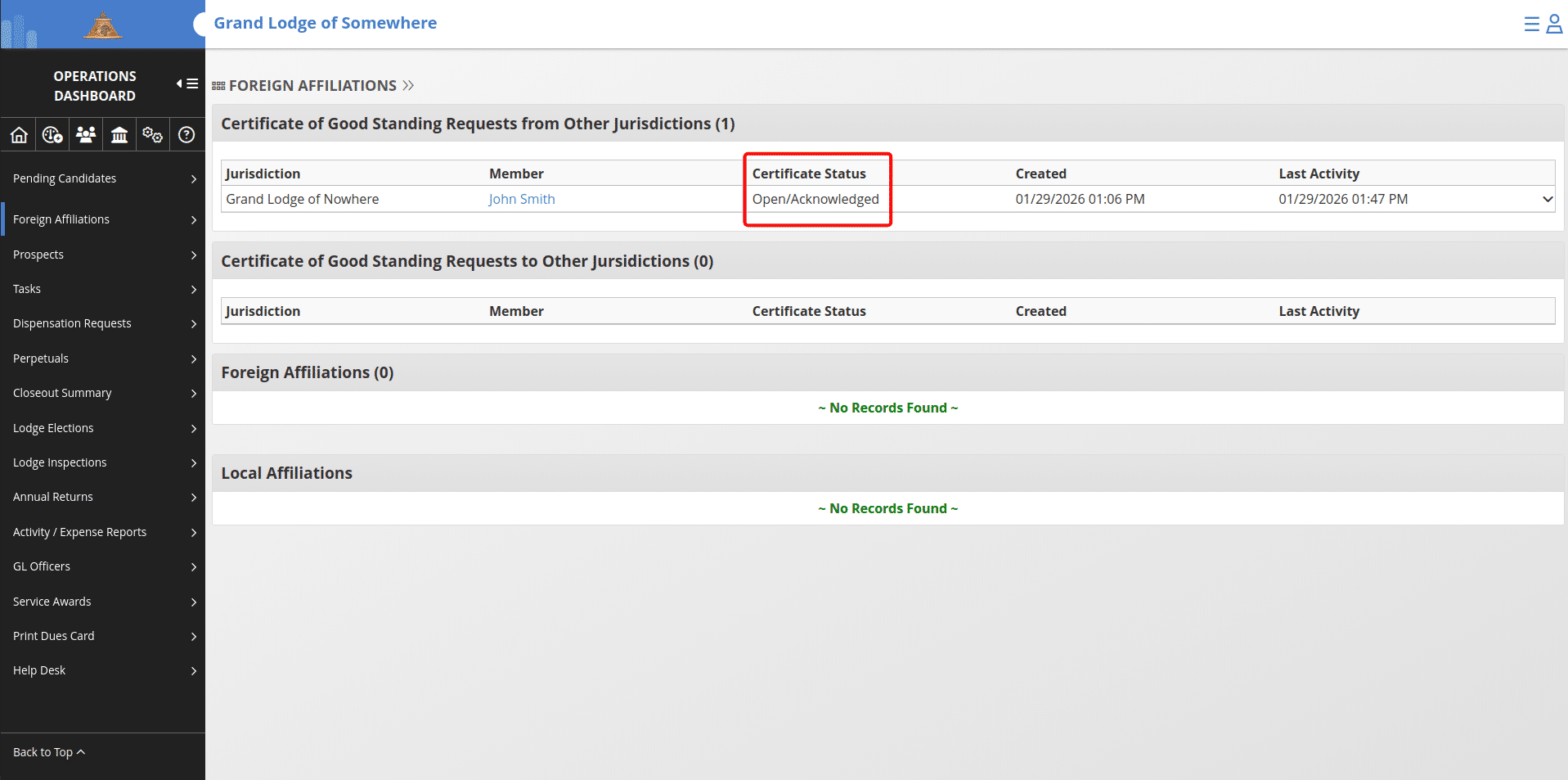
The status will change to Open/Acknowledged
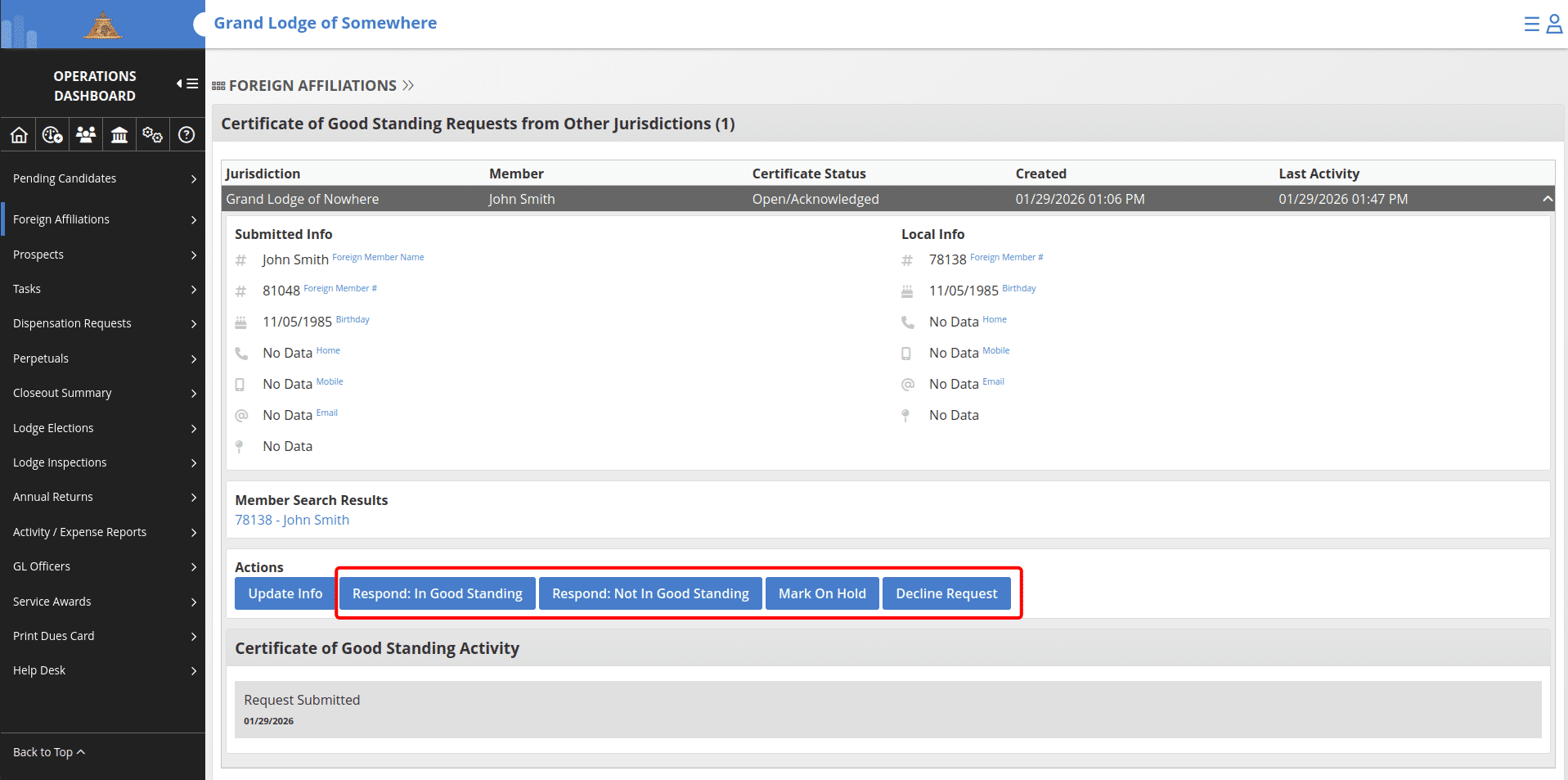
New options become available under the request once it has been acknowledged
"Respond: In Good Standing", "Respond: Not In Good Standing", "Mark On Hold", and "Decline Request" Declining the request will just mark it as declined to the requesting jurisdiction. Marking the request as on hold will update the request to the requesting jurisdiction that it is being reviewed and may need further time. The two "Respond" buttons will move the request forward with either an In Good Standing or Not In Good Standing status.
Responding In Good Standing
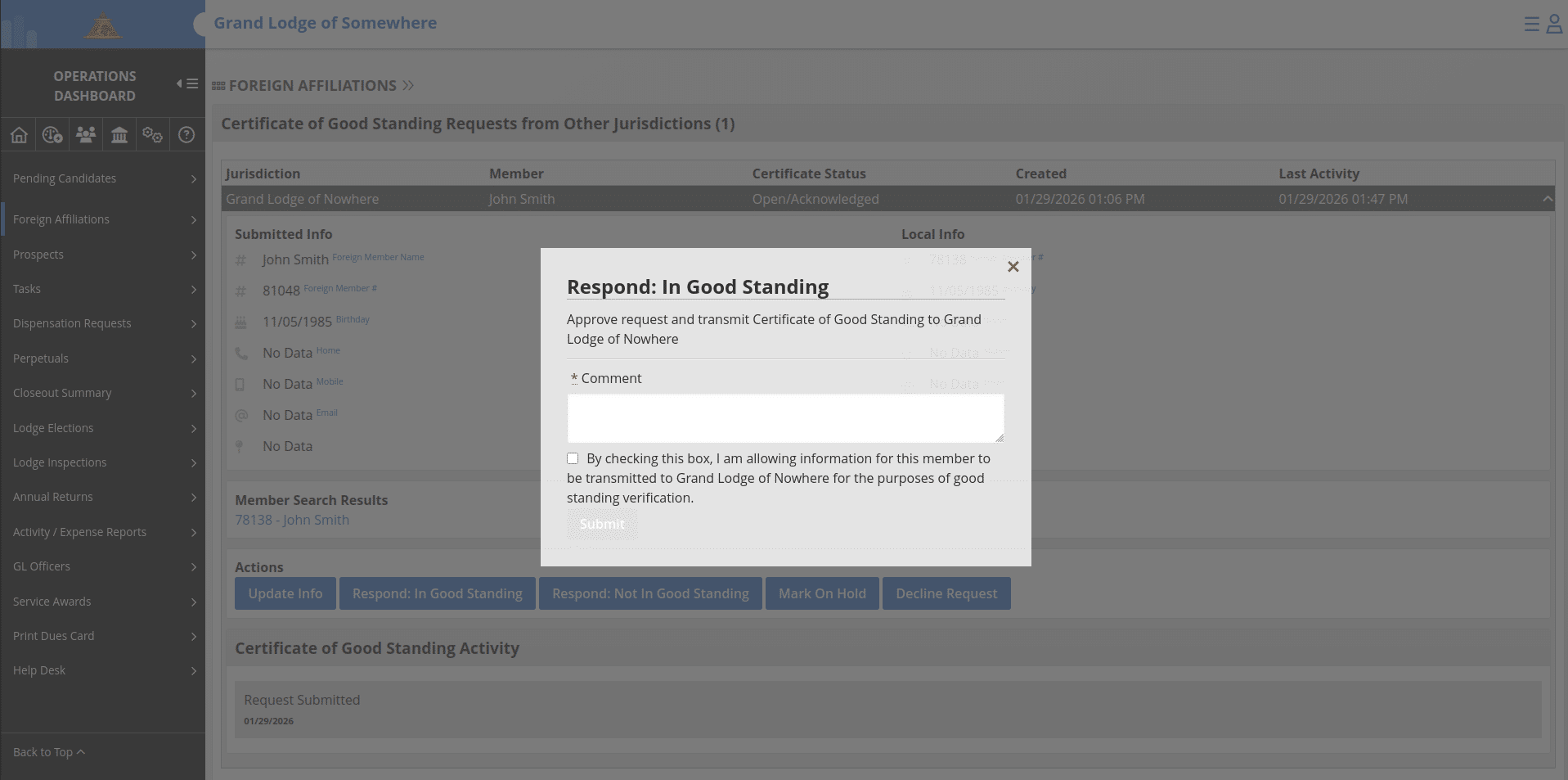
If you click the "Respond: In Good Standing" button, the response form will display as a pop-up. A comment is required as well as checking the box to confirm transmitting the letter of good standing to the other jurisdiction. After filling out your comment and checking the box, the "Submit" button becomes available to click. By clicking "Submit", your response is immedately transmitted to the other jurisdiction for their review.
Responding Not In Good Standing
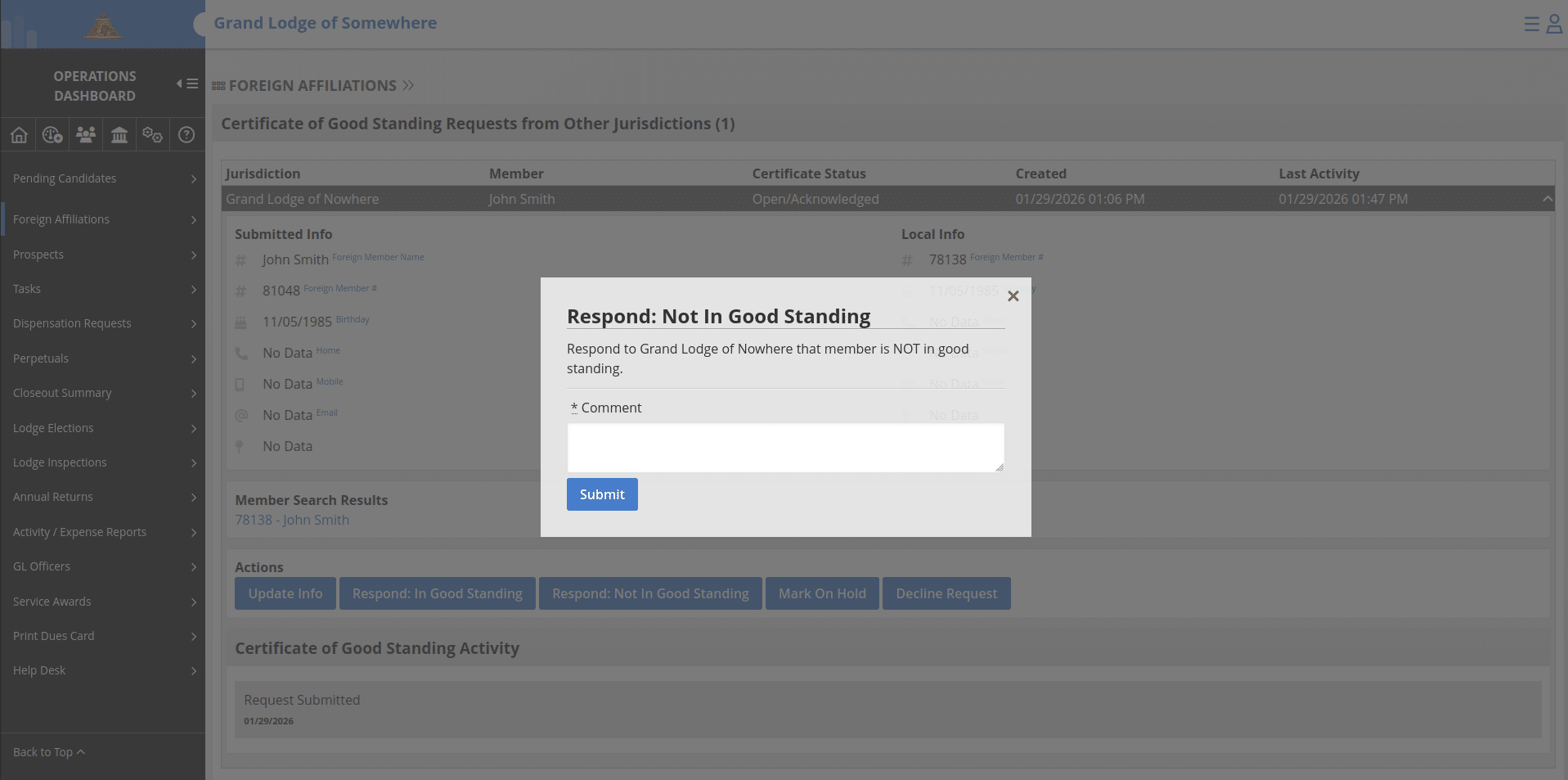
If you click the "Respond: Not In Good Standing" button, the response form will display as a pop-up. A comment is required and will be added to the request. After filling out your comment and clicking the "Submit" button, your response is immedately transmitted to the other jurisdiction for their review.
By responding In Good Standing, Not In Good Standing, or declining, the request will be complete and no further action is necessary.