
Processing ACH Disbursements
Overview of processing lodge disbursements in the Online Payments system, including creating and tracking disbursement batches, downloading ACH verification files for lodges with ACH configured, handling lodges without ACH (via checks or queueing), and troubleshooting failed transfers with batch re-disbursement.
Step 1: Start the Disbursement Process
Go to Operations → Online Payments.
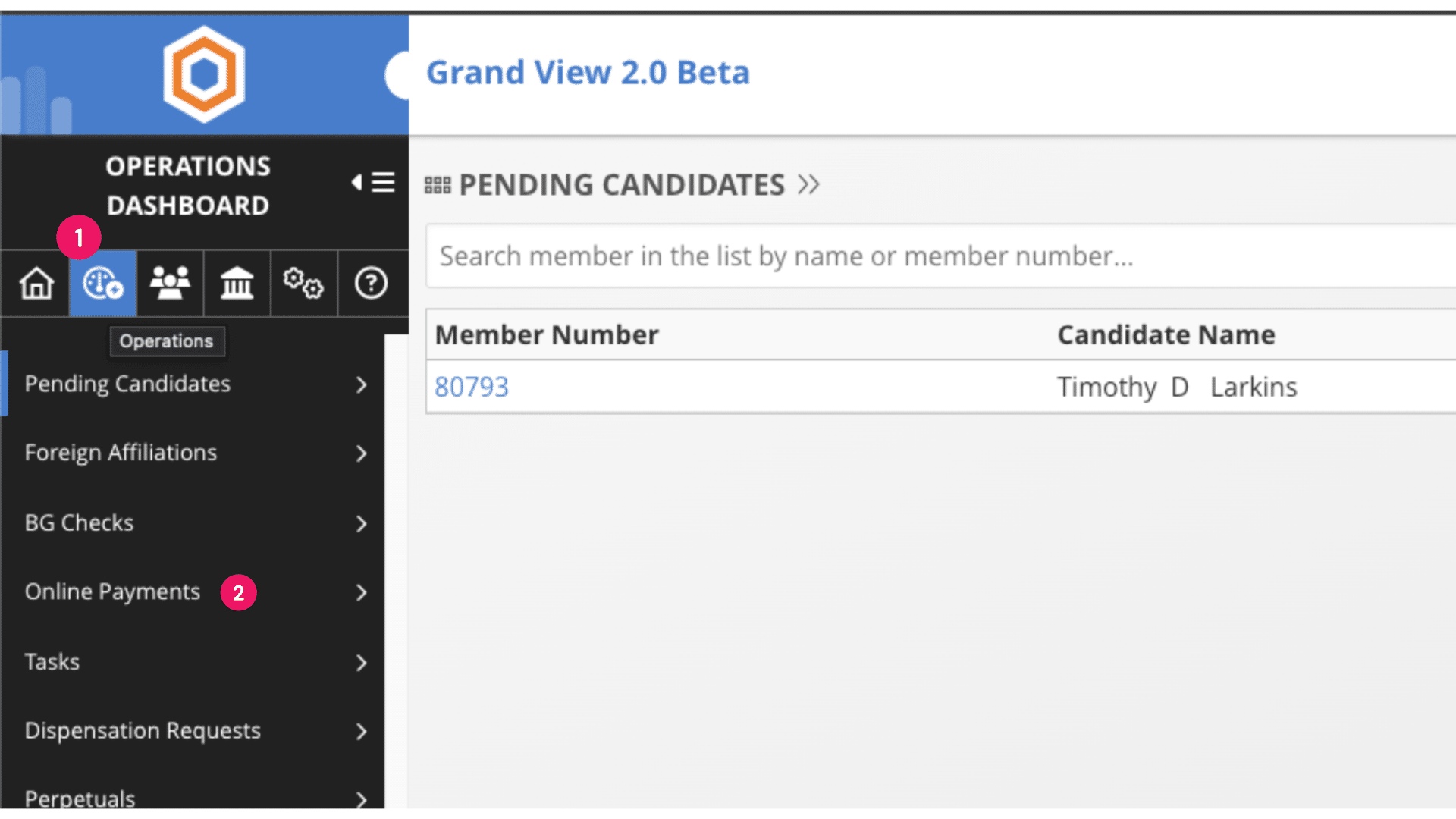
Click on Pending Disbursement.
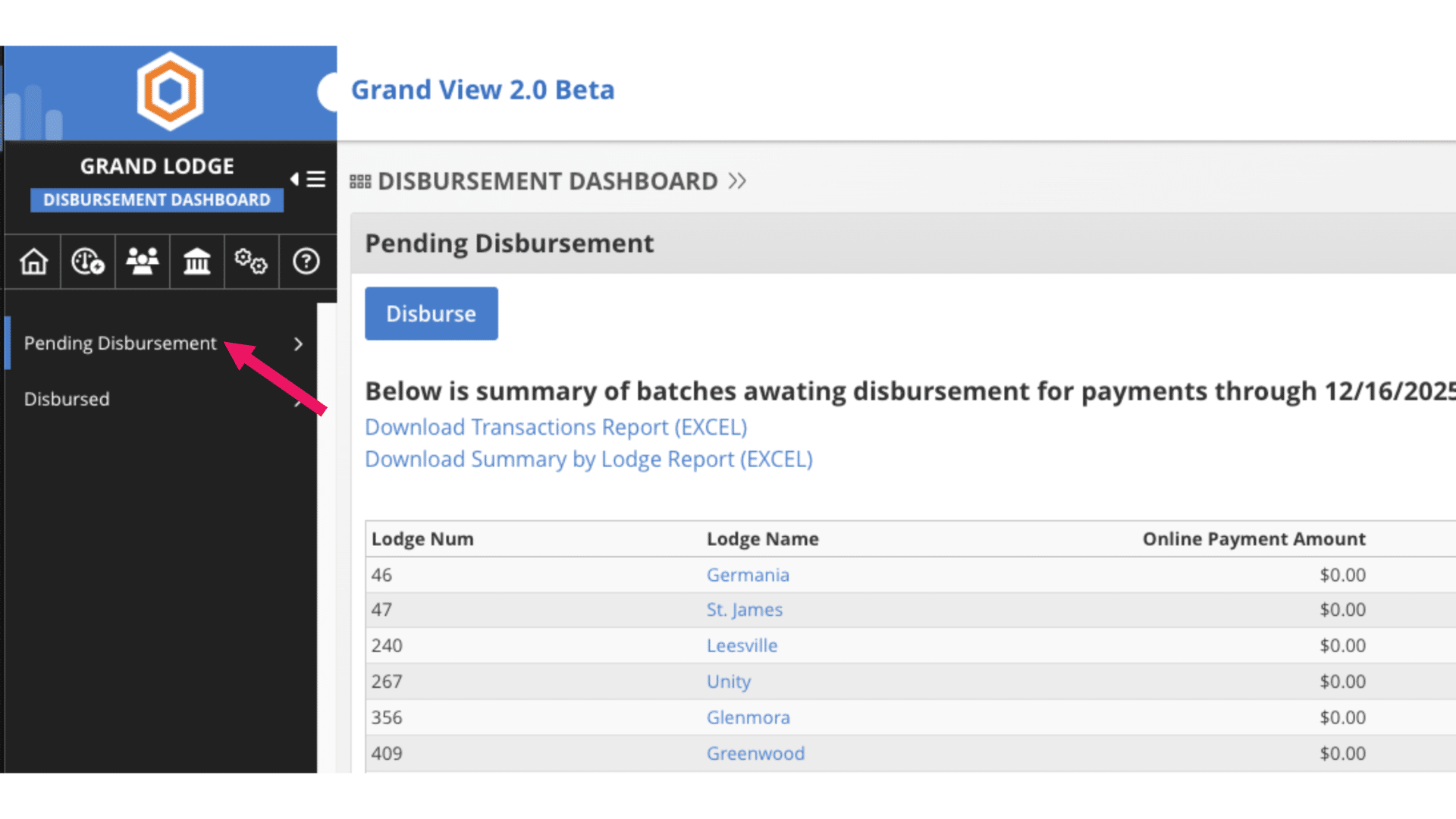
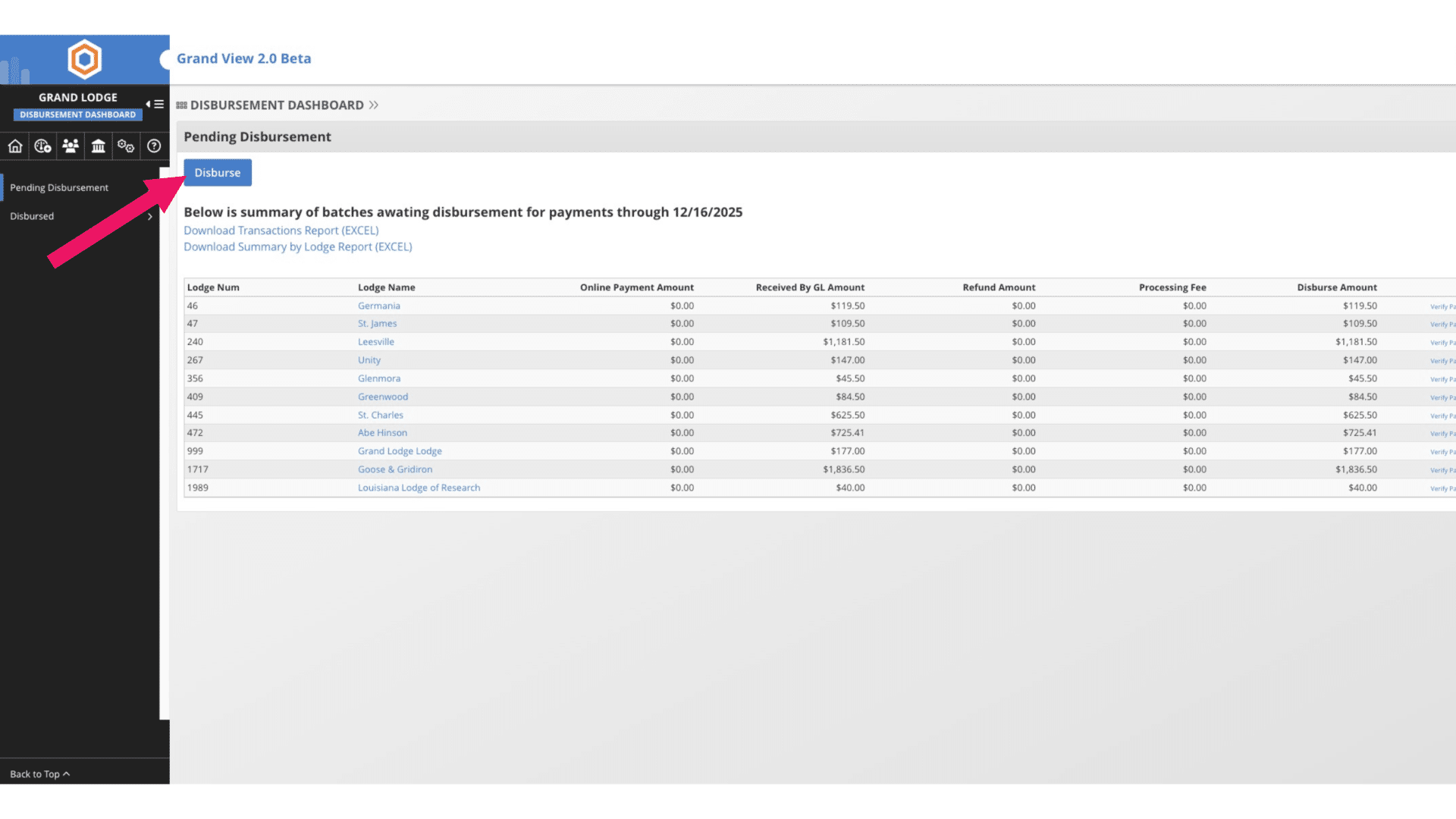
Click the "Disburse" button — this selects all lodges and creates disbursement batches for each one.
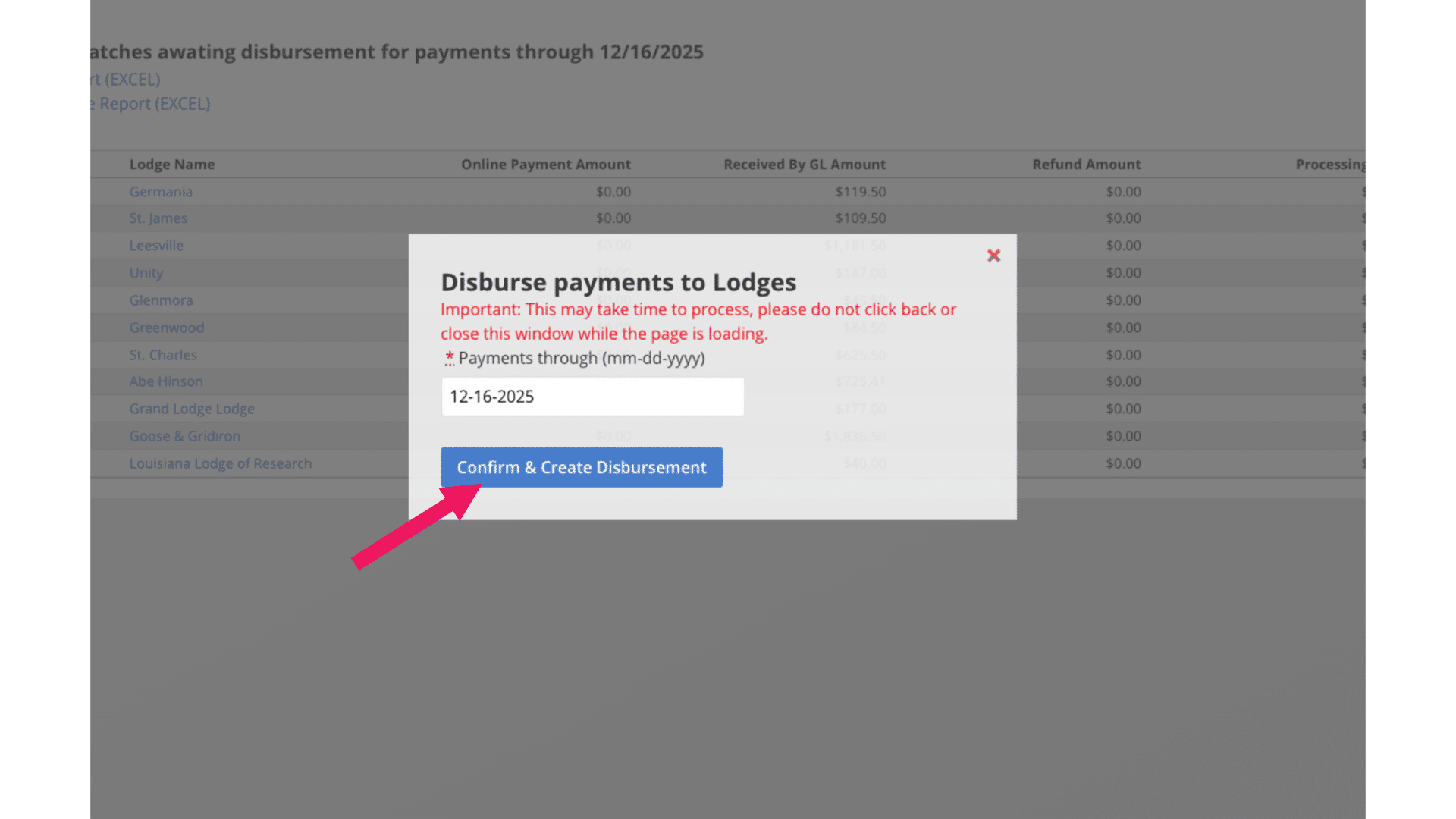
Confirm and create disbursements
Once done, you’ll be redirected to the Disbursed Batches page. (You can also find it by going to Operations → Online Payments → Disbursed tab on the left side).
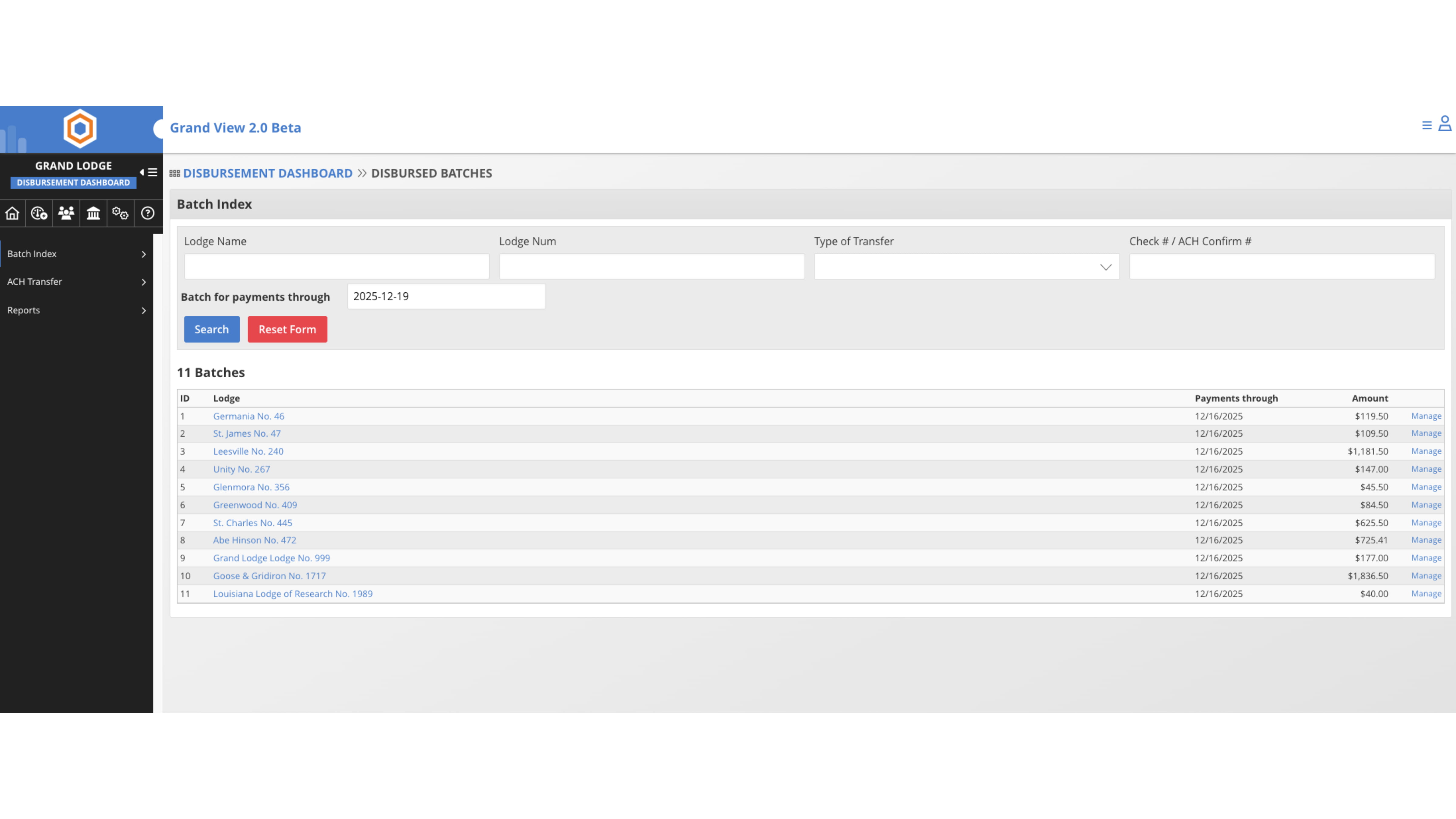
Step 2: Handle Disbursed Batches
For Jurisdictions with ACH Enabled:
Under ACH Tranfer you'll see "Unpaid Disbursements (for Lodges with ACH Configured)", select the lodges and click "Proceed to download file".
Choose how you want to receive the verification code (text or email).
Enter the code and select the file type to download.
The file will automatically save to your computer.
Important: For lodges without ACH set up, you’ll need to send checks or leave them in the queue until ACH is configured.
❌ For Jurisdictions without ACH Enabled:
Go to the "Reports" tab and download an Excel report to track who needs checks.
Send checks to the lodges manually.
Step 3: Handling Errors (if needed)
If there’s an error with a transfer: After uploading the ACH file to the bank, you should get a confirmation.
If a transfer fails for a specific lodge:
- Go to Operations → Online Payments → Disbursed.
- Find the batch with the error and click on it.
- On the batch details page, click "Edit" under Disbursement
- Verify the details (it should show the batch used ACH).
- Change the Transfer Status to "Failed" — this resets the batch and puts it back into the ACH queue for re-disbursement.