
Add Lodge Admin Permissions
Click here to edit the description
In order to add admin permissions to a user, that member must first register for the member portal. You can find out if they have registered by going to the "Super Admin" link on their member record.
Go to the Lodge where he is a member and requires lodge admin access
If the member currently has lodge admin view permissions and needs to have lodge admin permission you will need to update the lodge admins permissions first. You must remove the lodge admin view permission first by clicking on the red button to remove the permission shown, Then you can follow the next steps.
Click on the Lodge Settings icon
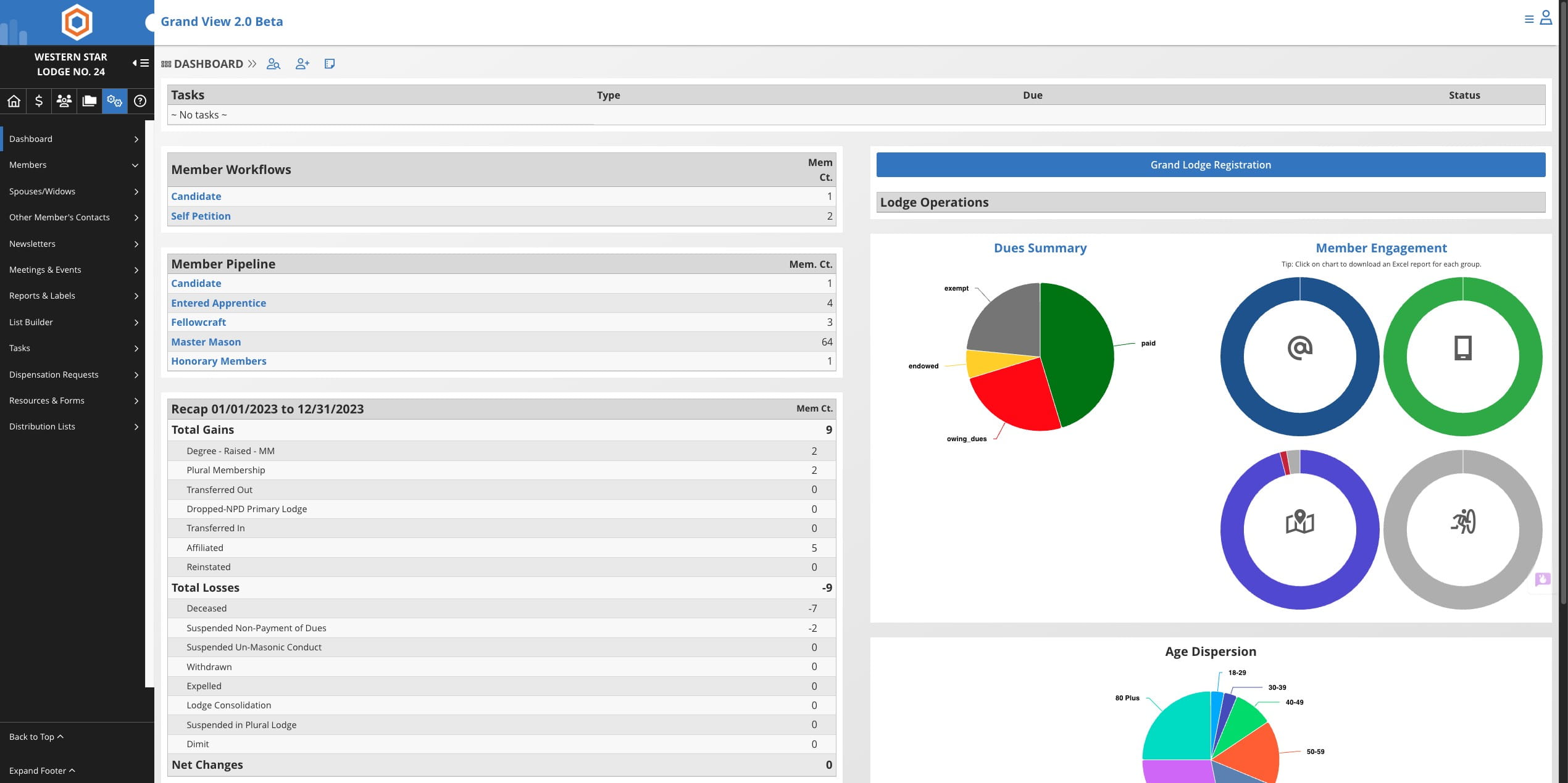

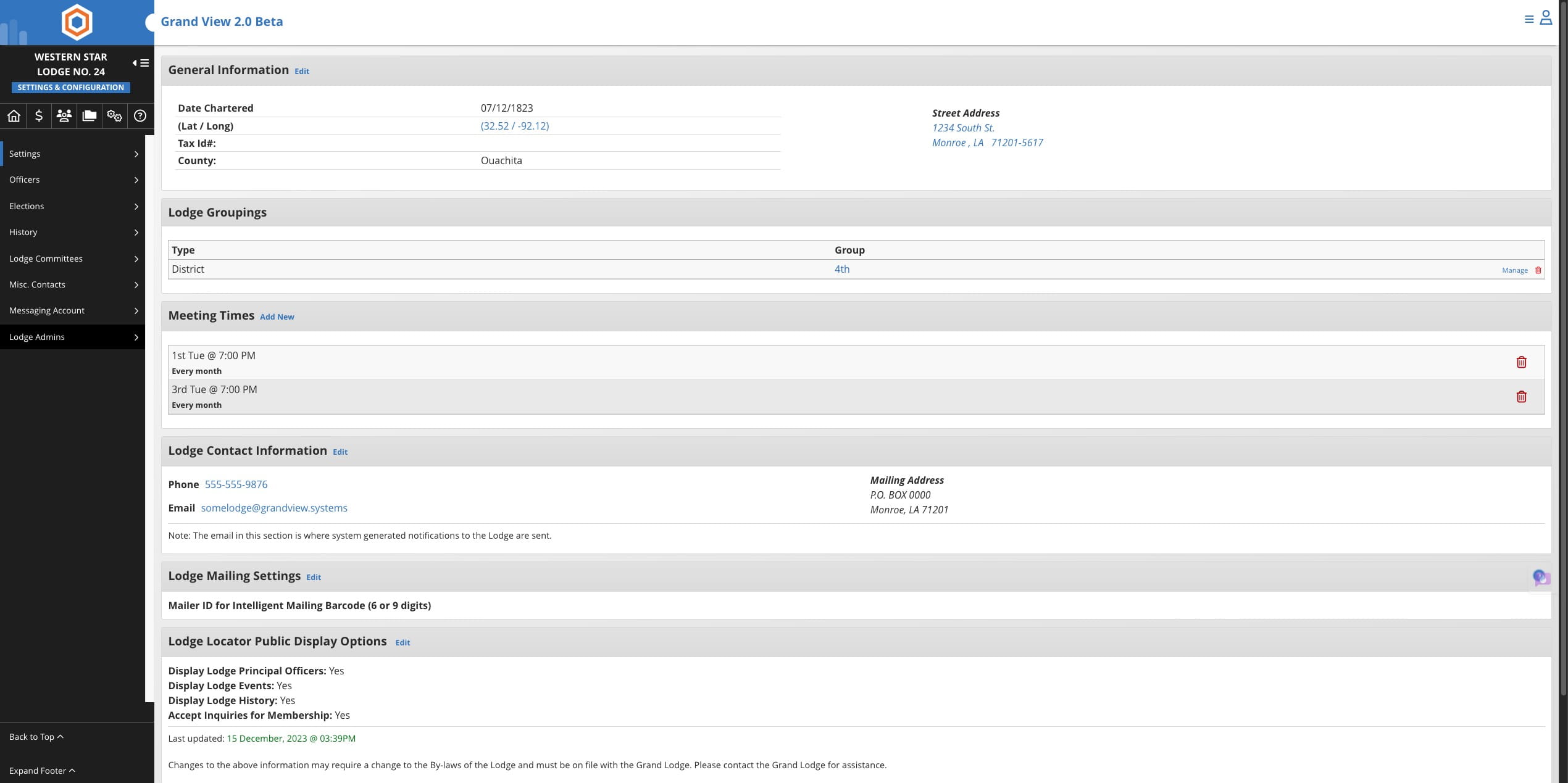
Click on "Lodge Admins"
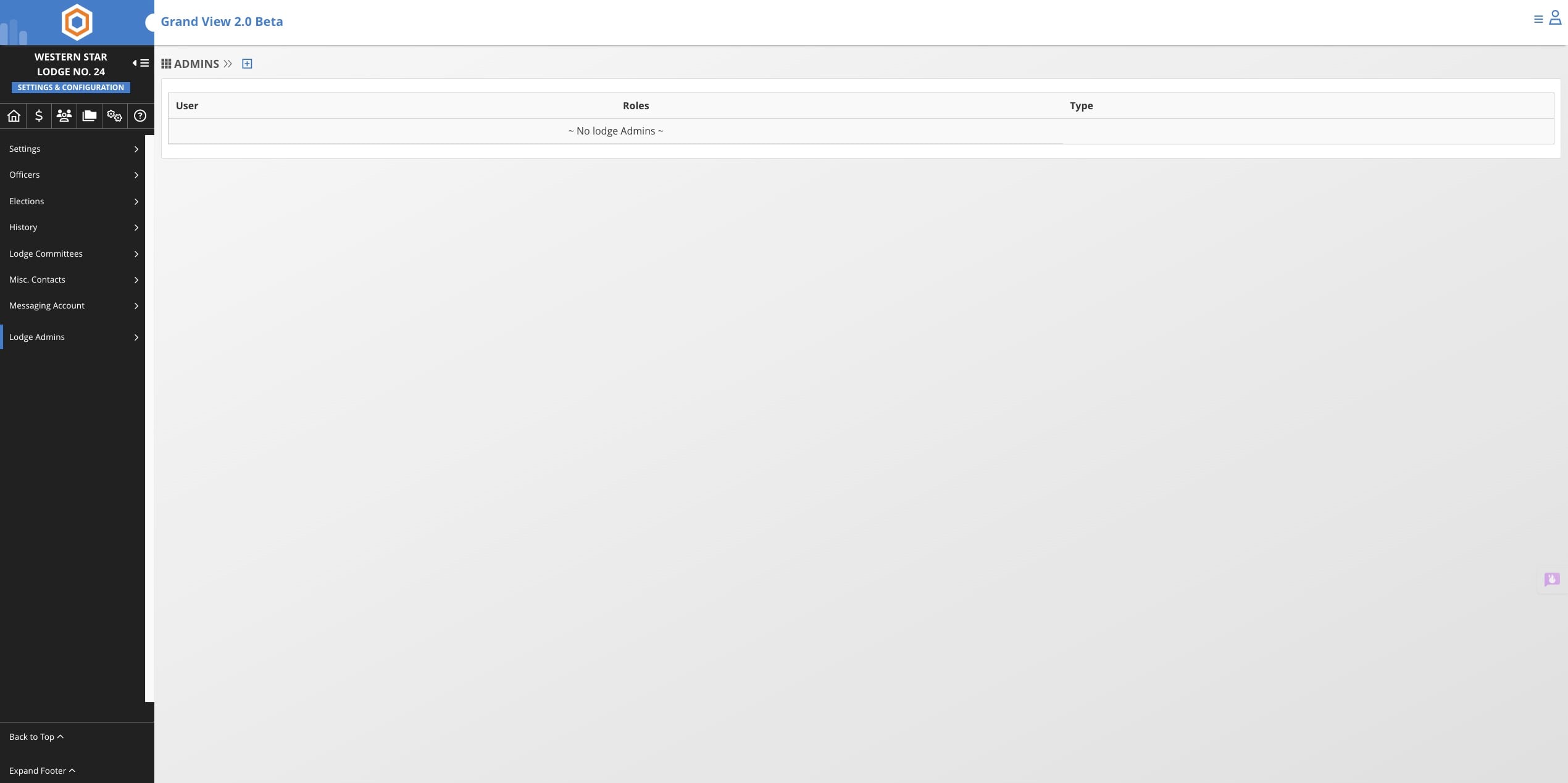
Click on the + icon
Select the member name from the list
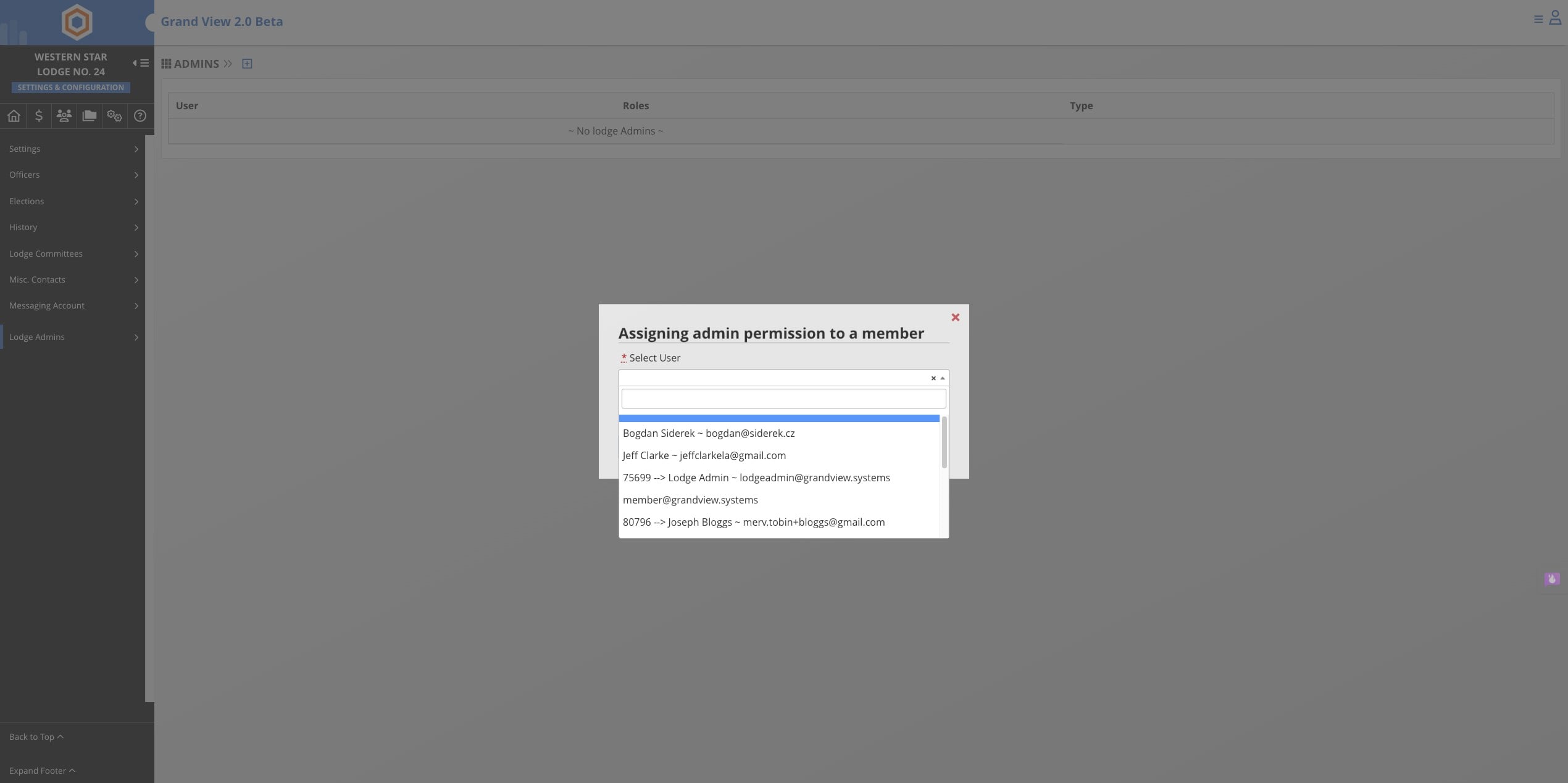
Click Add Admin
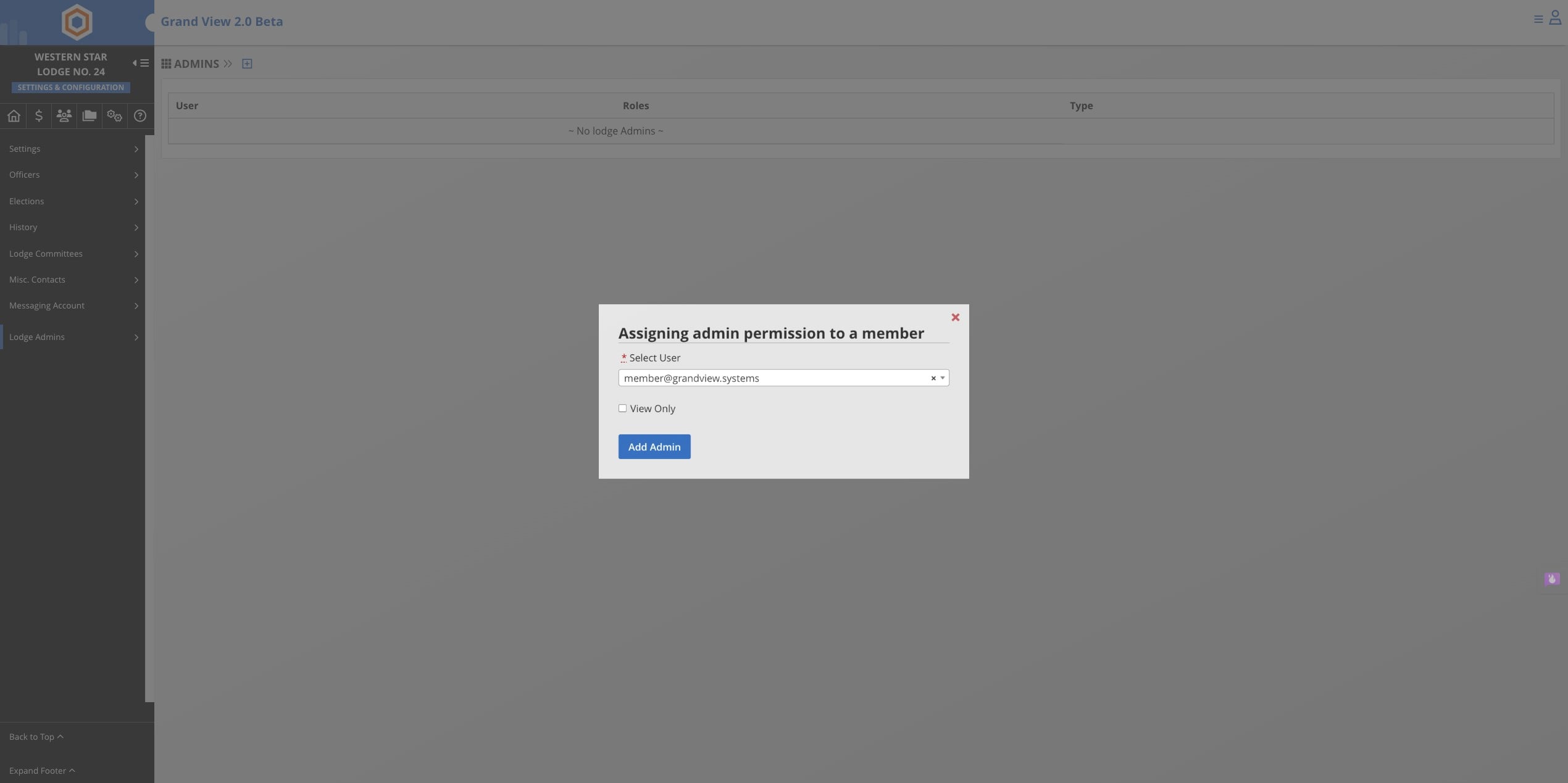
If the member is not a secretary but the lodge would like the member to be able to view the records of the lodge select the "View Only" box before clicking on "Add Admin". This will allow the member to view but not change anything in the Lodge Dashboard.
- Note: If you want to remove an admin just go to the "Lodge Admins" link on a lodge and click the "Remove" Button next to the admin you want to remove. This will only remove the permissions for that lodge. If they are admins of multiple lodges they will still be an admin until they are removed from those lodges as well.
- Note: Members in good standing will always be able to access their member portal.
- Note: If a member is admin of multiple lodges, just add them to each lodge.