Creating & Publishing a Newsletter
This guide walks you through creating, editing, and publishing a newsletter with options to send immediately, schedule for later, or publish without sending emails.
Jul 22, 2026●
1
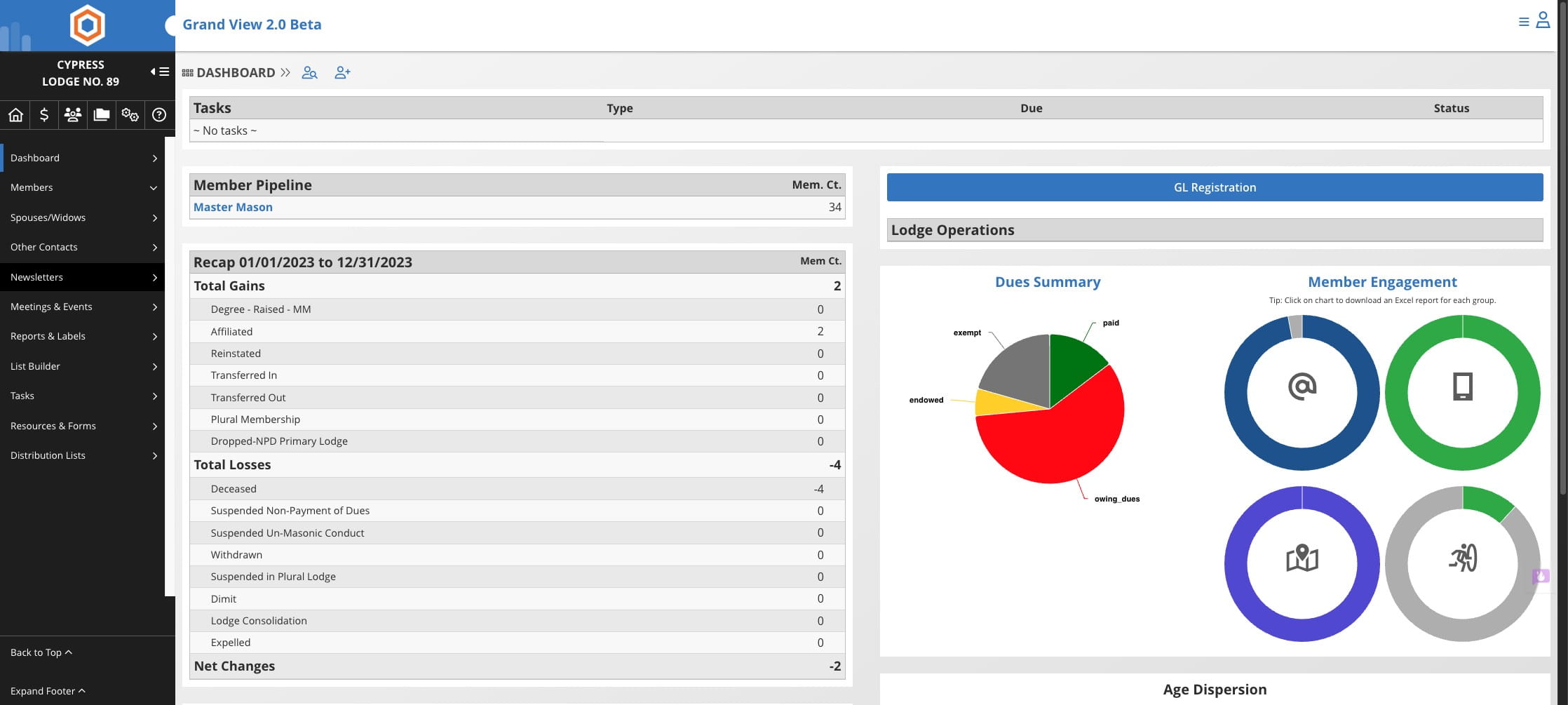
Click on "Newsletters"

2
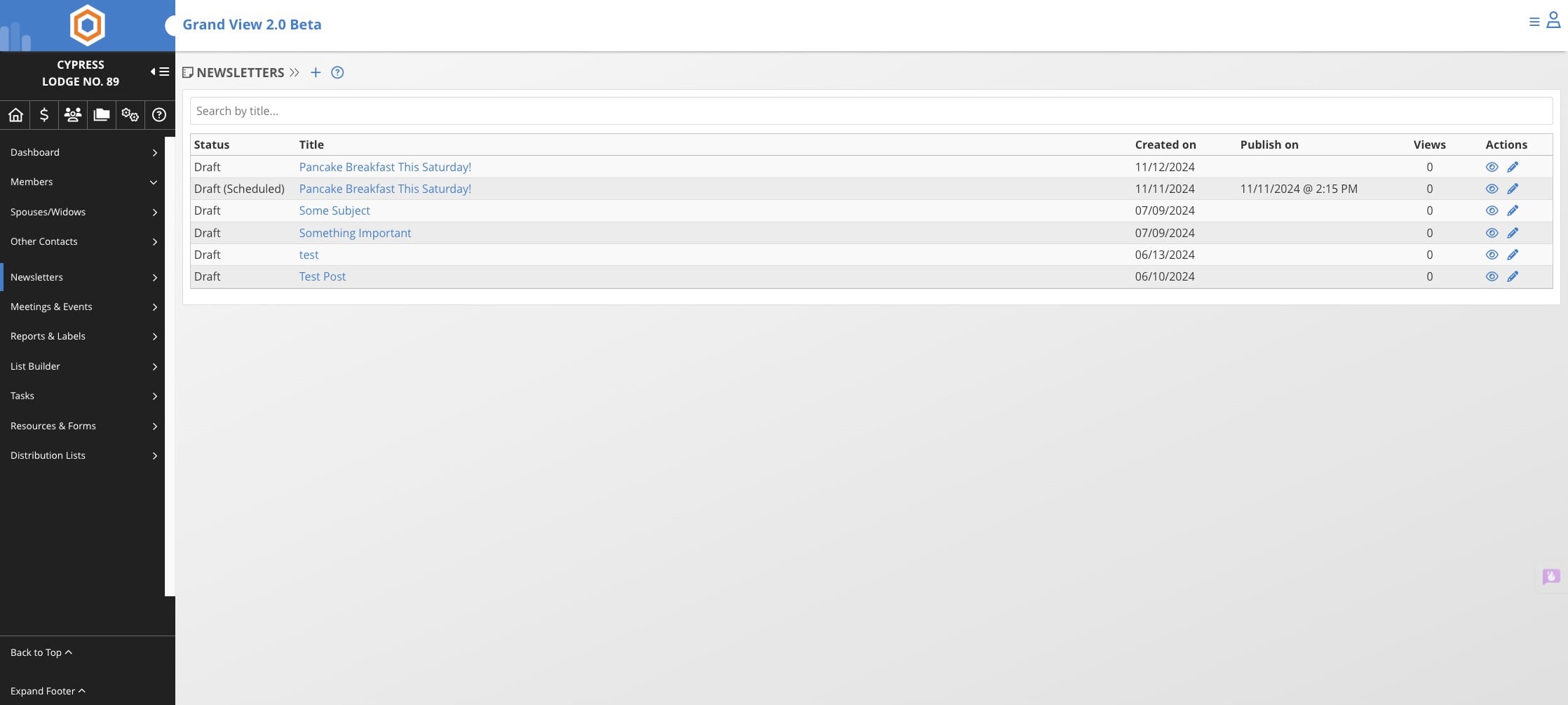
Click on the + icon
3
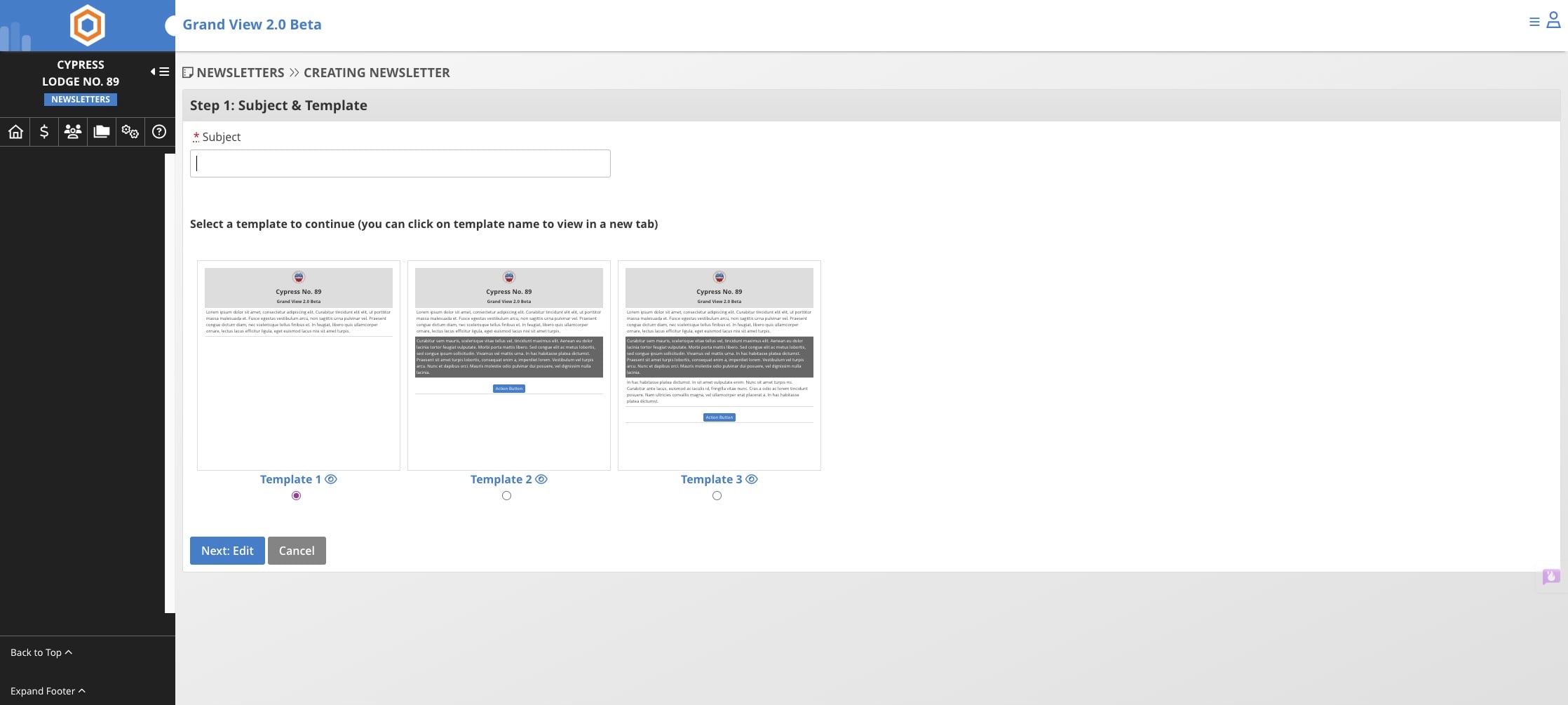
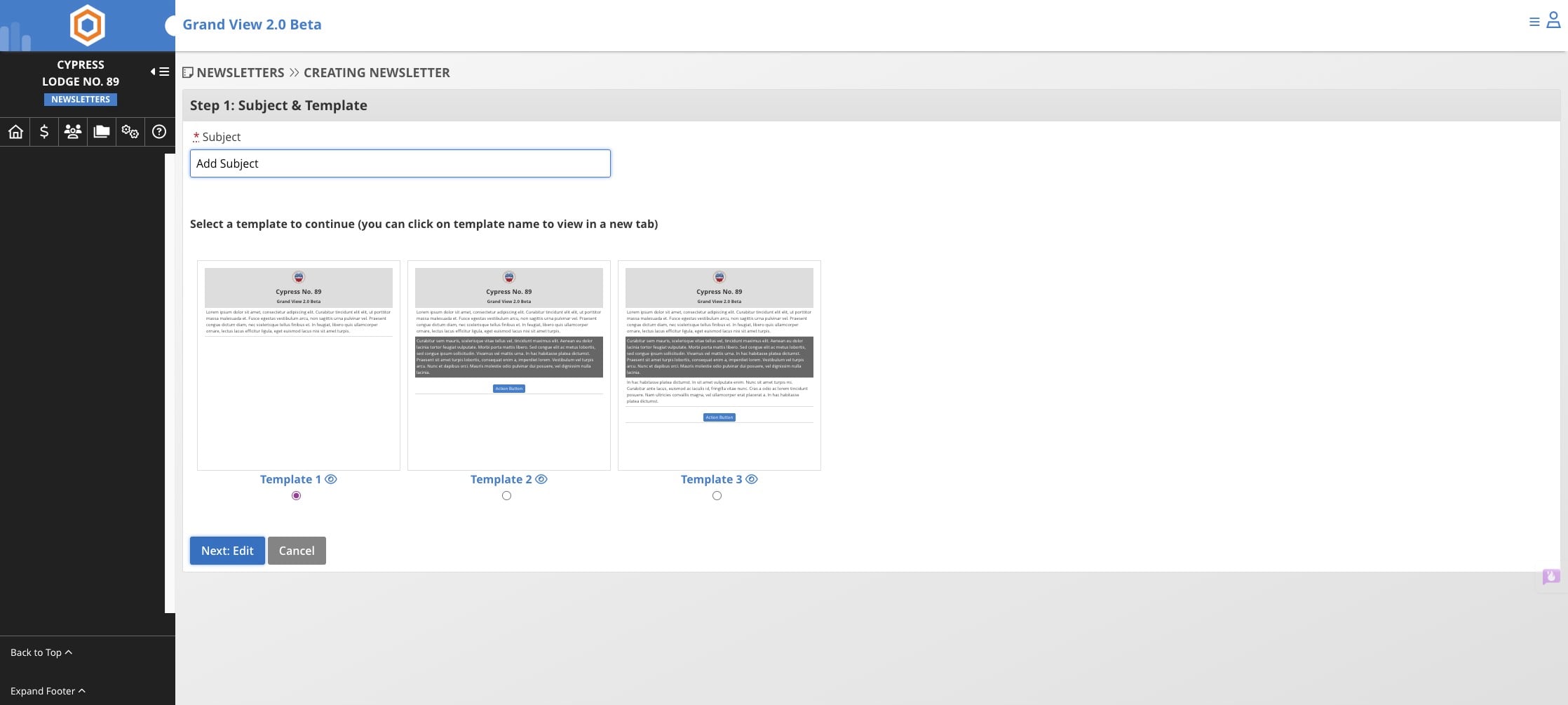
Add a subject for your newsletter
4
Click on the blue button "Next: Edit"
5
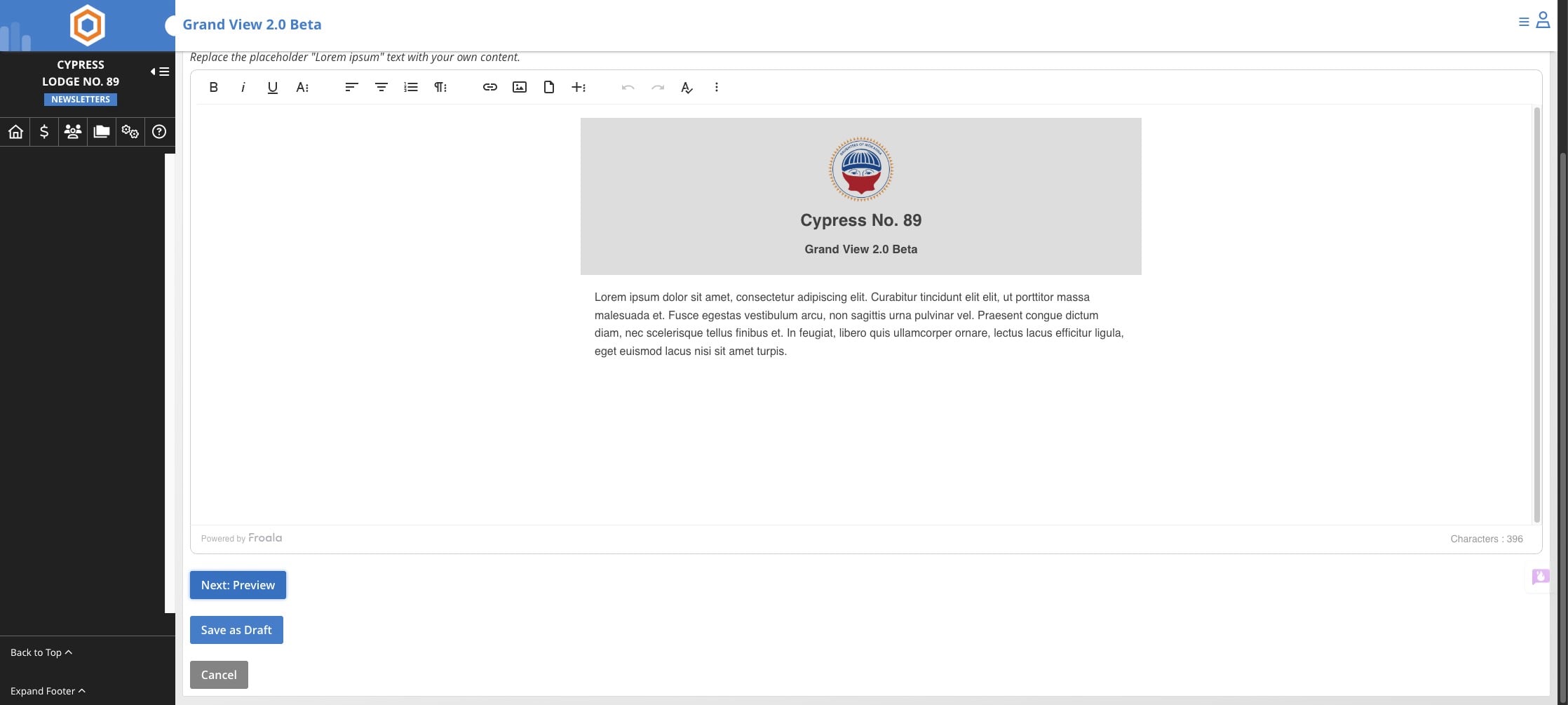
Click on "Next: Preview"
6
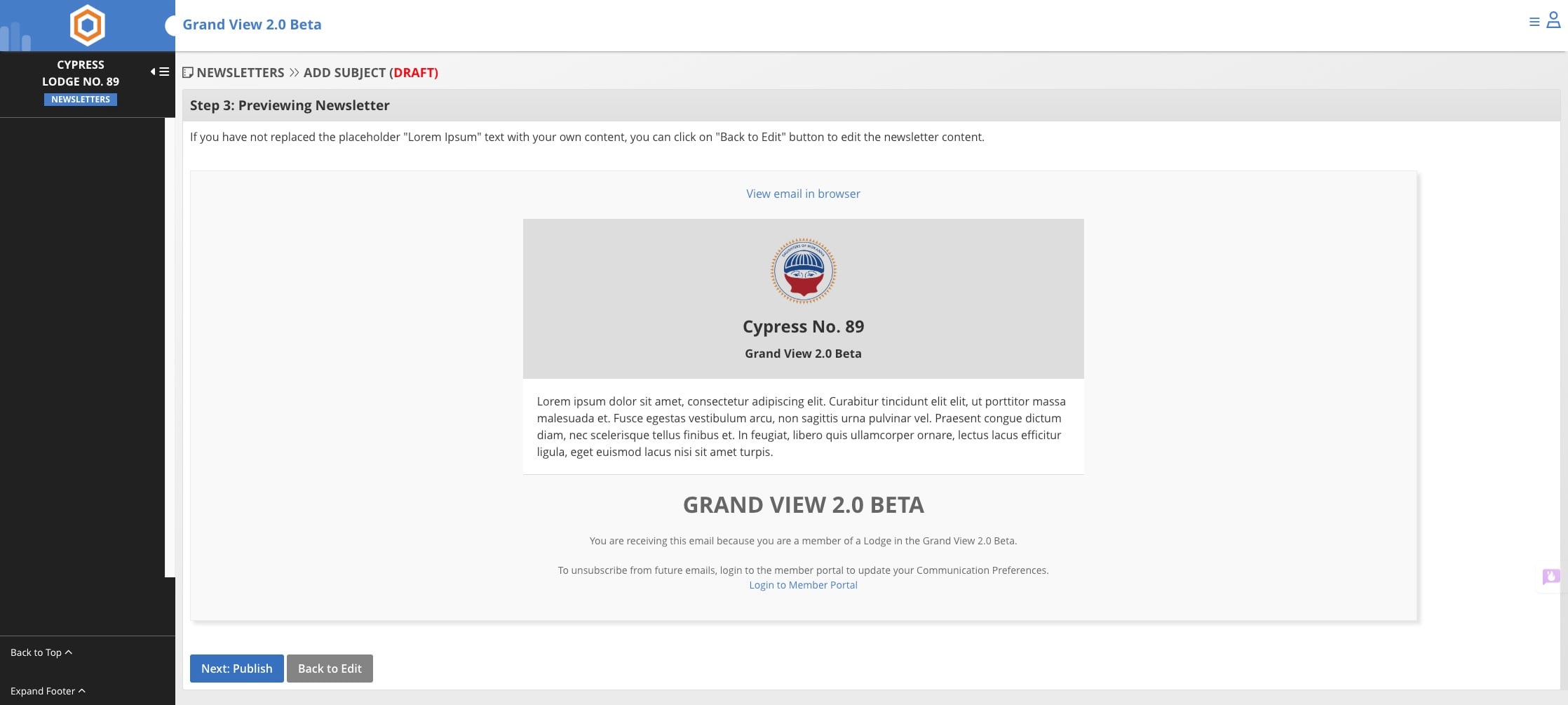
Click on "Next: Publish"
7
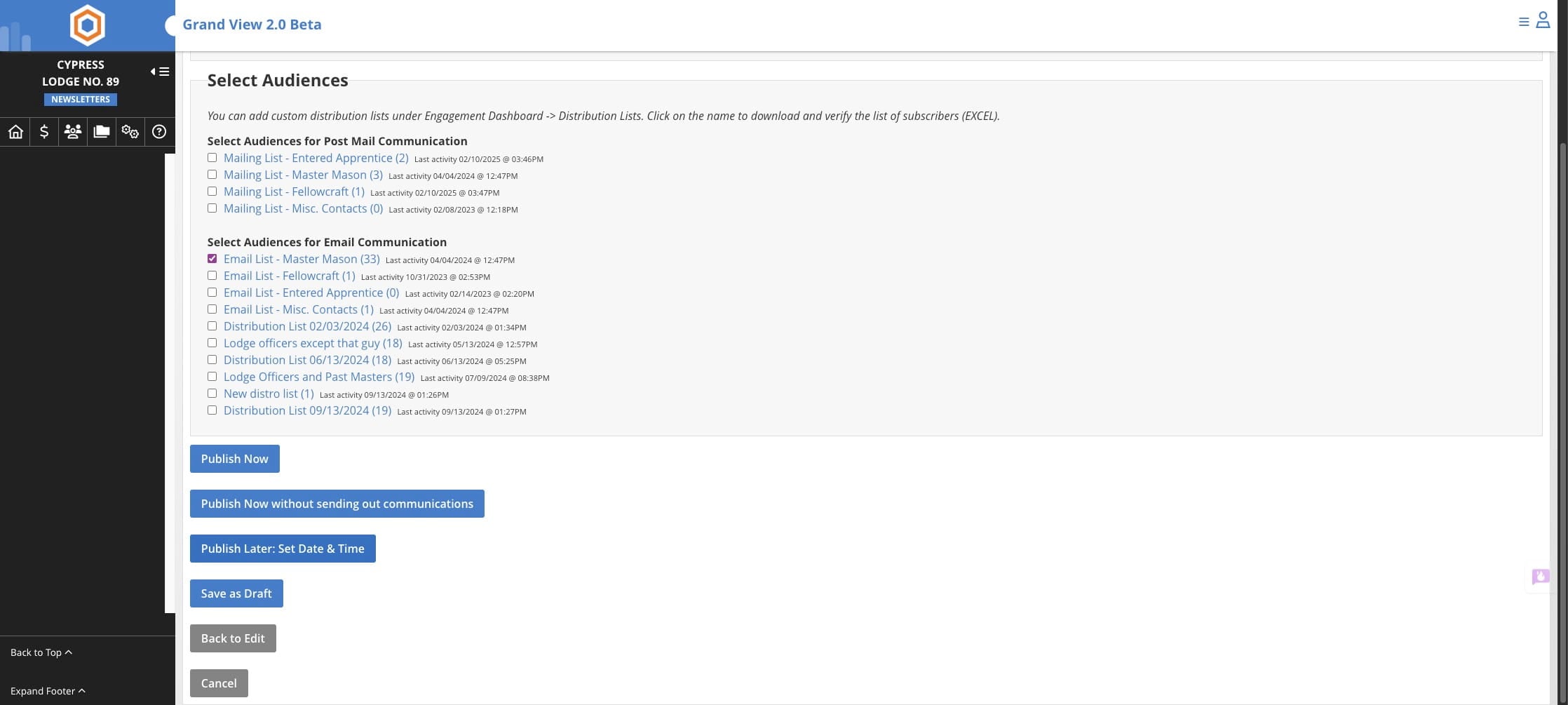
Select the distribution list you wish to use for this newsletter
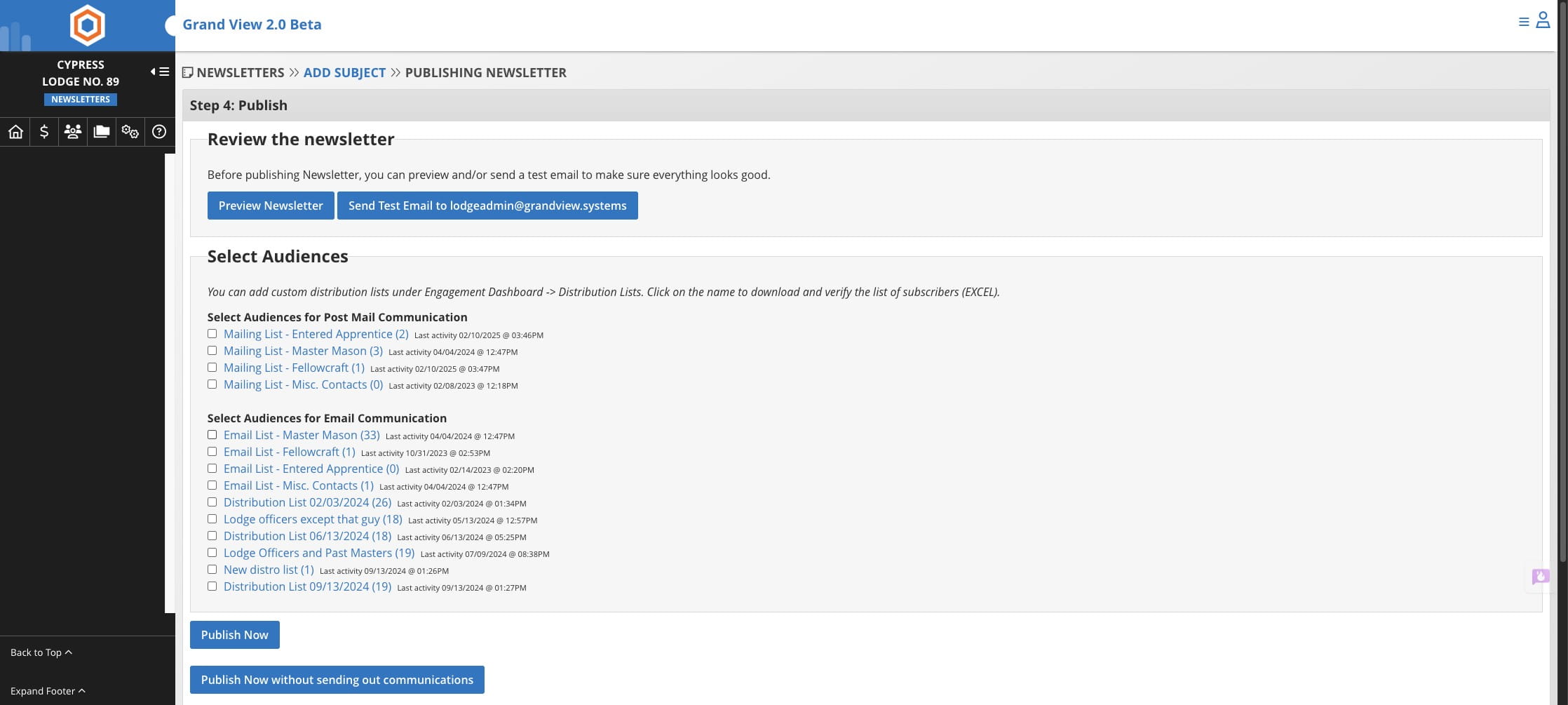
Publish Now: publishes newsletter and sends emails immediately Publish Now without sending communications: publishes newseltter to feed in Grand View but DOES NOT send an email Publish Later, Set Date & Time: sets newletter to send at a set day/time
8
Select one Publish option.
9
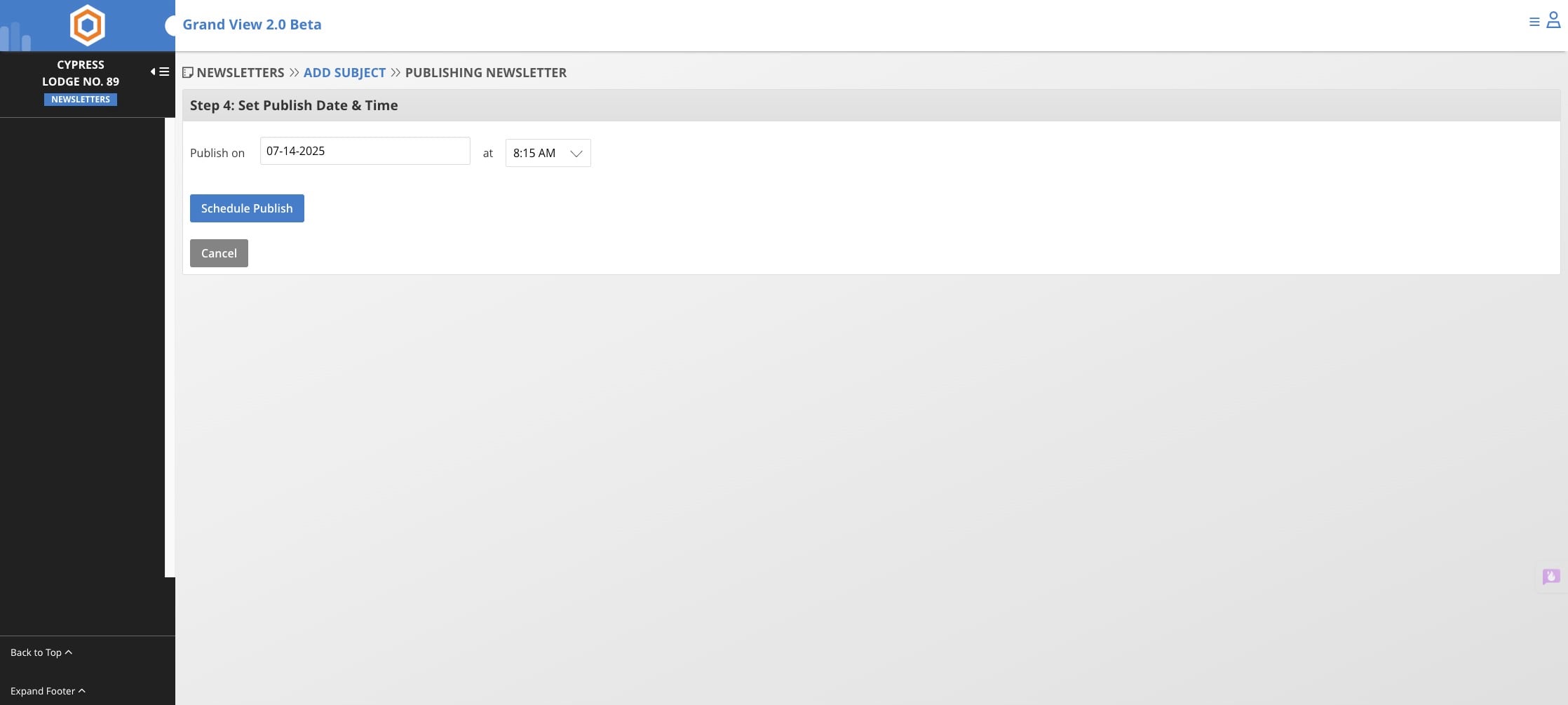
If you choose the schedule option select a date and time, then click Schedule Publish