Creating and Assigning Tasks
Click here to edit the description
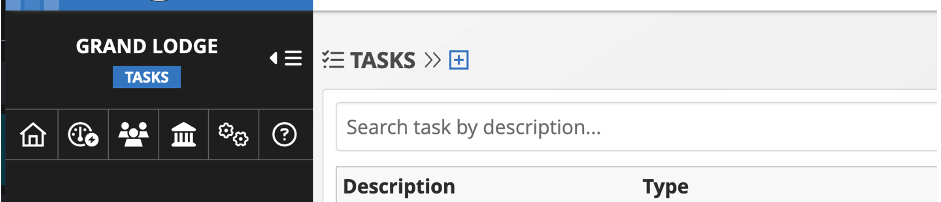
To create a task, click on Operations Dashboard -> Tasks, then click on the + button to add a new task
Fill out the title, description, due date, select task type and status then click Save button
Note: Tasks in status Draft will not show up on the assignees view
The screen will be directed to the task details view after Saving
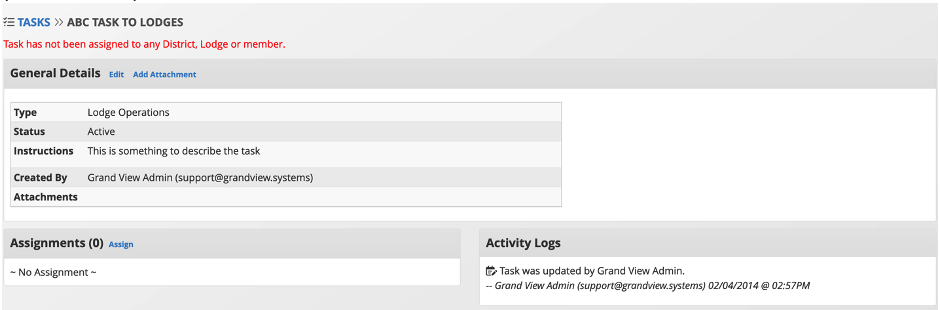
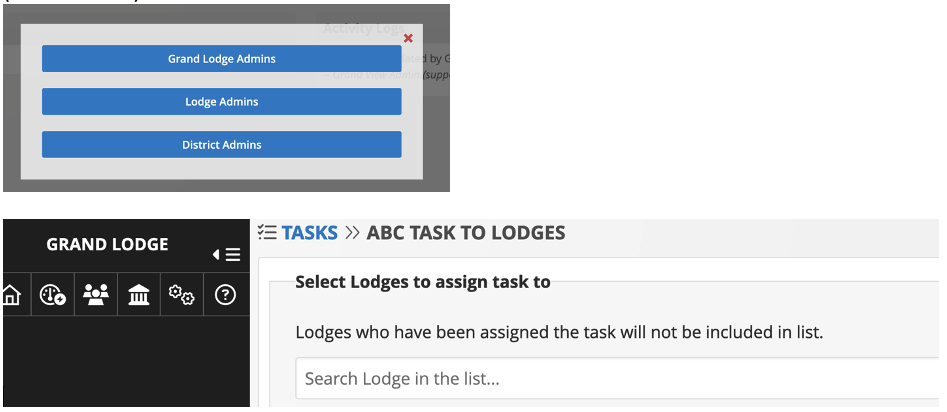
To assign the task to users/lodges, click on Assign button, select who to assign to go to assignment page.
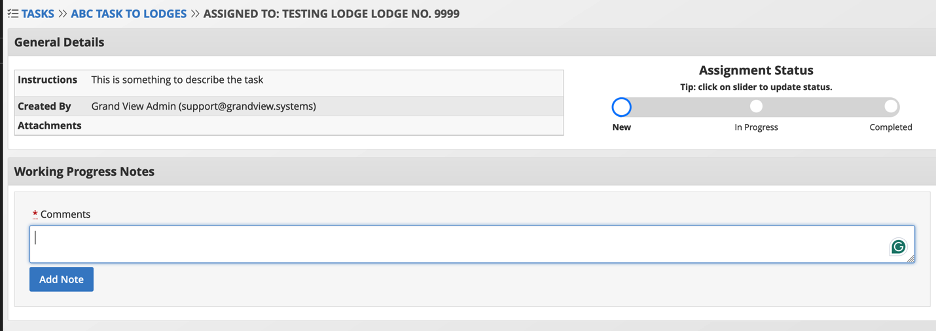
After assigning tasks, you can view the details of task and the progress of completion by clicking on the task name from the Tasks list.
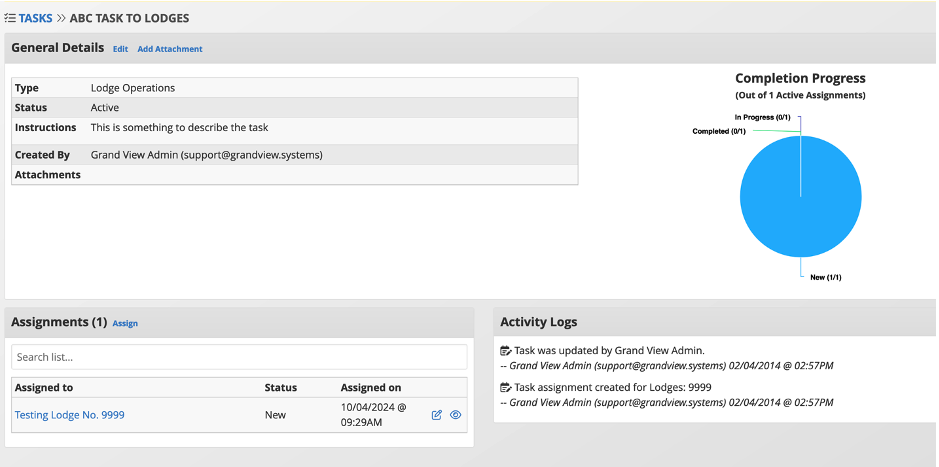
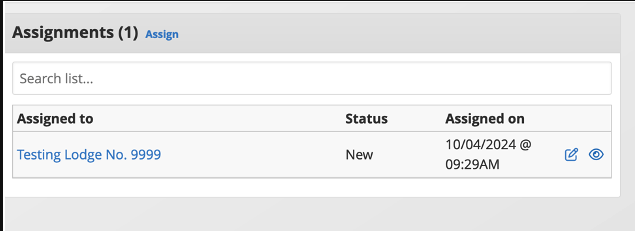
To view progress of a specific assignment, click on the View button next to the name of the assignee. To edit a specific assignment, click on the Edit button next to the name of the assignee
- Features available for updating progress of an assignment:
- Update status by clicking on slider
- Add chatter to communicate with the task admin/assignee