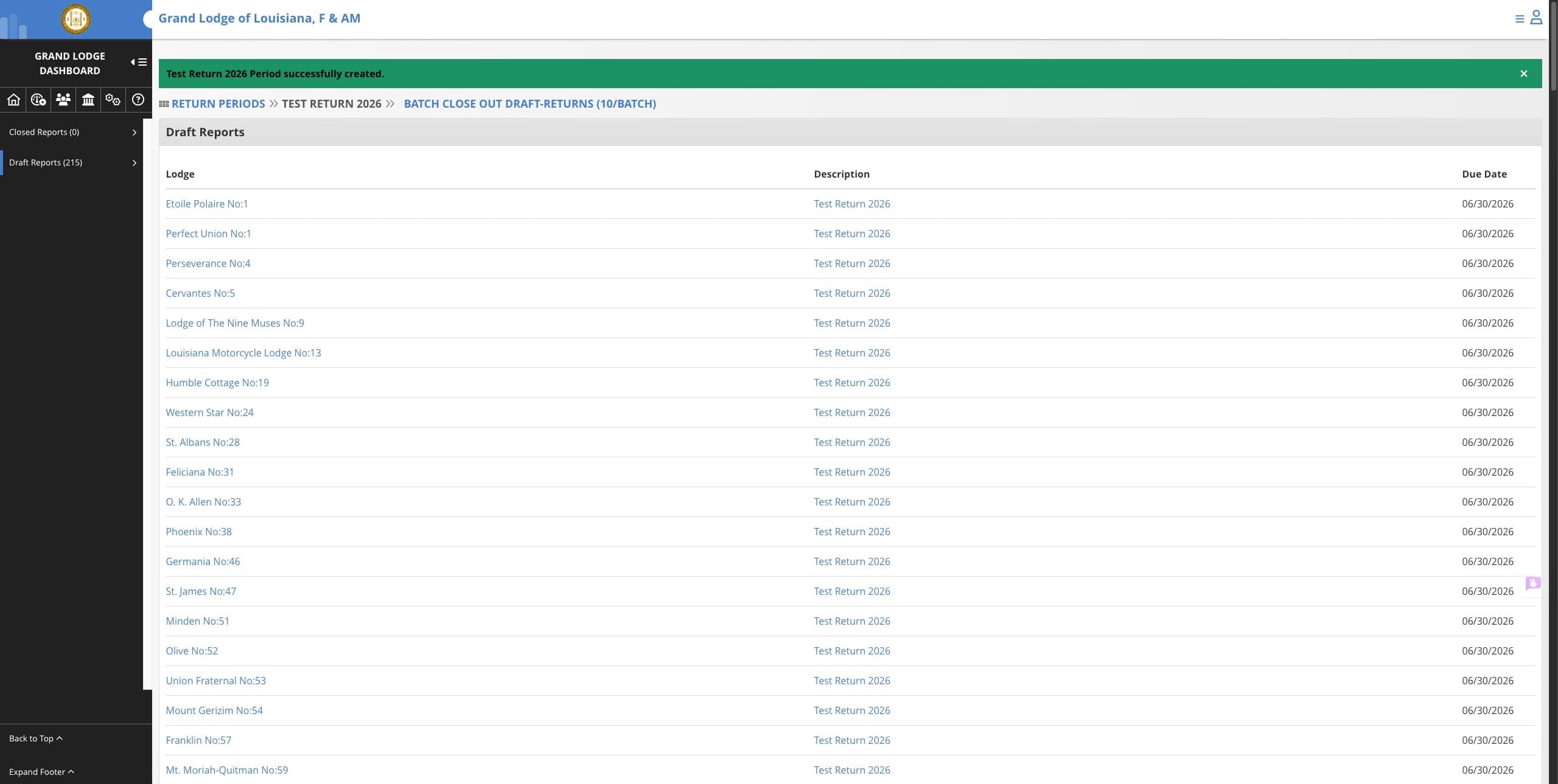
Creating Annual Return Period
This guide walks you through the process of creating an Annual Return Period in the Operations Dashboard. Learn how to add and configure a new return period, complete the required form, verify assessment fees, and manage lodge visibility settings for generated reports.
Jun 30, 2026●
1
Navigate to the Operations Dashboard
2
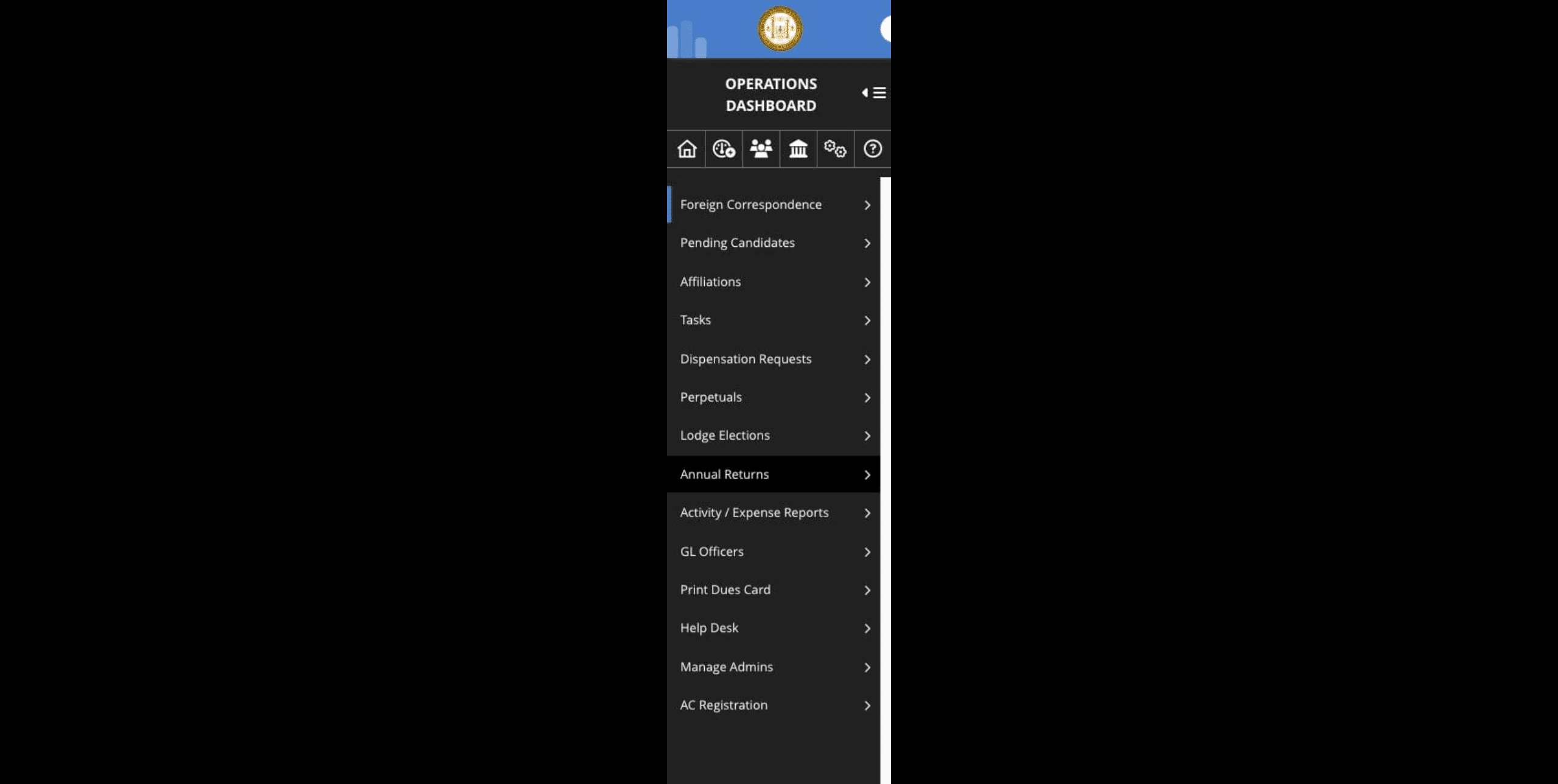
Click on "Annual Returns"

3
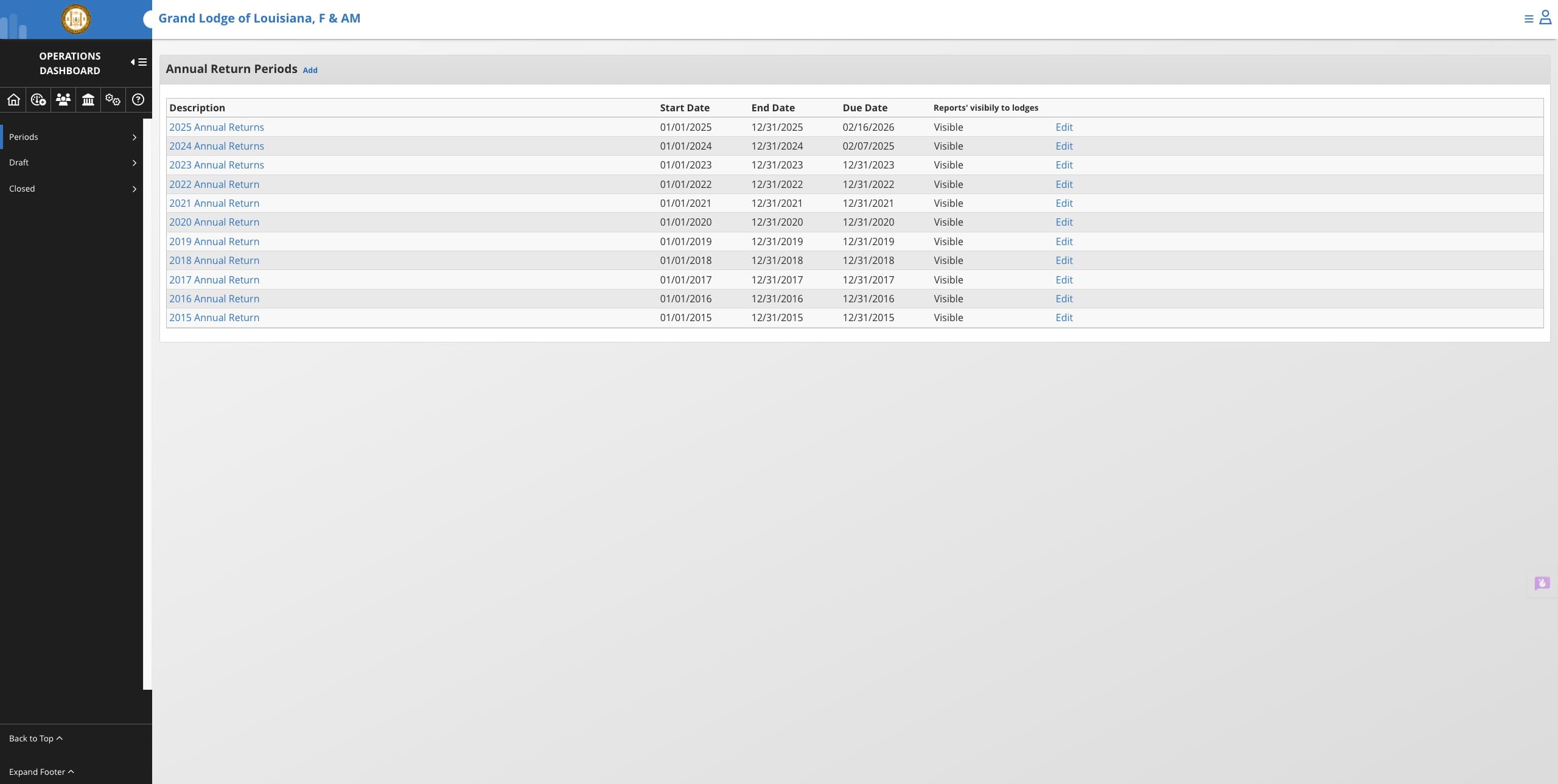
Click on "Add"
4
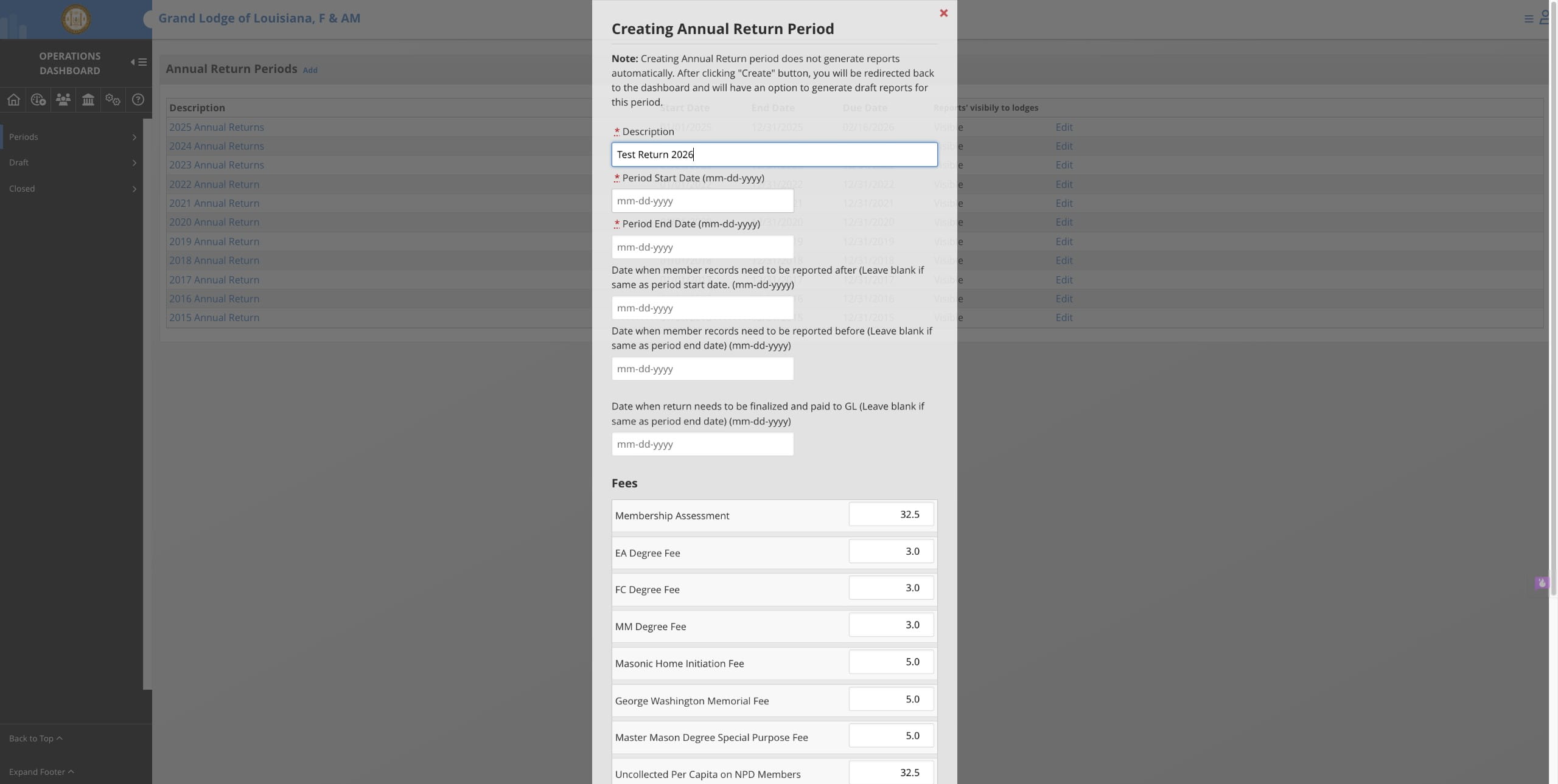
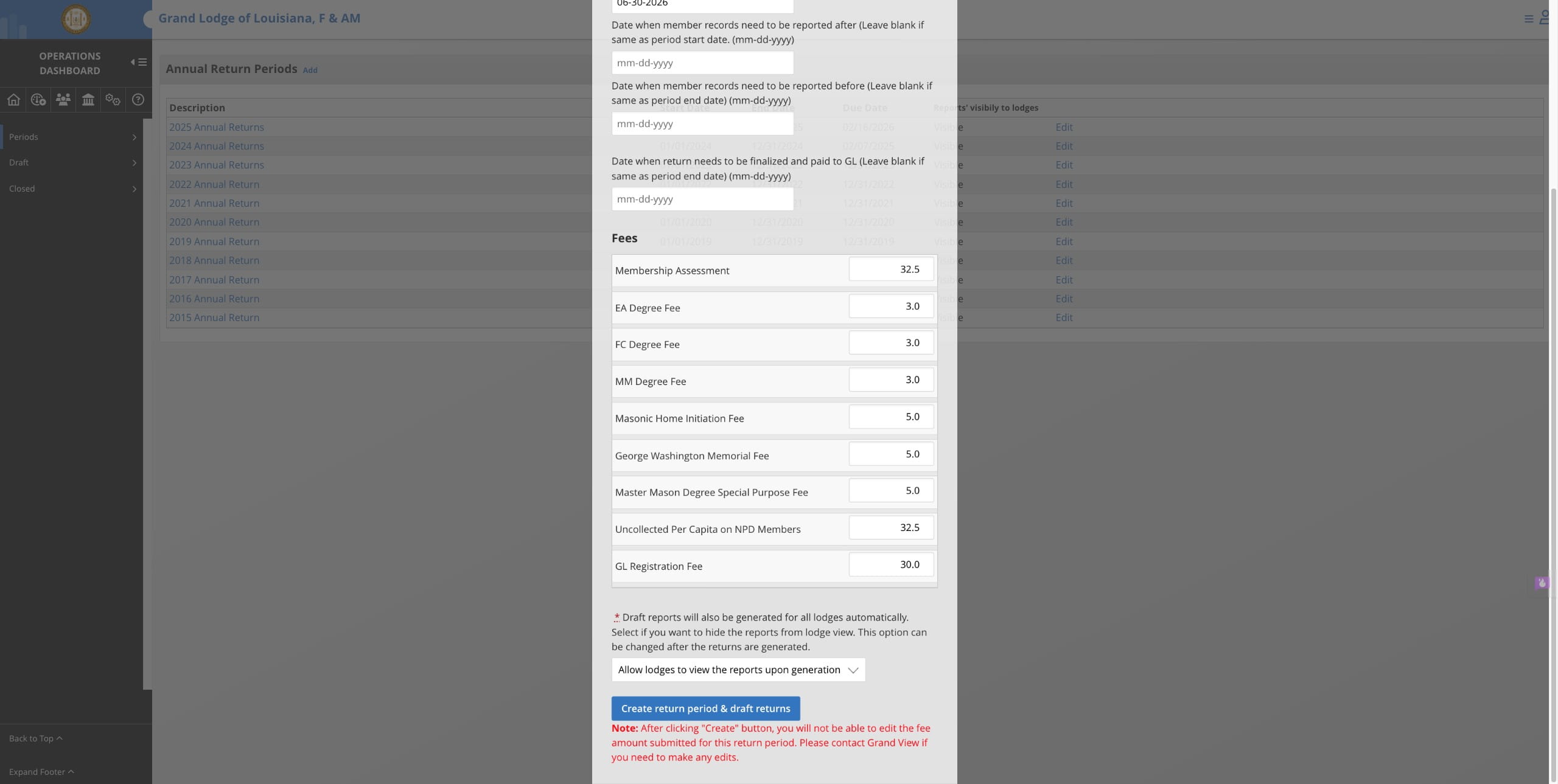
Complete the form and verify the fees for assessment.
5
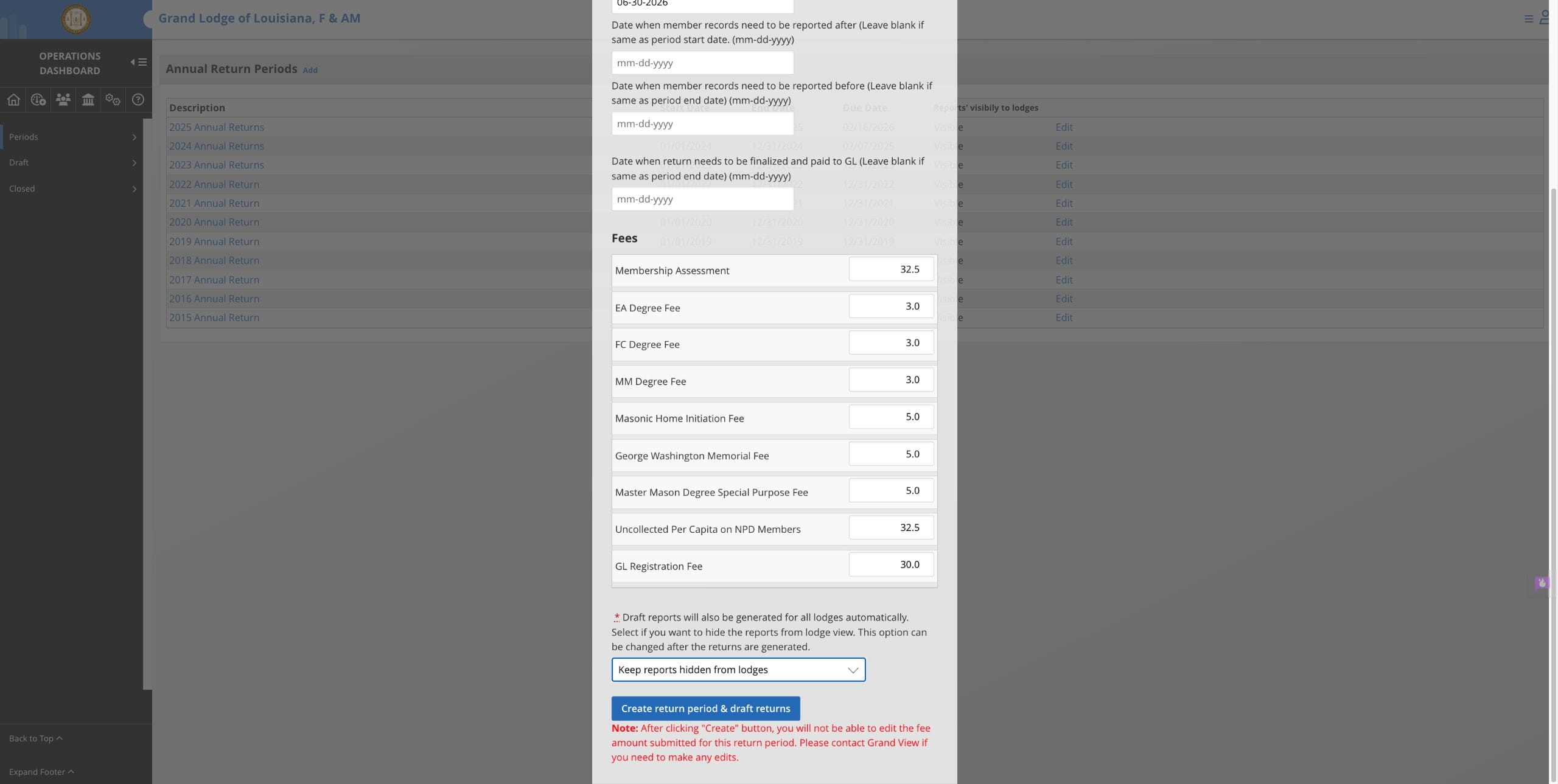
At the bottom you can allow the lodges to view the reports once they are created or select to hide from view. You can modify this after the reports are generated.
6
Click Create Return Period & Draft Returns
7
Returns have been successfully generated