
Lodge/Chapter - How to submit payment for Annual/Semi-Annual/Quarterly Returns
This guide walks Lodge/Chapter members through the step-by-step process of submitting payments for Annual, Semi-Annual, or Quarterly Returns online. It covers how to navigate to the Returns & Invoices section, set up a bank account for eCheck payments (if needed), select invoices, and complete the payment submission process.
Go to Accounting Dashboard -> click on Returns & Invoices
You can also access this via the top of the Return. If there is no banner or no option to pay the Lodge/Chapter will not see these options.
If this is your first time making payment, you will need to add a payment method (bank account). Click on "Add Bank Account" button, follow the process to add the bank account. Once completed, you will be directed back to the Returns & Invoices page.
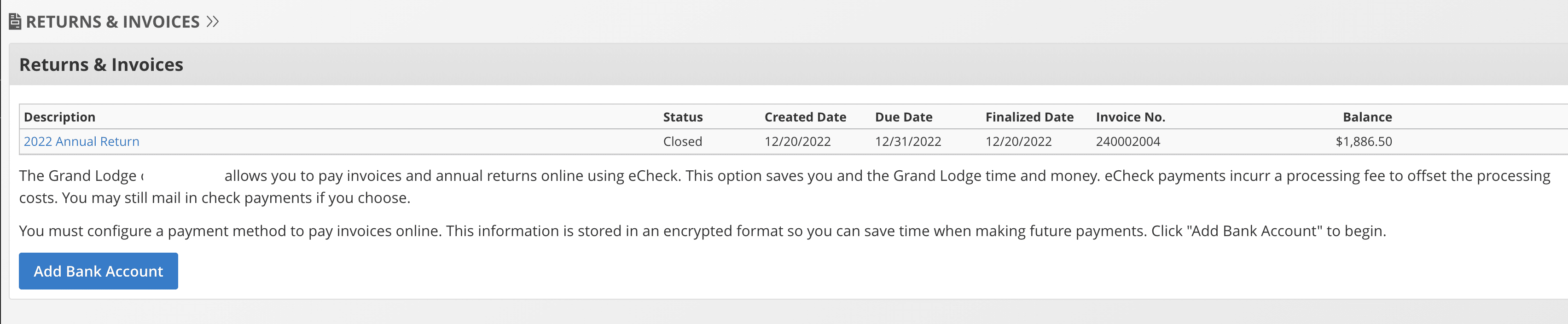
Click "Pay Invoices online with eCheck" button

On payment screen, select the invoices to pay for, then click Submit Payment.
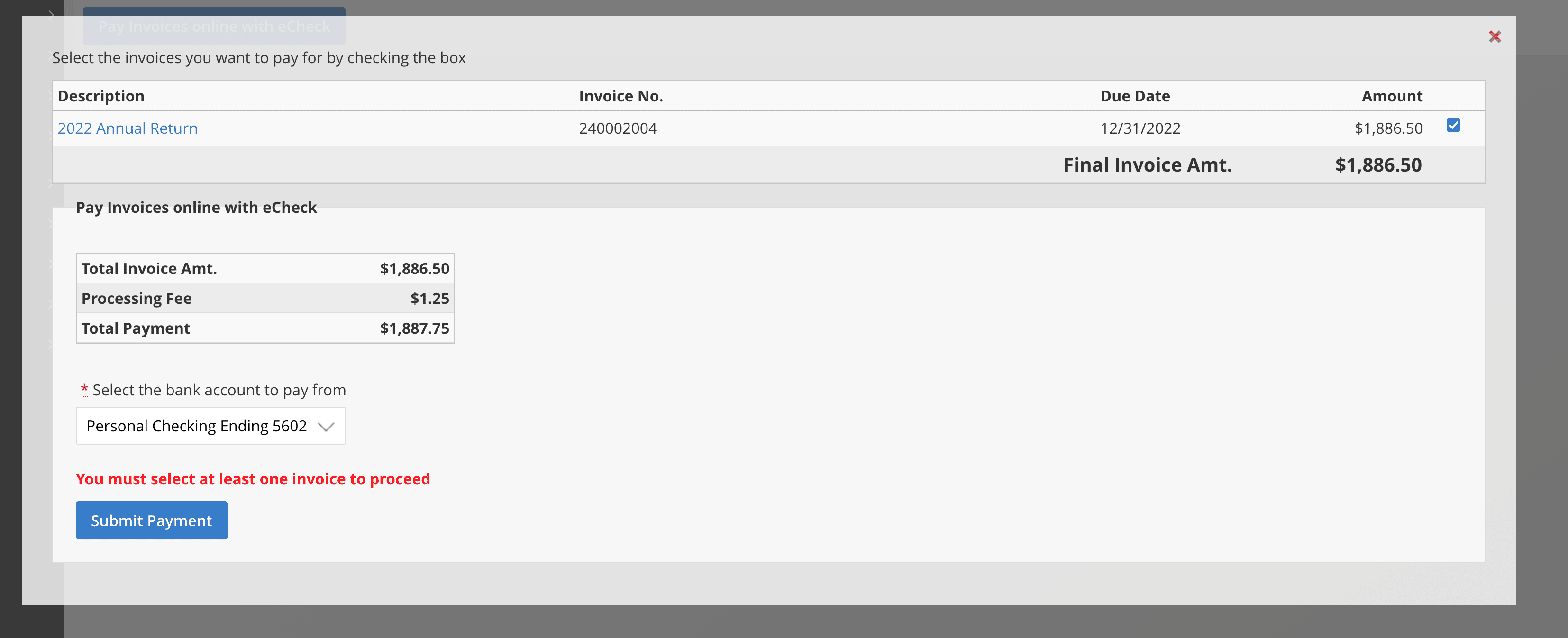
If payment is completed, you will be redirected back to the page with a success message.
