Print Address Labels for Members with Dues Owed
A step-by-step walkthrough for generating and printing member address labels for members with dues owed, including options to include members with zero balances or those with email addresses on file.
Jun 22, 2026●
1
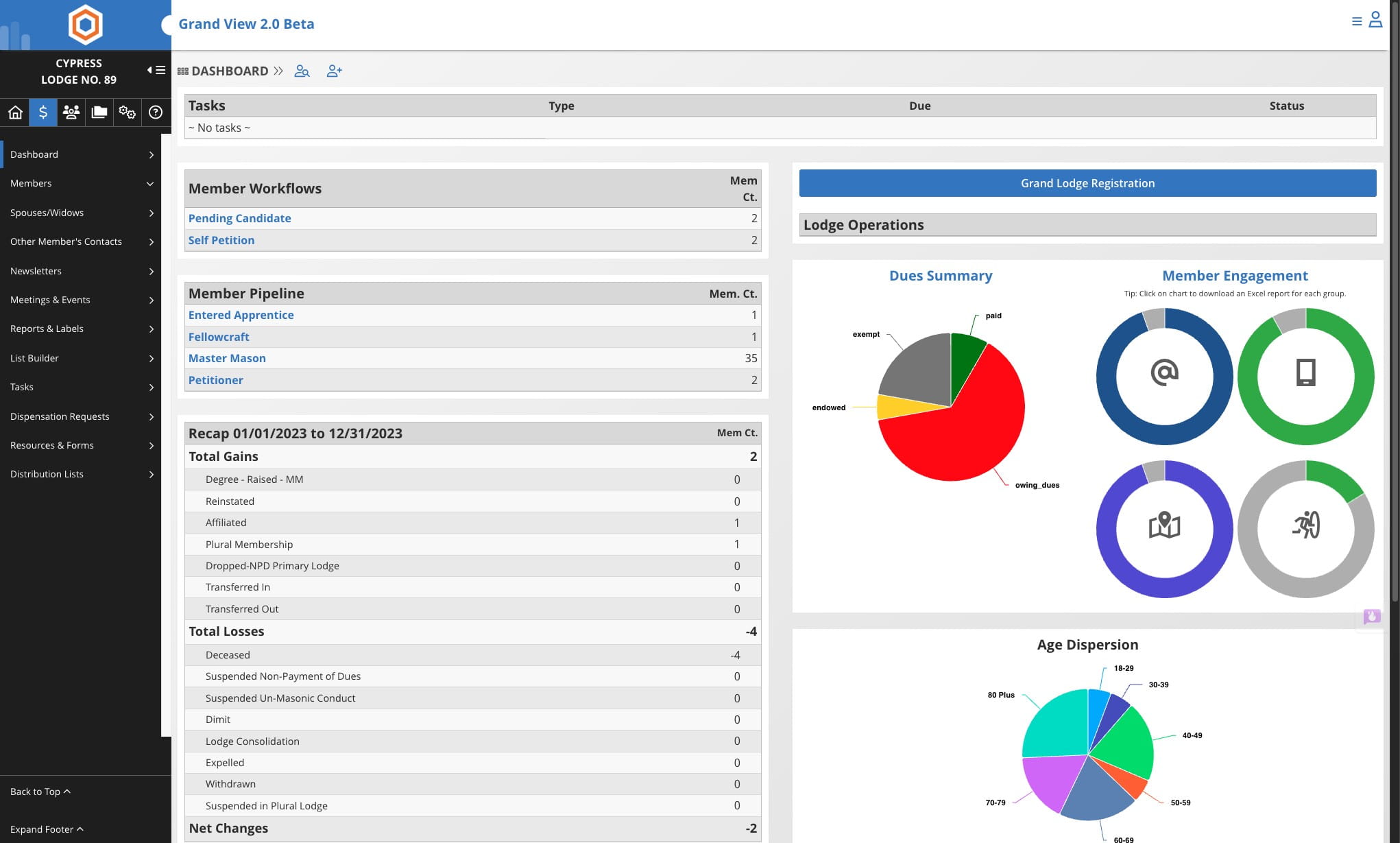
Navigate tot he Lodge Dashboard
2
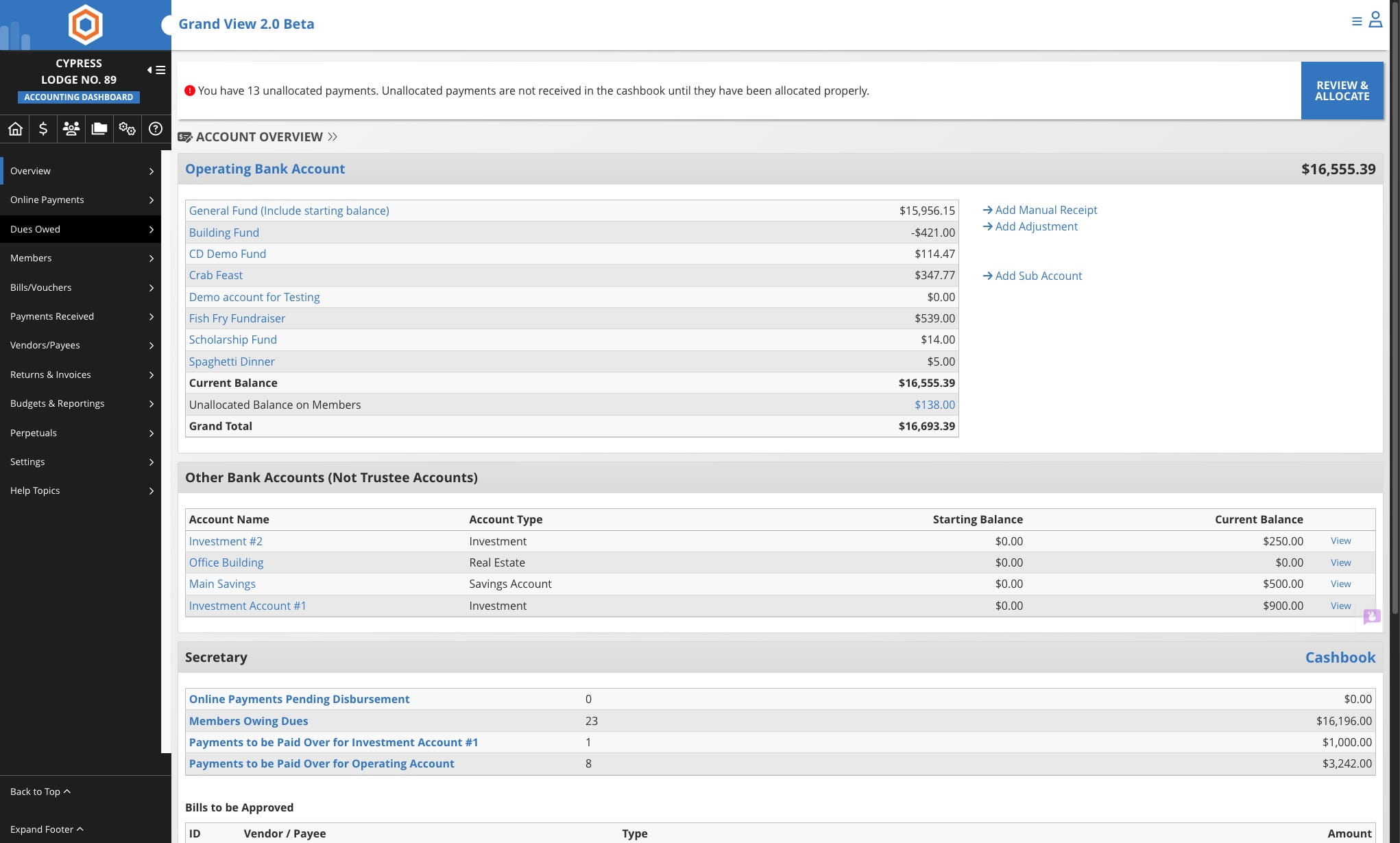
Click on the Accounting Icon

3
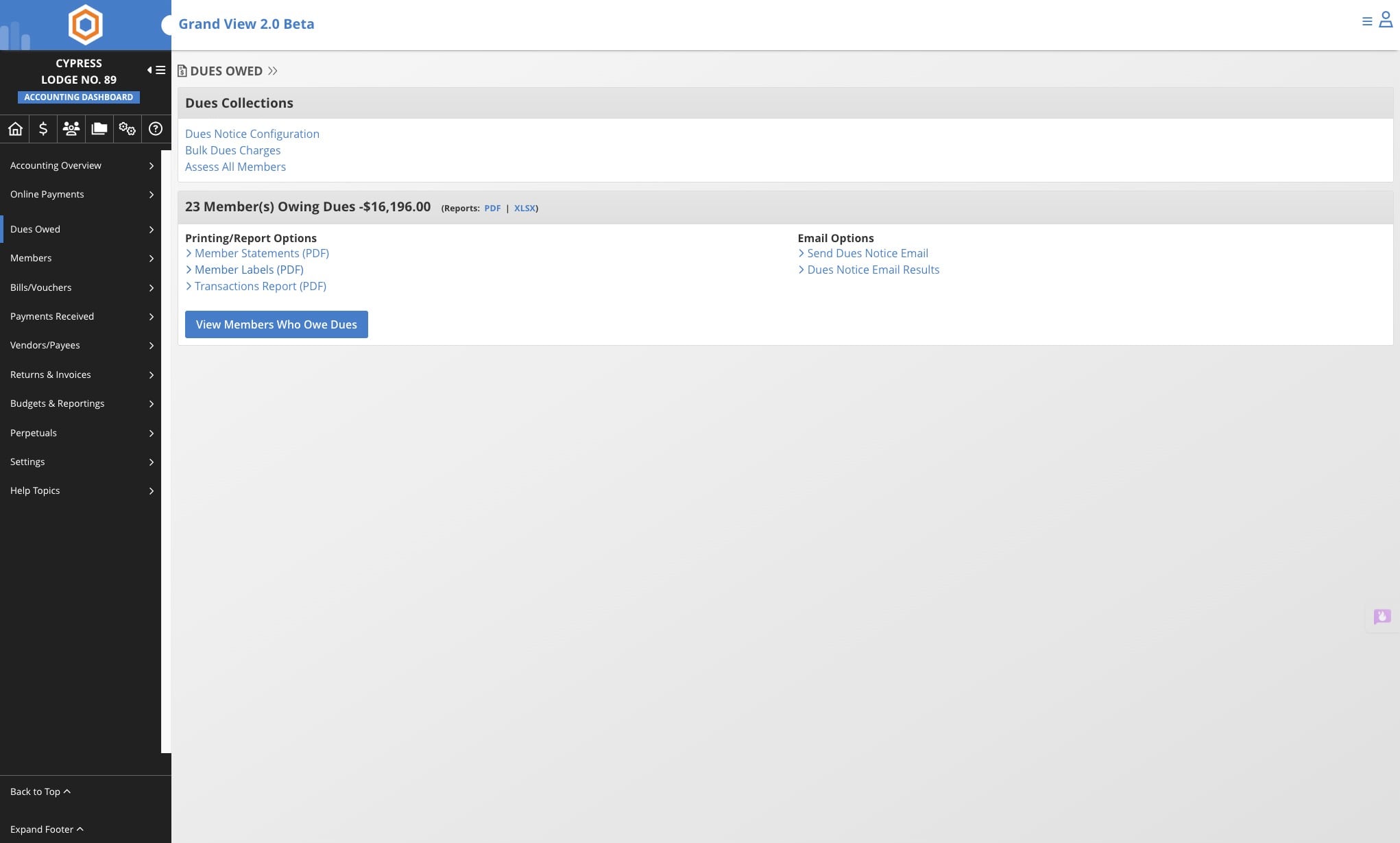
Click on "Dues Owed"
4
Click on Member Labels
5
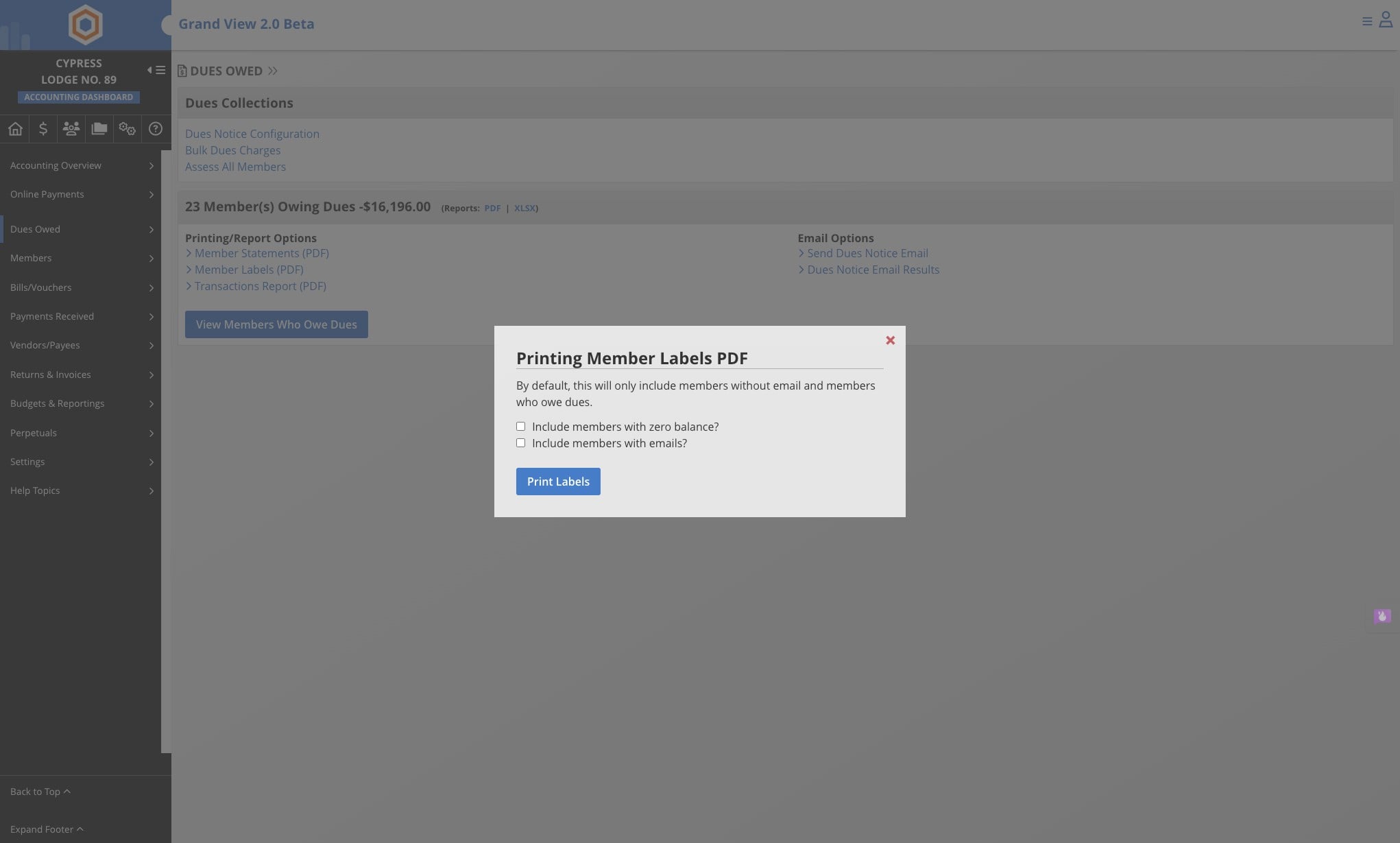
By default the system will generate labels for all members owing who DO NOT have email addresses on file.
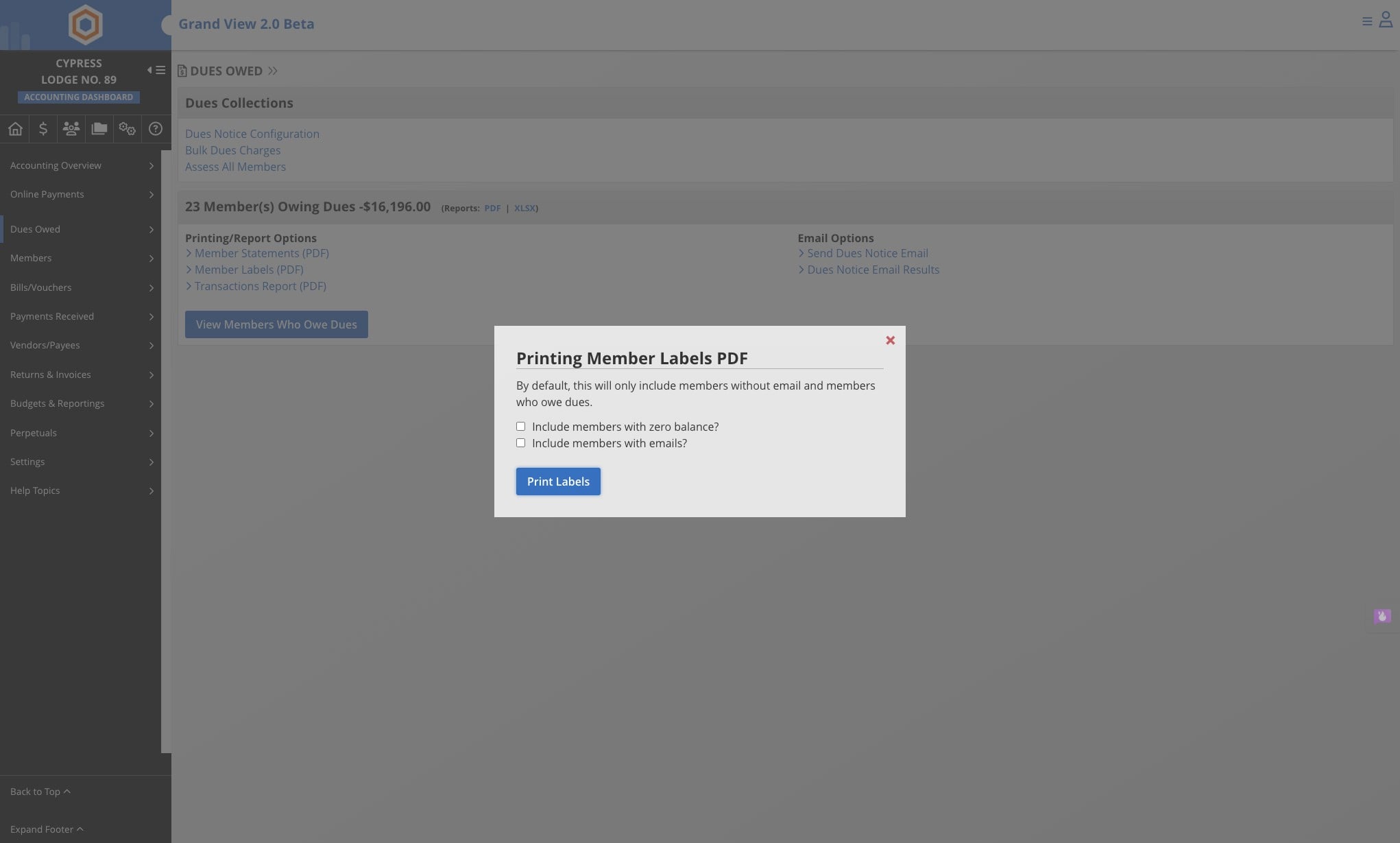
Or you can select on one of the following:
- Include Members with zero balance - to print out statements of all members including ones with zero balances
- Include Members with email- to print out statements for members who have email addresses on file
6
Click on “Generate Labels.” The PDF will download to your computer, open the file in Adobe Reader or your preferred PDF reader. If you don’t have Adobe installed, you can grab it free at: https://get.adobe.com/reader/