

Printing 5160 Address Labels
By downloading the mailing Label PDF, you can easily print bulk mailing labels for your members directly from Grand View. The labels are formatted to fit Avery 5160 mailing labels that are commonly available from office supply stores.
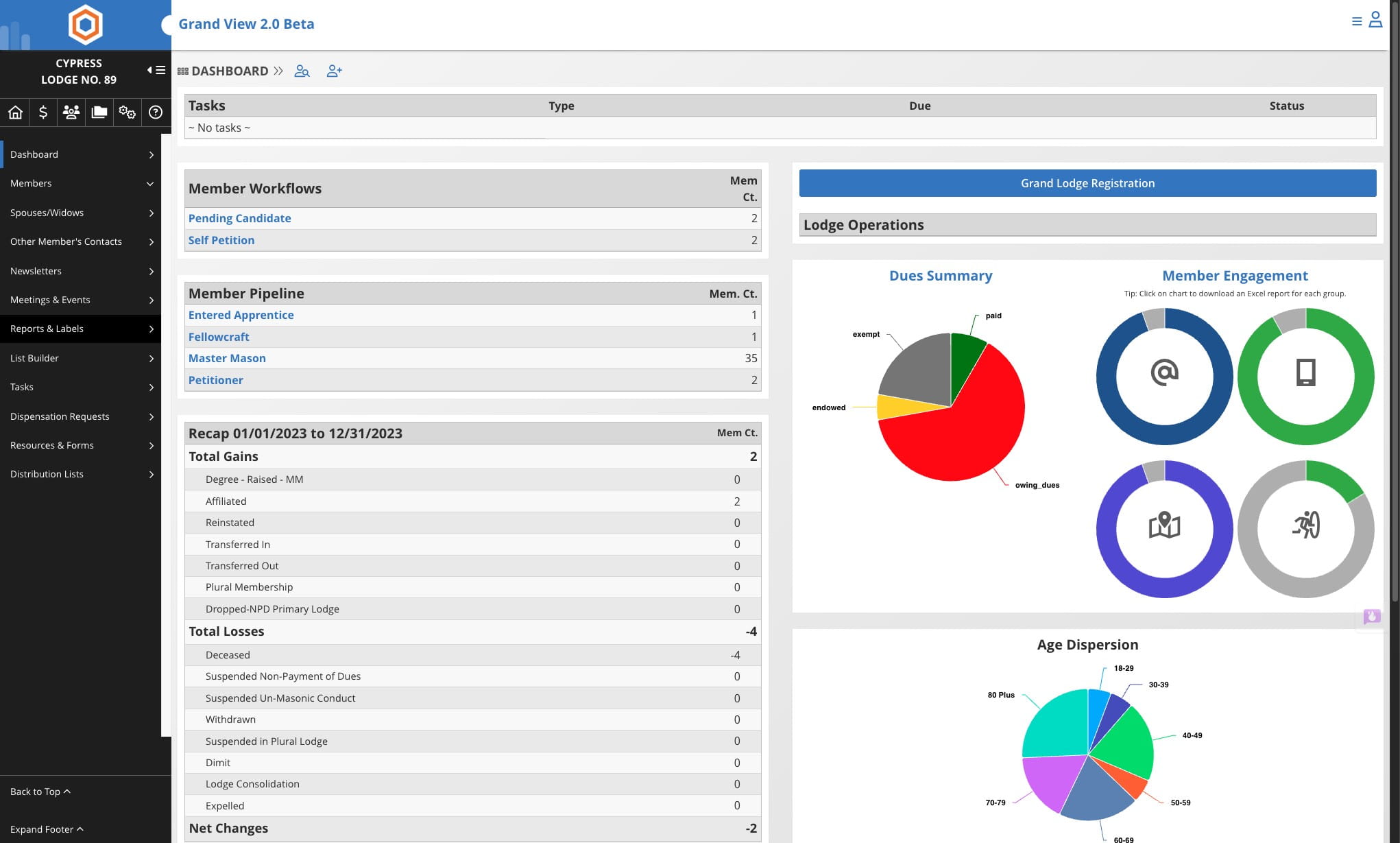
Navigate to the Lodge Dashboard
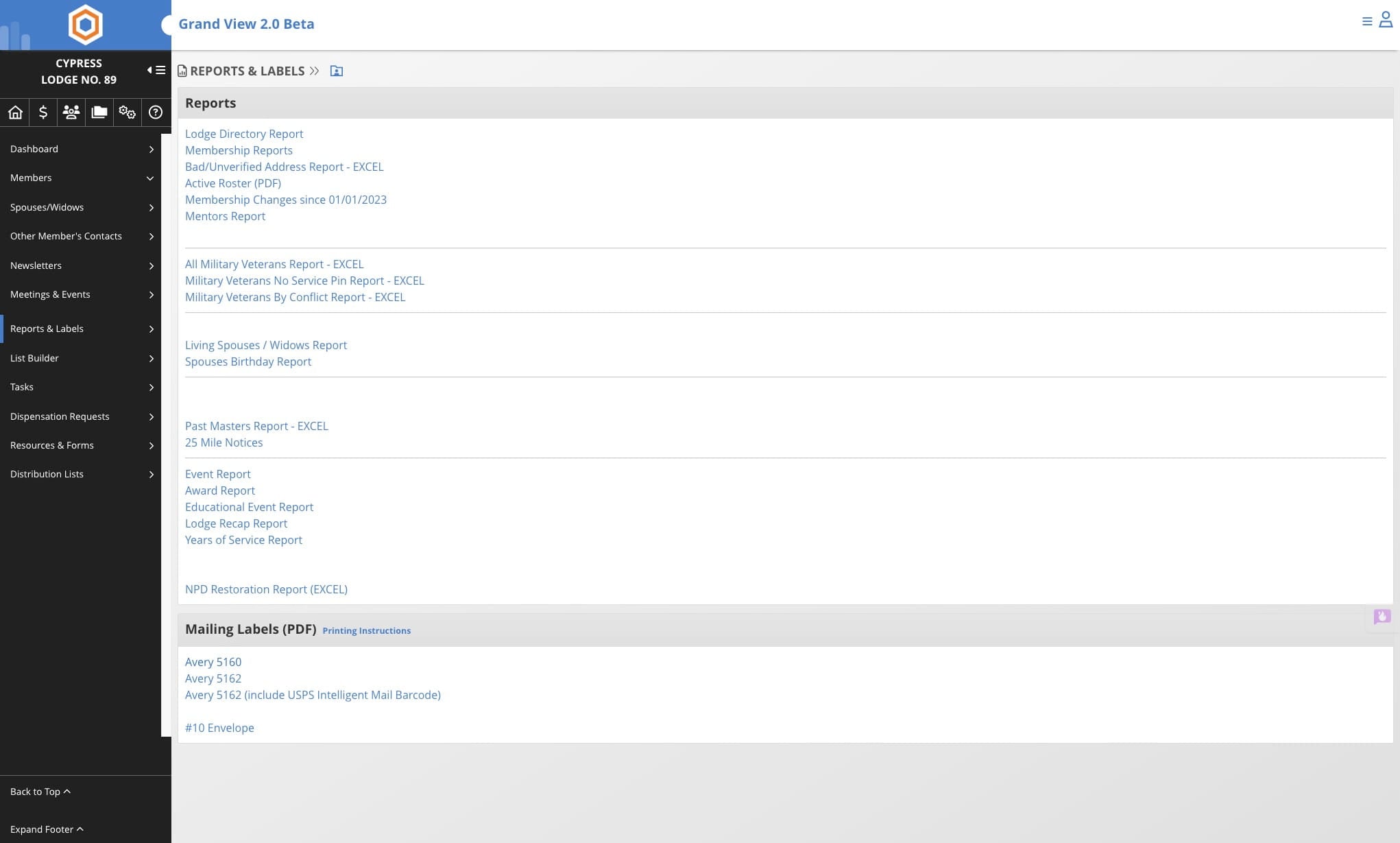
Click on "Reports & Labels"

Click on "Avery 5160"
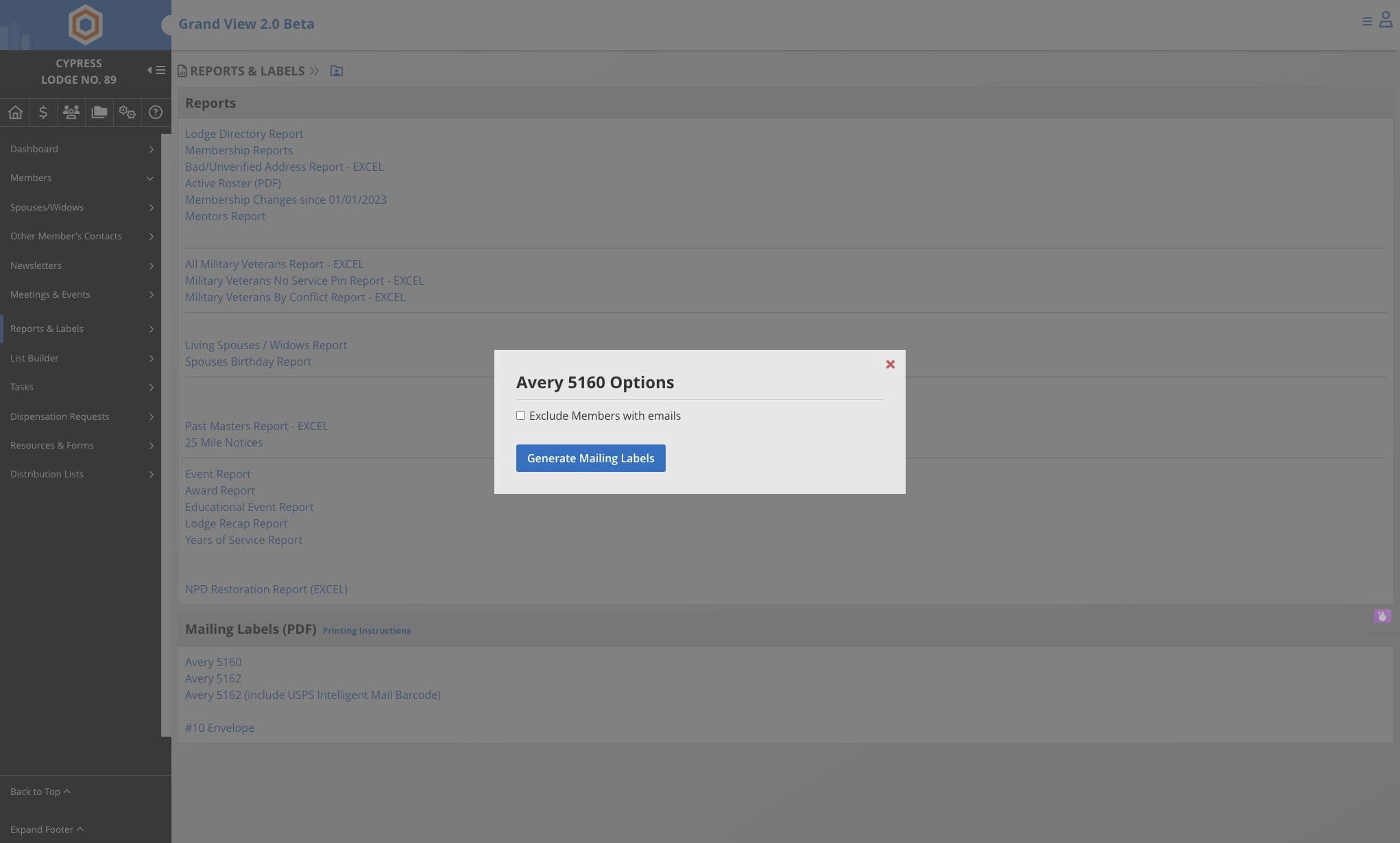
Click on Generate Mailing Labels
Open PDF and verify the number of pages in the document and load the appropriate quantity of label sheets into your printer following the printer’s direction of how to orient the labels in the tray.
Print the PDF ensuring the “Size Options” are set to print “Actual Size”. Below is a screenshot of typical PDF printing settings. Your screen may be a little different but the setting will be there.
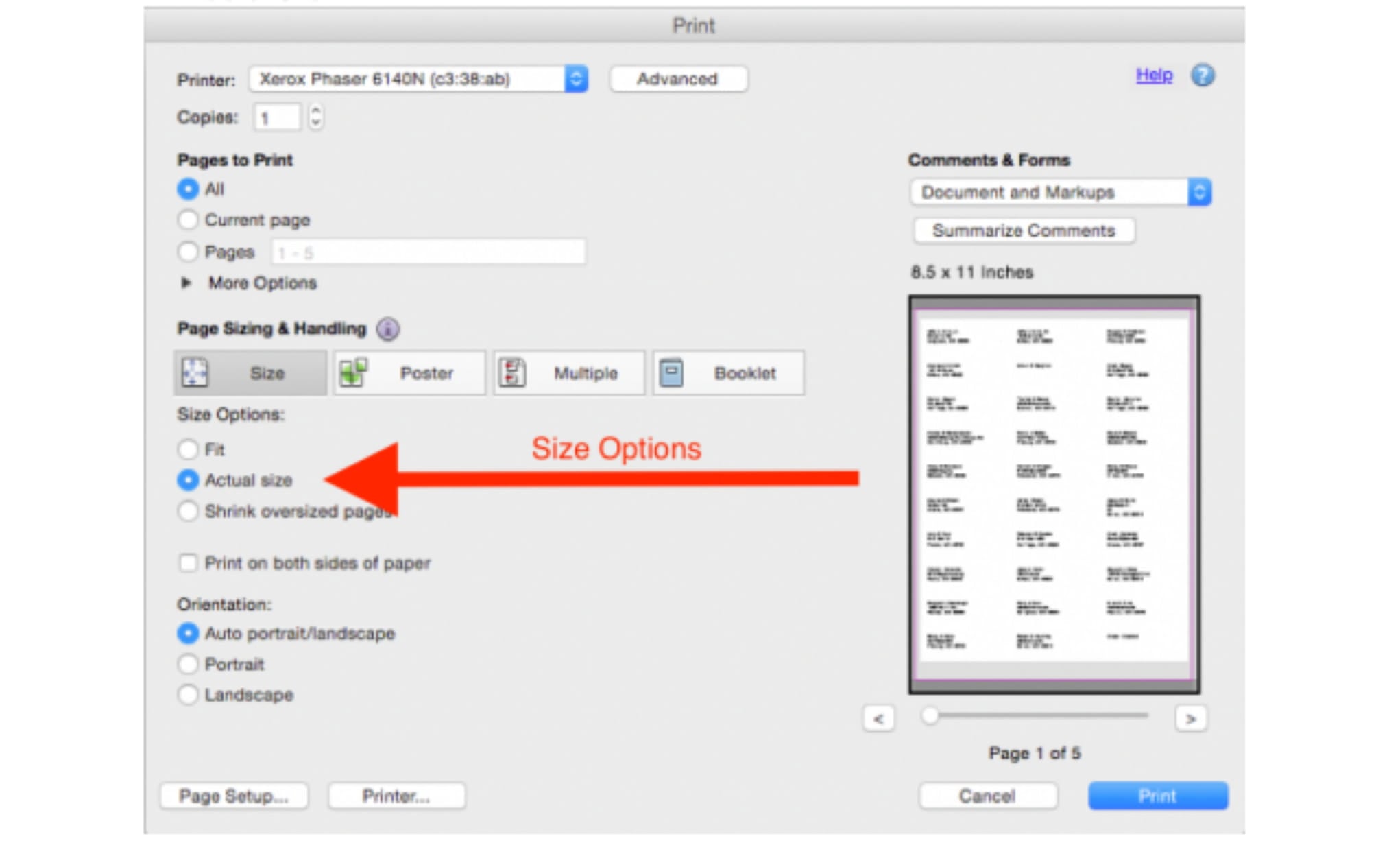
If this is the first time you are printing labels, try printing the labels on plain paper to verify alignment. This will save expensive sheets of labels.
If your print dialogue does not look like the picture above, please download the file and open it in Adobe Reader. Note: Due to variations of PDF readers and printers the alignment of the text within the labels may vary. However, all of the address should print within the label and be suitable for mailing.