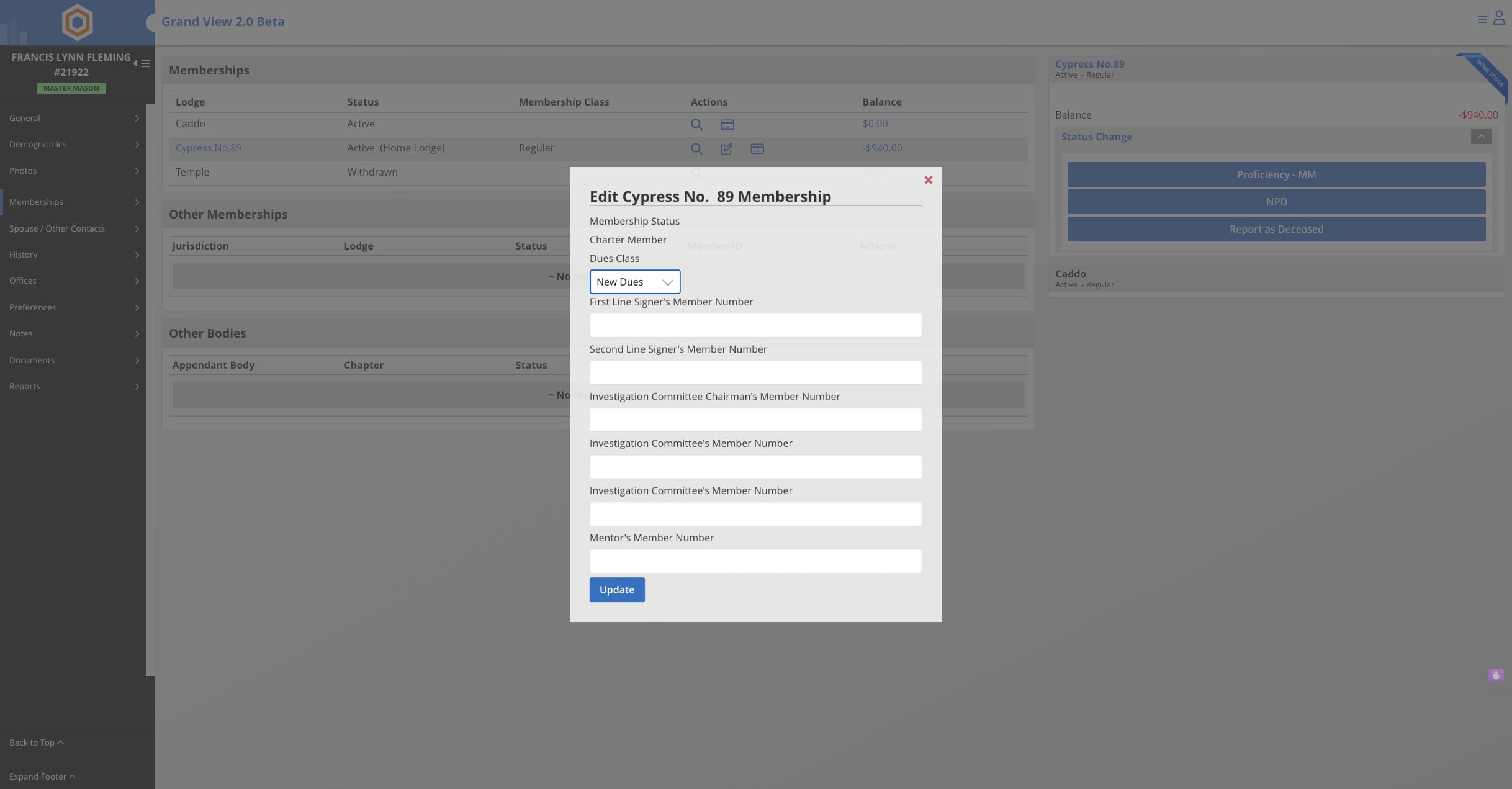
Update/Change Member's Dues Class
This guide explains how to update or change a member's dues class using two methods: via the Accounting Dues Page or directly through the Member Record. Follow the step-by-step instructions to quickly modify dues class assignments within your lodge management system.
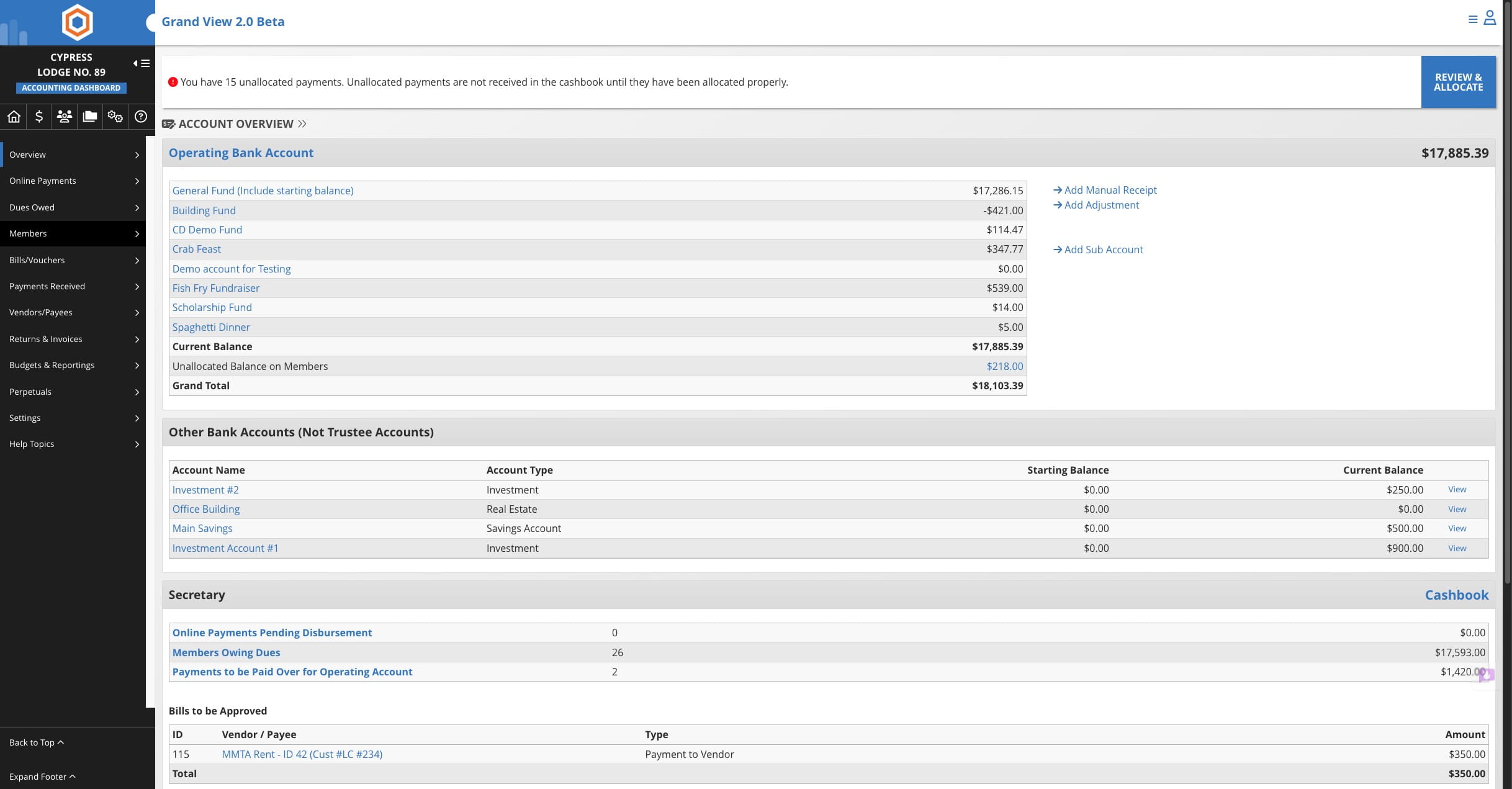
Option 1 - Change via Accounting Dues Page
Click this icon
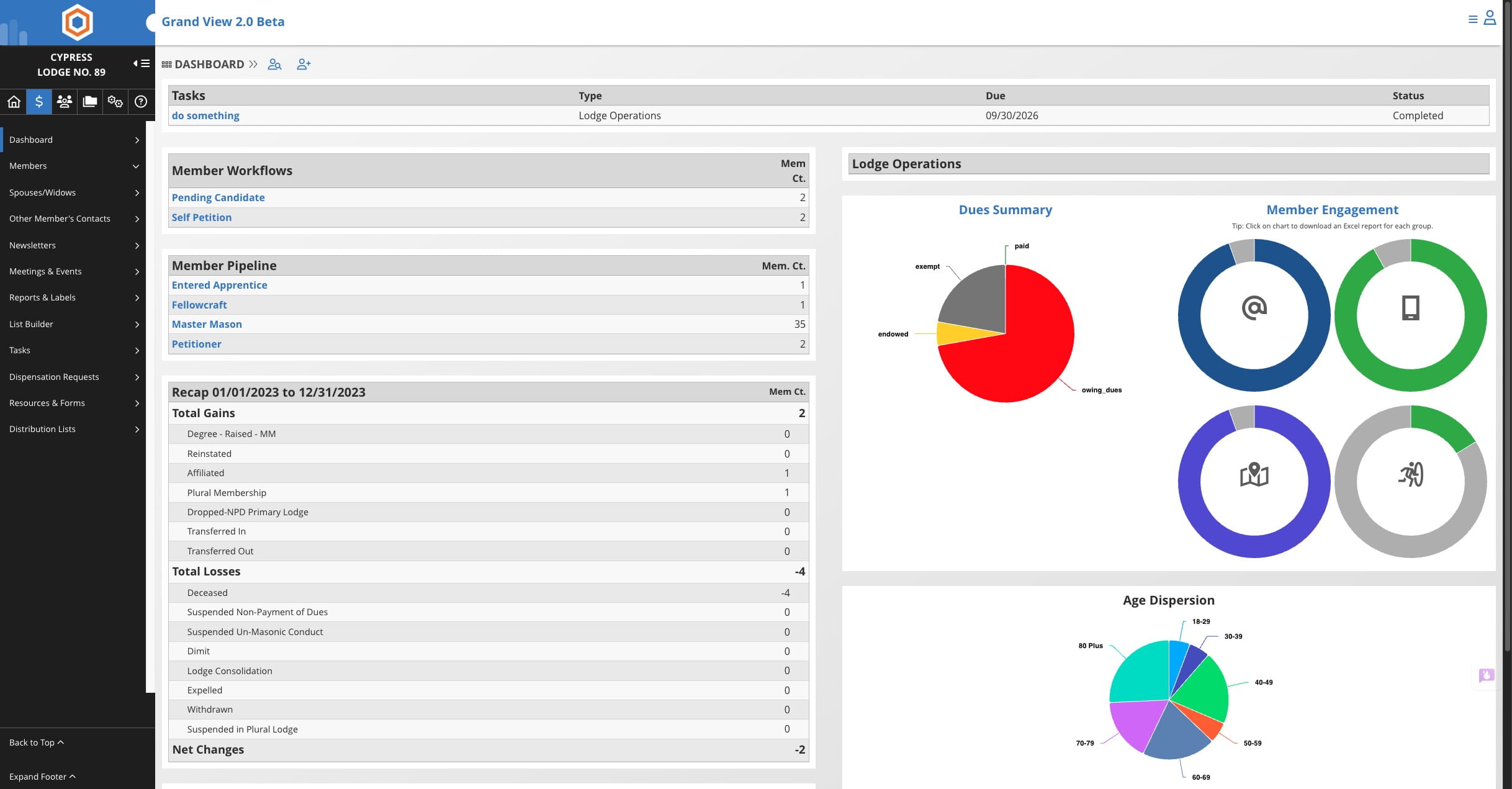

Click on "Members"
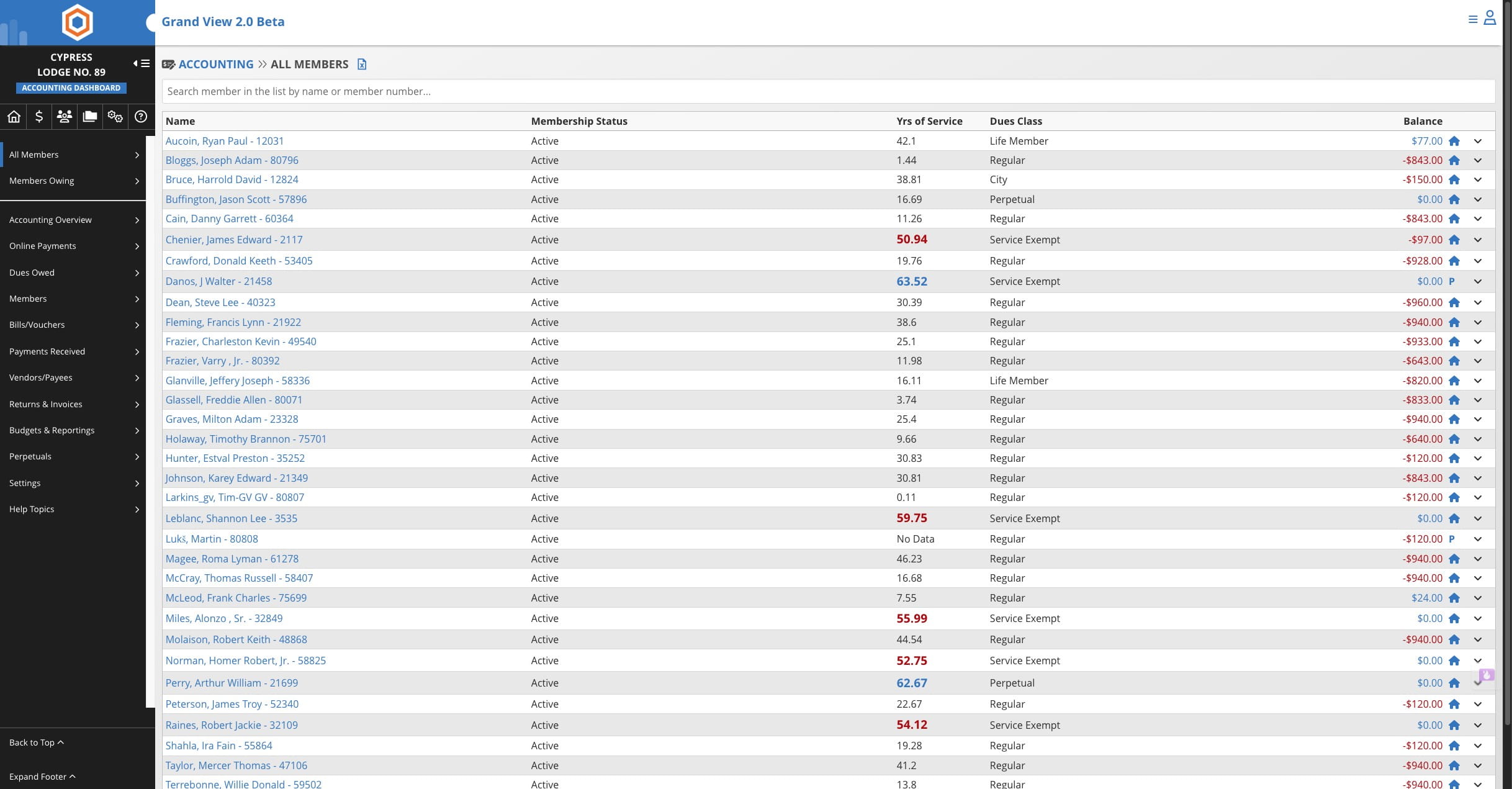
Click on the arrow on the far right hand side to expand the member's record
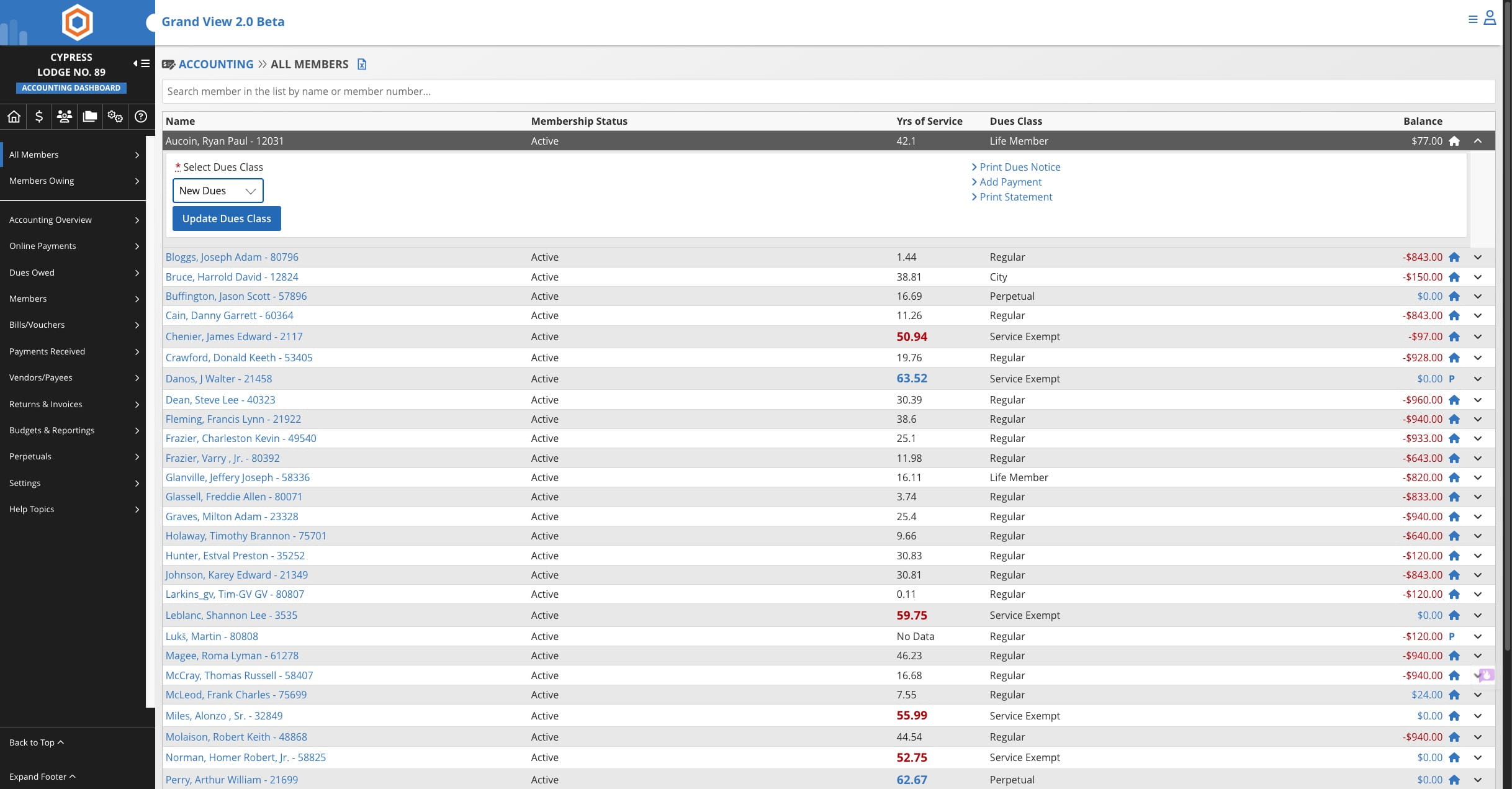
Click on the drop down under "Select Dues Class"
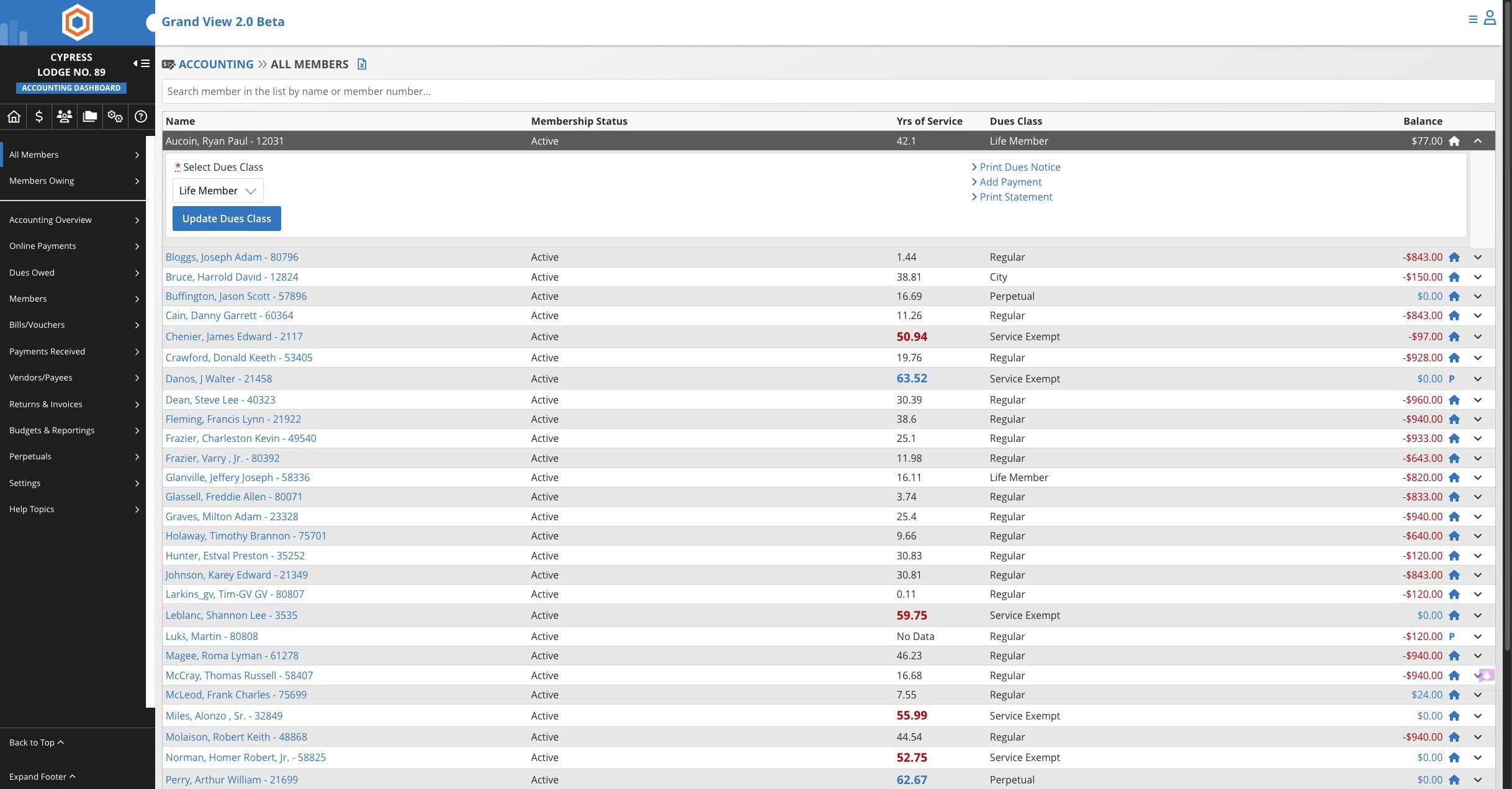
Click on "Update Dues Class"
Option 2 - Update via Member Record
Click on "Members"
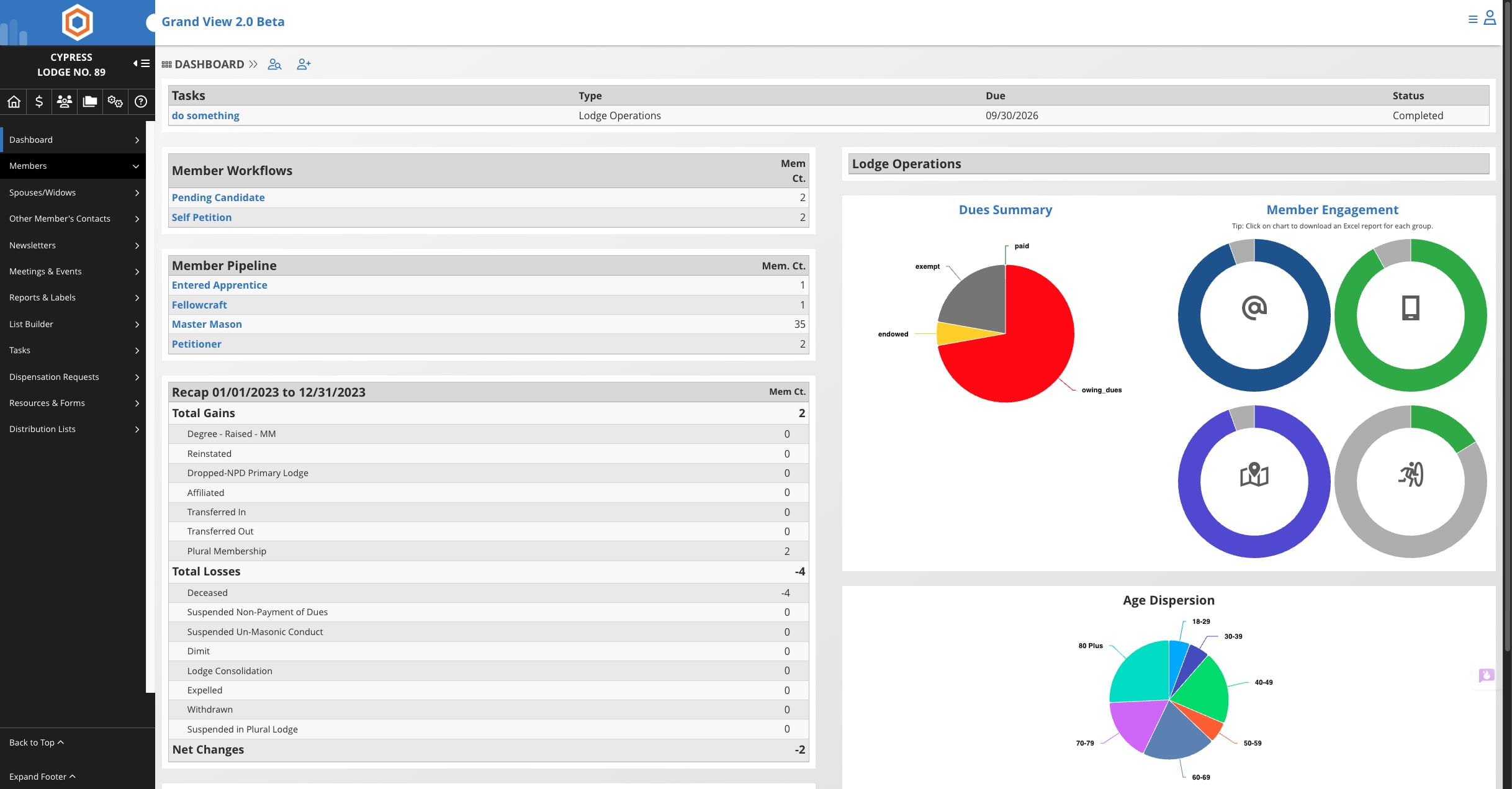
Click on the member's name in the list
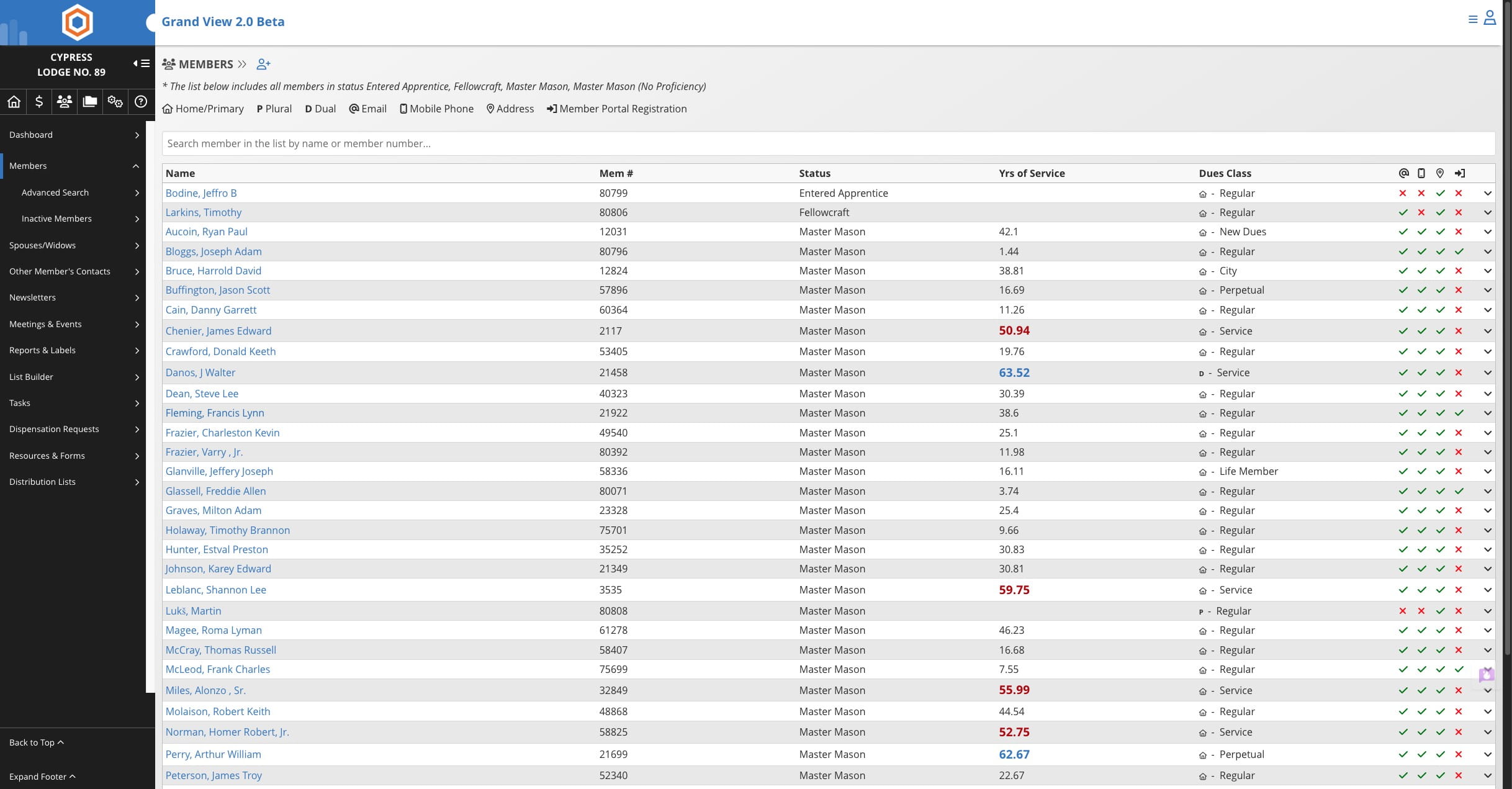
Click on "Memberships"
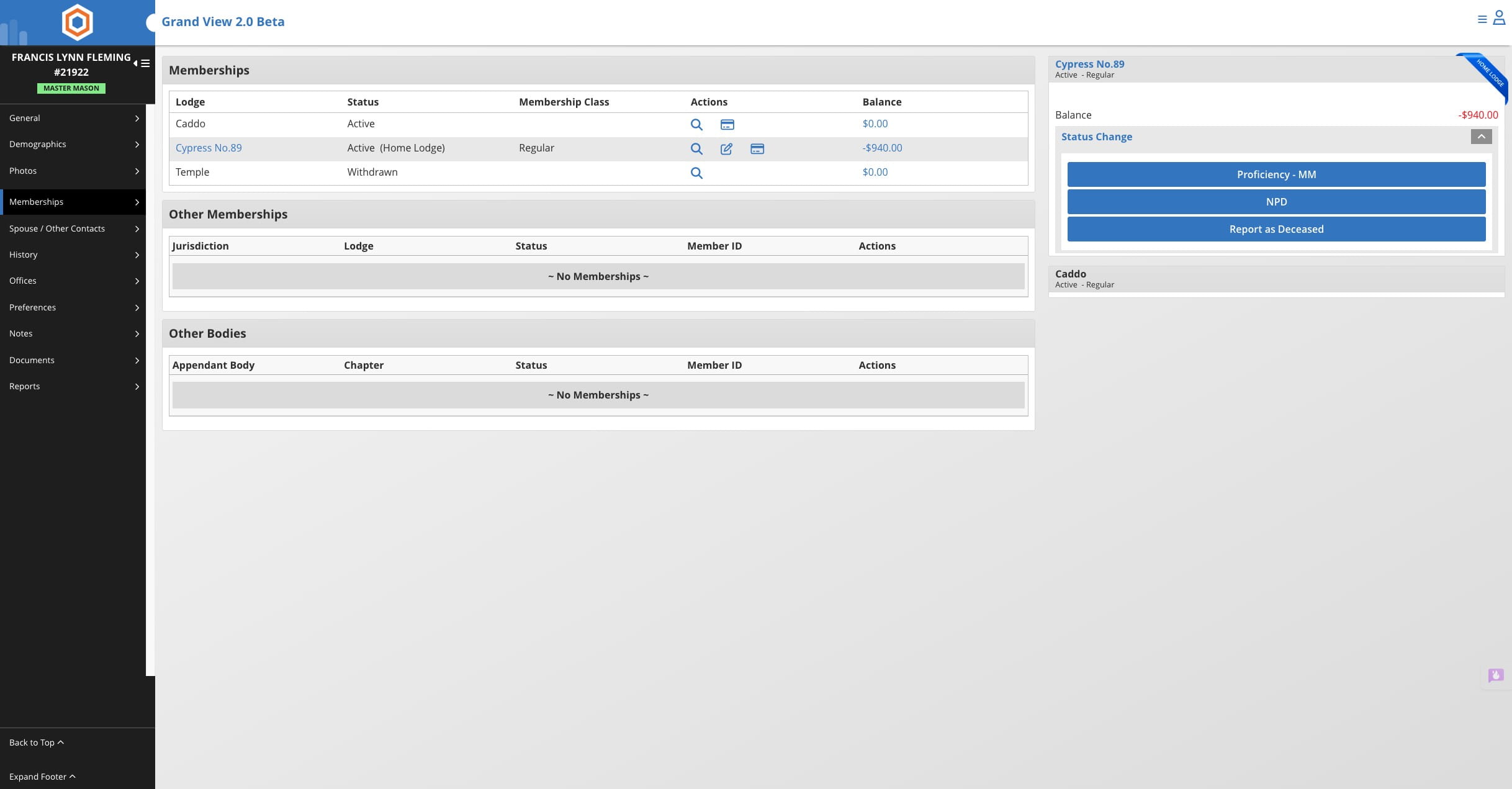
Select the edit icon to modify the membership details. Note: You can only make changes to memberships for lodges where you have admin privileges.
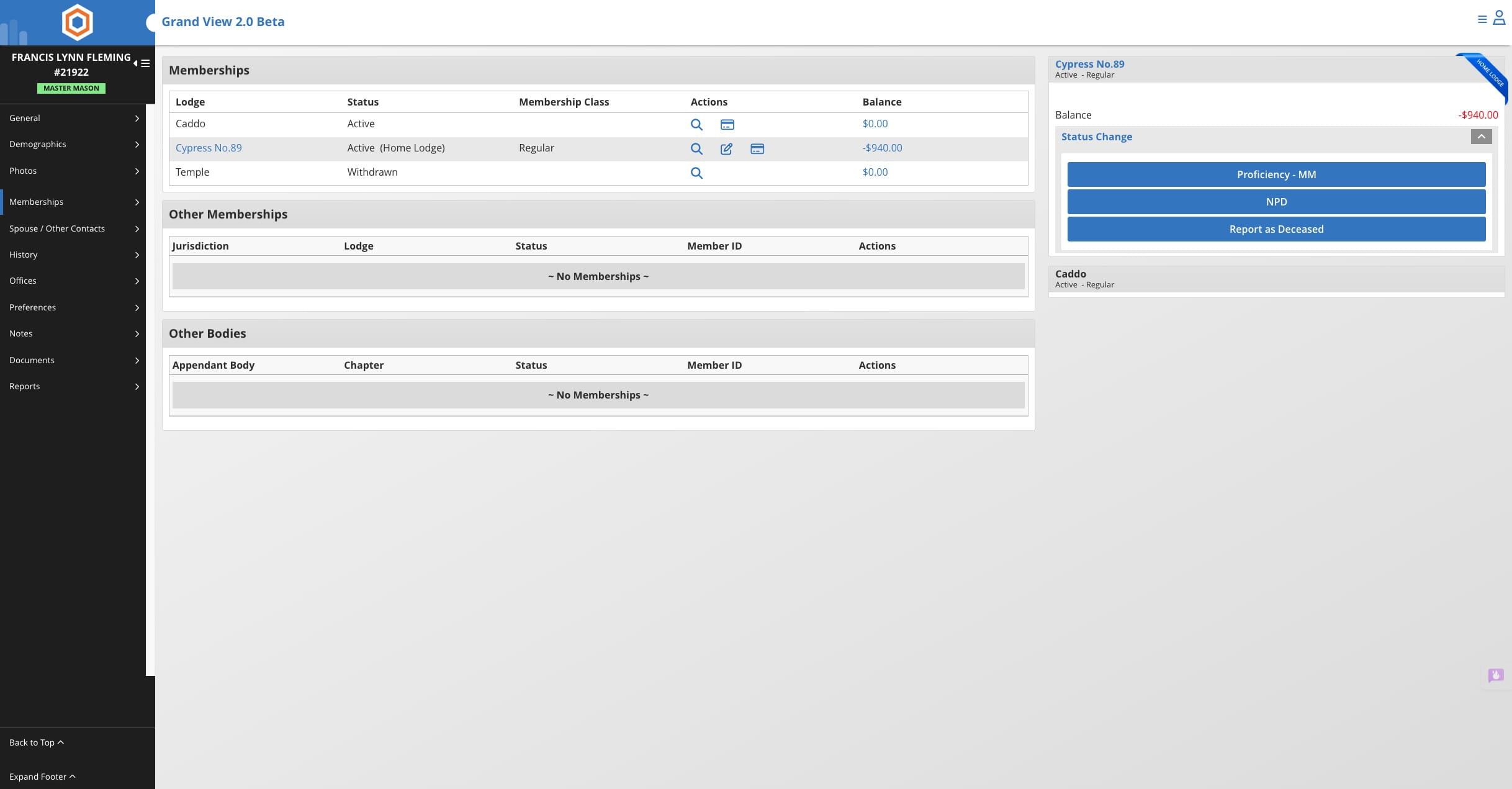
Click on the dues class drop down and select new dues class
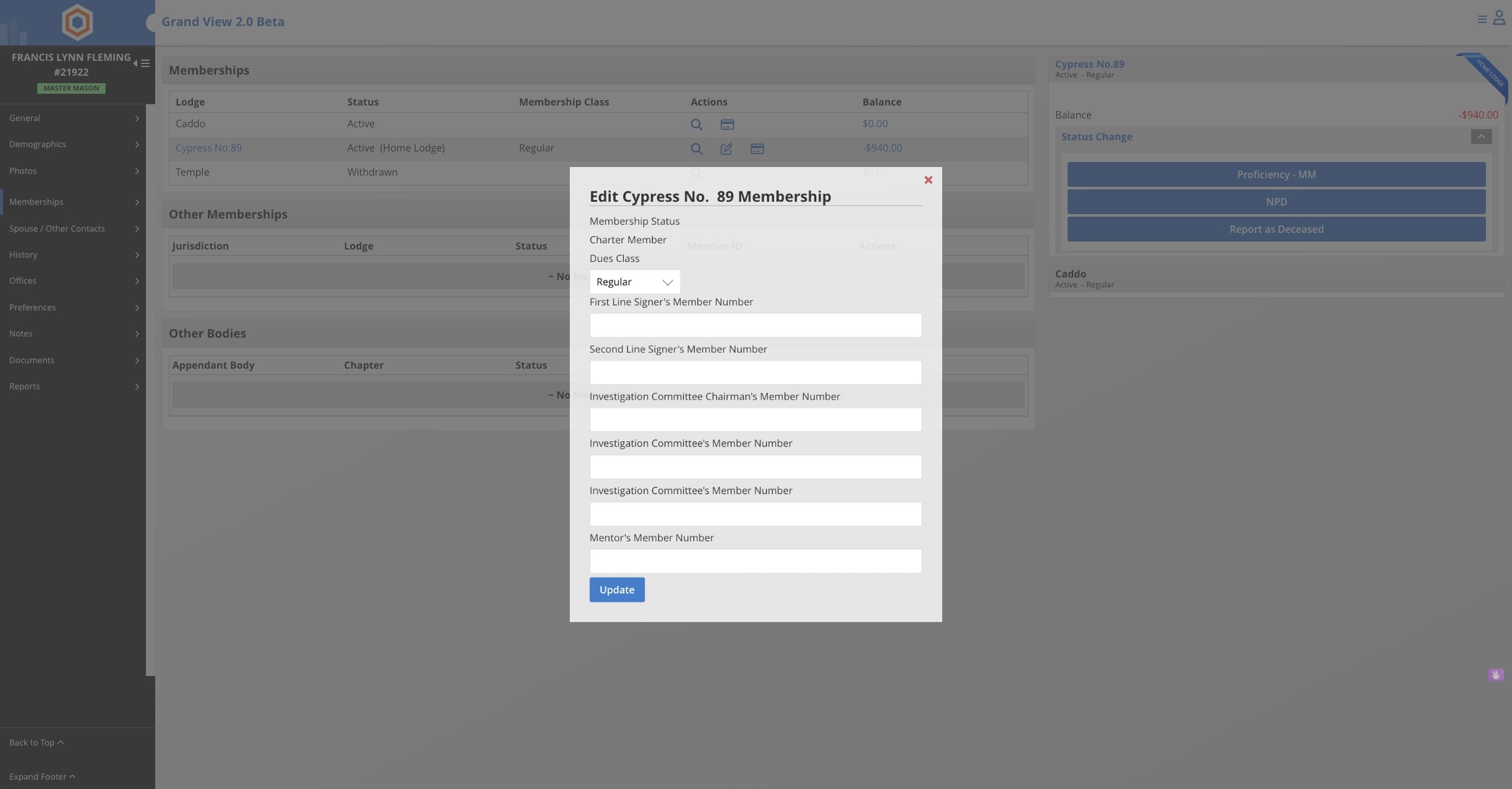
Click update to save changes